
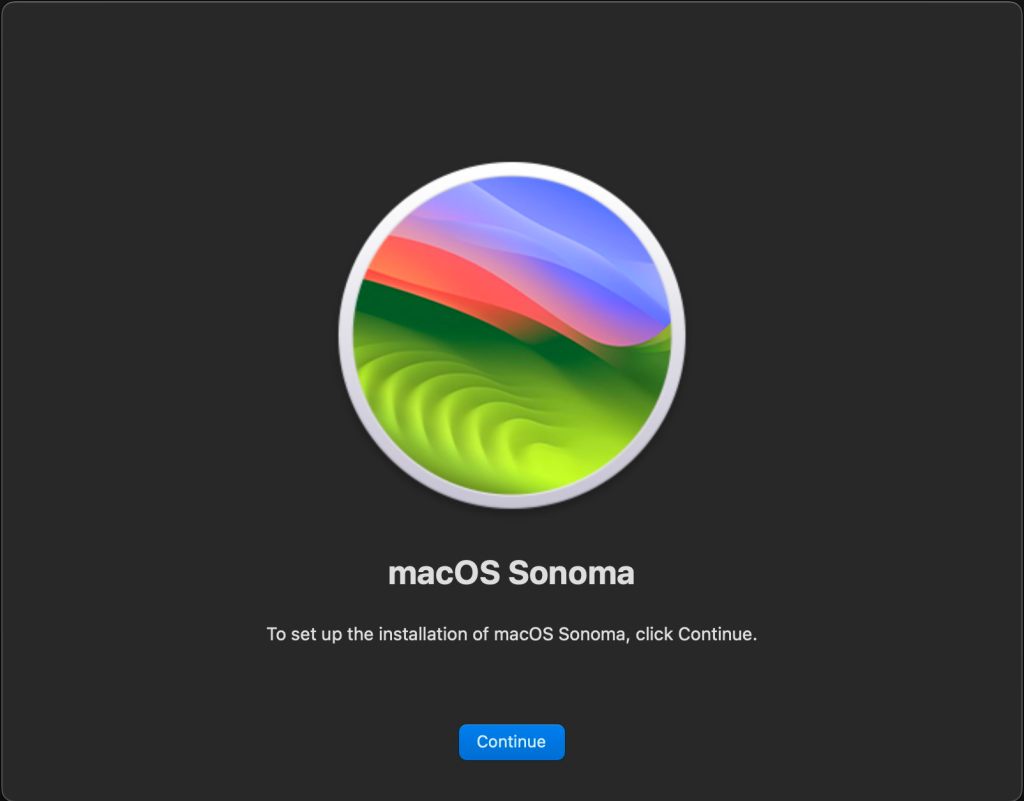
A major new release of macOS used to be an opportunity for many of us to perform a ‘clean’ install. Following the release of Sonoma, several of you have asked how you can do that now. This article tries to explain what you can do with macOS Big Sur or later on an Intel Mac with a T2 chip, or an Apple silicon Mac. Older Intel Macs become more complicated, so for the moment I’ll avoid them, please.
What is a ‘clean’ install?
Before Catalina complicated it, macOS booted from a single volume containing both the system and user files. Many of us periodically reformatted or erased that volume, installed a fresh copy of macOS, then restored all our user files. This brought three obvious advantages:
- the freshly installed system should be both intact and complete,
- both used and free space were defragmented,
- the opportunity to remove old and unused files and folders from the boot volume.
All Intel Macs with T2 chips and Apple silicon Macs boot from internal SSDs, for which fragmentation is largely irrelevant. Indeed, with SSDs you want to minimise the number of erase-write cycles used, which should make us more reluctant to perform a clean install.
From Big Sur onwards, the system and user files are stored separately, and the System volume has built-in integrity checking to ensure that it’s correct down to the last bit, and matches exactly that intended by Apple, no matter whether it has been installed in a single process, or is the result of a series of macOS updates.
What do you want to ‘clean’?
Although the original reasons for performing a clean install may no longer apply, some still want to erase and install some or all of the contents of their Mac. How you should do that depends on which parts you want to ‘clean’:
- firmware (Apple silicon),
- System volume (SSV),
- Data volume.
Total clean
You can install fresh firmware and wipe and replace both System and Data volumes using a DFU Restore, described here. Apple has improved that in Sonoma, as it’s no longer necessary to use Apple Configurator 2 on the Mac that’s performing this, but it can all be done in the Finder.
Restoring in DFU mode replaces the Mac’s firmware, and erases the boot volume group, leaving that Mac in the same condition in which it was delivered to its first user, with a fresh copy of macOS ready to be personalised and set up. Although that part of the process is fairly quick, full migration is then required before user applications and documents are available.
System and Data volumes
If you can’t, or don’t want to, restore in DFU mode, then you can still erase the System and Data volumes of the boot volume group in Recovery mode. Erasing the volumes is straightforward in Disk Utility: select the volume group, normally named Macintosh HD, and click on the Erase tool.
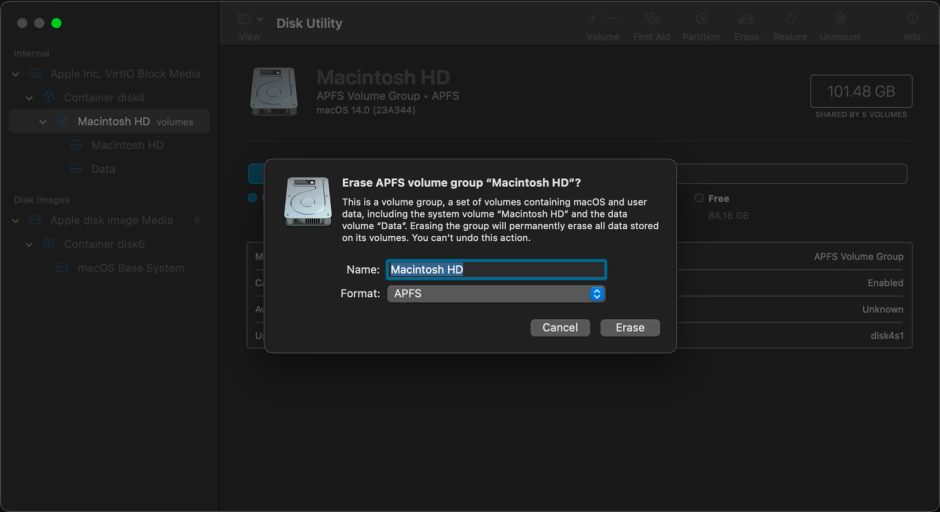
You’ll then be warned that you’re about to erase a volume group, and invited to set its new name and format. Once erased, the procedure differs according to whether this is an Intel or Apple silicon model. For Intel Macs with T2 chips, you should proceed to install macOS in Recovery mode.

Apple recommends a slightly different procedure for Apple silicon Macs. On those, you should be invited to Erase and Restart. Once it has restarted, the Mac will try to activate itself with Apple, over its Wi-Fi, then you should return to Recovery Utilities where you can install macOS.
Note that this procedure doesn’t wipe and reinstall the Preboot or Recovery volumes in the boot volume group; to do that, you’ll need to restore in DFU mode.
System alone
You should never try to erase either the System or Data volume alone, because of their mutual firmlinks. If you want to install a ‘clean’ System volume, then start your Mac up in Recovery mode and use the Reinstall macOS feature there to install a fresh copy. However, that will be bit-for-bit identical to any other copy of that version of macOS, whether it has been installed using the Installer app, updated from a previous version, or installed as part of a restore in DFU mode. That’s guaranteed by its signature, and checked each time your Mac starts up.
Data alone
The same caution applies to attempts to erase the Data volume: the best way of erasing all your Mac’s data is to Erase All Content and Settings, now available in System Settings > General > Transfer or Reset. That works by discarding the volume encryption key for the Data volume, so occurs almost instantly, and without adding many erase-write cycles to age your Mac’s SSD.
Once that’s complete, starting your Mac up will take you through personalisation and setup, as if it were new, and the opportunity to migrate your user data from a backup or copy.
Conclusion
There are several ways in which you might ‘clean’ install a modern version of macOS on an Intel Mac with a T2 chip, or an Apple silicon Mac. Each has its uses, but none of them brings the advantages that a ‘clean’ install had in the past. There is seldom any need now to go to those lengths, thanks to the way that macOS works, its thorough integrity checking, and the general use of SSDs.

