
Earlier this week, I looked at how much free space you might need to upgrade to Sonoma, and how to boost it quickly. While hunting down large files is a housekeeping task that you can’t accomplish in a few minutes, some, including the ever-helpful @rosyna, have suggested that deleting cache files using Safe mode is another aid. While it could be, this article explains why its value is unpredictable.
Safe mode
Accessing Safe mode on an Intel is simple: restart your Mac with the Shift key held down until it indicates that it’s entering the mode. On an Apple silicon Mac it’s a tad more fiddly, in that you have to shut your Mac down and start it up in Recovery before selecting the boot disk, holding the Shift key and clicking on the button to Continue in Safe Mode.
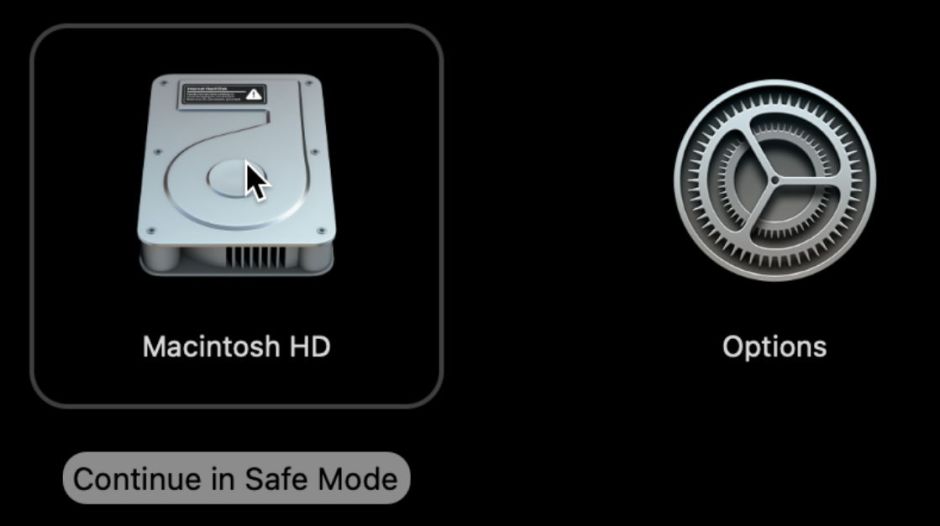
Your Mac will then restart, and you should confirm in System Information that it’s in Safe mode. Open System Information, click on Software at the left, and the line Boot Mode should say Safe rather than Normal.
Apple’s detailed account explains that Safe mode:
- “prevents your Mac from loading certain software when it starts up, including login items, system extensions not required by macOS, and fonts not installed by macOS”
- “does a basic check of your startup disk, similar to using First Aid in Disk Utility”
- “deletes some system caches, including font caches and the kernel cache, which will be created again automatically as needed”
- “some features may not work in safe mode, such as film playback in DVD Player, video capture, file sharing, Wi-Fi, some accessibility features, some audio devices and some devices that connect via USB, Thunderbolt or FireWire”
- “accelerated graphics are disabled, which can cause flashing or distortion of your screen during startup.”
Sadly, no further details are given of the third item, which concerns us here.
Clearing font caches can be advantageous in other circumstances, but isn’t likely to free up much storage space. “The kernel cache” presumably refers to prelinked kernelcaches used to accelerate the boot process, but since Big Sur they have been replaced by kernel collections, and are now unlikely to free much space either.
CacheDelete and purgeable space
Potentially the largest space that could be freed in Safe mode is that consumed by user caches, particularly those managed by CacheDelete through the deleted service.
CacheDelete isn’t started until after user login, and (with the exception of its privileged helper deleted_helper) runs in user mode on services and locations owned by that user. The best way to appreciate how active CacheDelete is in Safe mode is to compare that with standard mode. In the latter, CacheDelete first works through its property lists to build its database of services whose purgeable data it manages. It then lists the latest information it has on those services and their caches. Once that’s completed, it checks each of those standard services for shared purgeable and nonpurgeable space, just once, then announces updated totals for purgeable space. The whole sequence is likely to take around 0.3 seconds to complete.
After login in Safe mode, CacheDelete completes a similar initialisation, then proceeds to perform multiple passes through all the services whose caches it manages, first to establish what is purgeable and what is not, then to refresh what it can. Many of those are performed in conjunction with iCloudNotificationAgent, and at different levels of urgency, from 1 to 3. At the end of a period of 20 seconds or more, CacheDelete returns with a set of updated values that may be worse than those it started with, but should be more accurate in the event that macOS needs to free up purgeable space to accommodate an important demand on free space.
Purgeable space is normally displayed in the Get Info dialog for each volume, and in Disk Utility.


It’s important to remember that the amount of space stated as Available already includes that given as purgeable.
In practice, the total purgeable space of any volume consists of several compartments, including
- user service caches managed by CacheDelete;
- local copies of files held in iCloud Drive, which can be evicted to iCloud;
- local copies of iCloud content, including media and App Store apps, which can also be evicted;
- Time Machine snapshots of that volume.
CacheDelete is concerned here only with the first of those, and iCloud items won’t be evicted, nor snapshots deleted, at this stage. If you want to tackle those, then my previous article gives more detail.
How much space will be freed?
While evicting items to iCloud and deleting snapshots give you a good idea of the minimum space you’re likely to free, deleting caches is only likely to be able to provide a maximum, and will invariably achieve considerably less. And if that Data volume has little or no purgeable space, then Safe mode isn’t going to create any more.
Summary
- Starting your Mac up in Safe mode will lead to the deletion of some purgeable files.
- At most, it’s only likely to free purgeable space.
- At worst, it may not free any significant storage space.
- It’s worth trying if you’re struggling to recover sufficient free space by deleting snapshots and evicting iCloud files.
 The Eclectic Light Company