
A couple of days ago I explained how you can identify which item is at fault when First Aid or fsck_apfs reports a warning or error, using its inode number. This article extends that to help you tackle some of the more common errors.
If First Aid or fsck_apfs can repair the error, then that volume should be good to return to use. If the error can’t be repaired, start up in Recovery and try again there, using either First Aid in Disk Utility, or fsck_apfs. If it’s only a warning, not an error, and no attempt is made to repair it, then you shouldn’t need to do anything more, other than repeat the check later to ensure that nothing more sinister is developing on that volume.
With APFS warnings and errors, it’s worth keeping a copy of the text so you can refer back to it if you encounter further warnings or errors when you next check that volume.
Just to remind you, to convert from inode number to file path, you need to assemble the Terminal command
GetFileInfo /.vol/[volnumber]/[inode]
where volnumber is the volume number copied from Precize for another file on the same volume, and inode is the number given in the error or warning.
Now that you know what file or folder resulted in the error or warning, you need to decide whether you can do anything about it. This is most important when you keep seeing similar errors, so that you can prevent them from happening in the first place.
Is the item in a snapshot?
Checking snapshot 2 of 23 (com.apple.TimeMachine.2023-08-27-072736.local)

warning: inode (id 113812826): Resource Fork xattr is missing for compressed file
Snapshots are a special case, as they’re intended to be read-only, so are most unlikely to be repairable. If this is a snapshot on a volume that is backed up by Time Machine or another utility, then the only way that you’ll fix this is by deleting that snapshot. Don’t do this, though, if the snapshot is on the volume storing your backups, as you’d be deleting one of those backups.
If this problem recurs in other snapshots, then it most probably reflects a problem in the file in the snapshot. Is it perhaps a large virtual machine (VM) or something similar? Keep your VMs on a separate volume which you exclude from backups, because of the many problems they can cause. The best way to back up a VM is when it’s shut down, as a simple copy to a separate backup storage volume. You can do the same with any other file that seems to be the cause of repeated problems in snapshots: move it to a separate volume that’s in Time Machine’s list of excluded items, and make arrangements for that volume to be backed up separately when the files aren’t in use.
Is the item in a Spotlight index?
Several of those who report repeated warnings or errors in APFS trace them to part of the Spotlight indexes on that volume, which are stored at the top level of all indexed volumes, in the hidden folder .Spotlight-V100. If that’s the case, your next move is to force those indexes to be rebuilt, in the hope that fixes the problem.
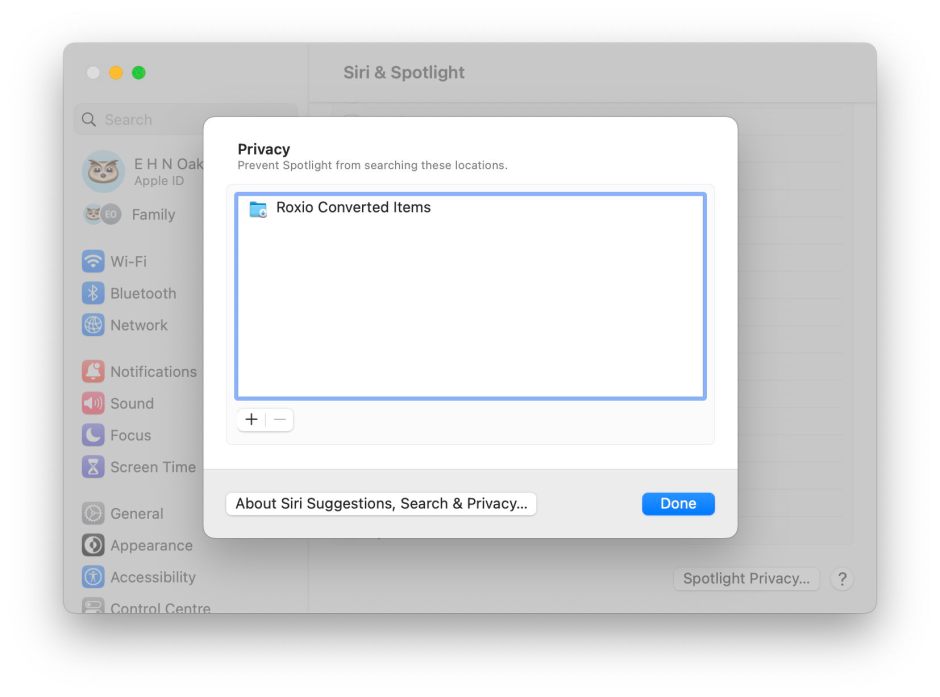
To do that, open Siri & Spotlight settings, and click the Spotlight Privacy… button at the foot of its window. Use the + tool to add the volume on which the problems have been occurring, then close those settings. Leave your Mac for a minute or so, open those settings again, select the volume you just added to the list, and use the – tool to remove it. In the next ten minutes or so, check Activity Monitor’s CPU window, where you should see high levels of activity from indexing processes such as mds and mds_stores, that confirm those indexes are being rebuilt.
Is the item in another special folder?
There are other hidden folders with special roles that appear on volumes and could be the source of APFS errors. These include .DocumentRevisions-V100, containing the document version database. If the problem file is inside that, there isn’t much you can do about it. It may be possible to delete the whole folder, but that will destroy all saved versions of documents on that volume.
It’s just a regular file
If the volfs path resolves to a regular file, then maybe deleting that file will stop the problem from recurring. Don’t expect a backup copy of that file to be any different, though, as any problem with that file could easily recur. Getting to the bottom of a recurrent file system error might require the knowledge and skills of an Apple engineer. Consider reporting this using Feedback, as it should then help iron out any remaining bugs in APFS.
Is your Mac running anything that might break files?
As a final thought, you should consider whether any third-party software might be the root cause of the problem. Normally, such products should work at a higher level that isolates them from the file system itself, but there are some surprising exceptions. If you can identify a cause, please inform the developers of that software so that it can be fixed.
One potentially dangerous practice occurs when an older version of APFS changes a newer file system. APFS back in High Sierra and Mojave knew nothing of boot volume groups, firmlinks, or many of the features of more modern versions of APFS. If you really must run different versions of macOS on the same Mac, or shared external storage, avoid such version conflicts, and never run an older version of Disk Utility or fsck_apfs on a newer APFS container or volume.
 The Eclectic Light Company