
The behaviour of Software Update in System Settings and System Preferences isn’t as simple as might appear, and has changed over the years. This article tries to explain what it does in macOS 13 Ventura.
Manual check
Unlike any of the other settings, opening Software Update doesn’t actually reveal any settings, but performs a manual check for software updates. That occurs even if you have disabled all its automatic checks, including that to Check for updates in its settings dialog. There’s no way to avoid that manual check, and when it has been performed, outstanding updates, particularly those to macOS, will be shown there, and indicated by a red badge in System Settings’ icon in the Dock.
Once that badge has been applied, the only way to remove it (other than by successfully installing the updates) is to disable all network connections and open Software Update again: because it’s then unable to connect with Apple’s software update servers, any waiting updates and the Dock badge will be removed until macOS can successfully check for updates again.
Currently, that manual check also triggers an annoying bug: if there are no updates available, when that is reported in the window, the ? Help button is removed. If you want to be able to read the documentation from the window, you will only be able to do so if you click on the Help button before it disappears. Here are links to the two support pages you would be missing:
Older versions of the Software Update pane used to have a separate button to trigger a manual check; Apple has replaced that with a mandatory check whenever you open its settings. However, as I explain later, that manual check isn’t complete, as it doesn’t appear to include some updates that are included in the automatic checks on offer.
Manual updates
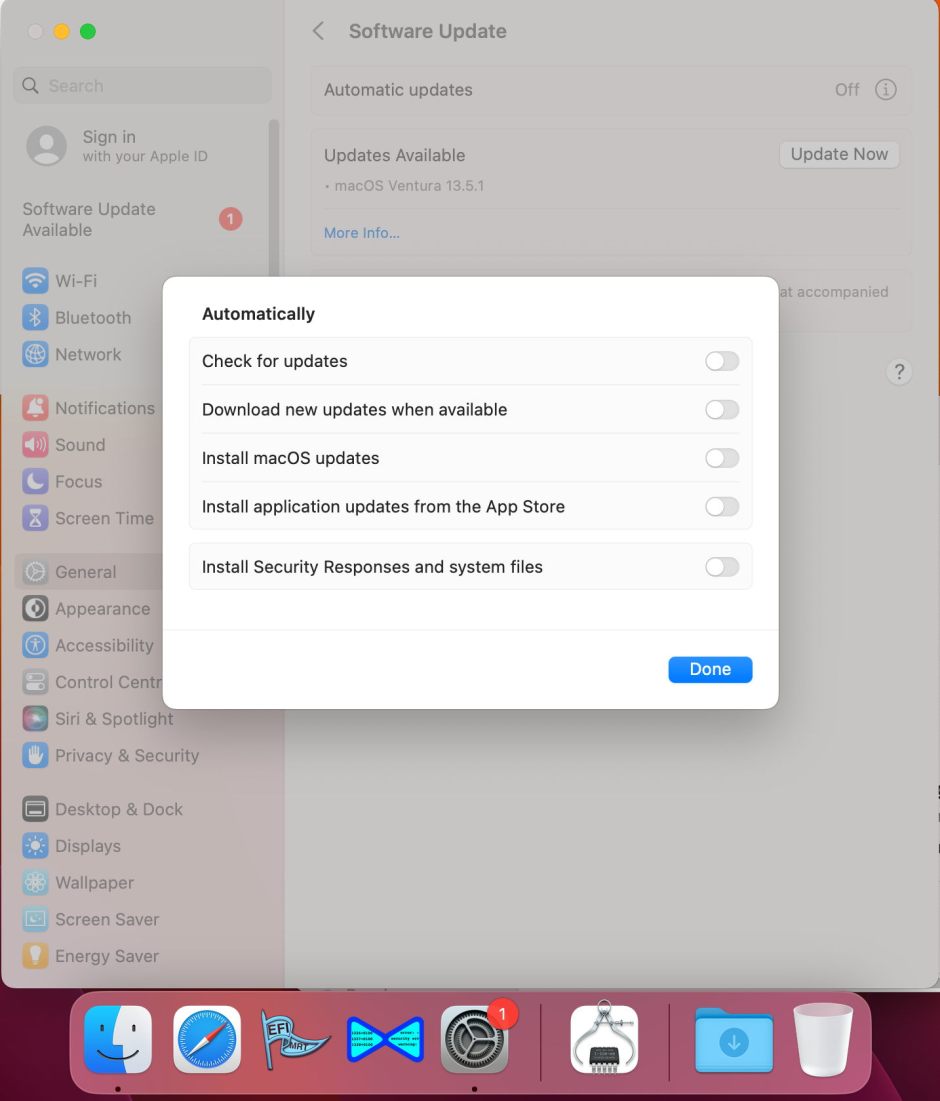
When all the settings for automatic updates are turned off, the user should in theory be offered all updates as they become available, and be able to choose which to download and install manually from those offered in Software Update. Unfortunately, that isn’t what happens, as some available updates aren’t listed by Software Update, but only available by other means.
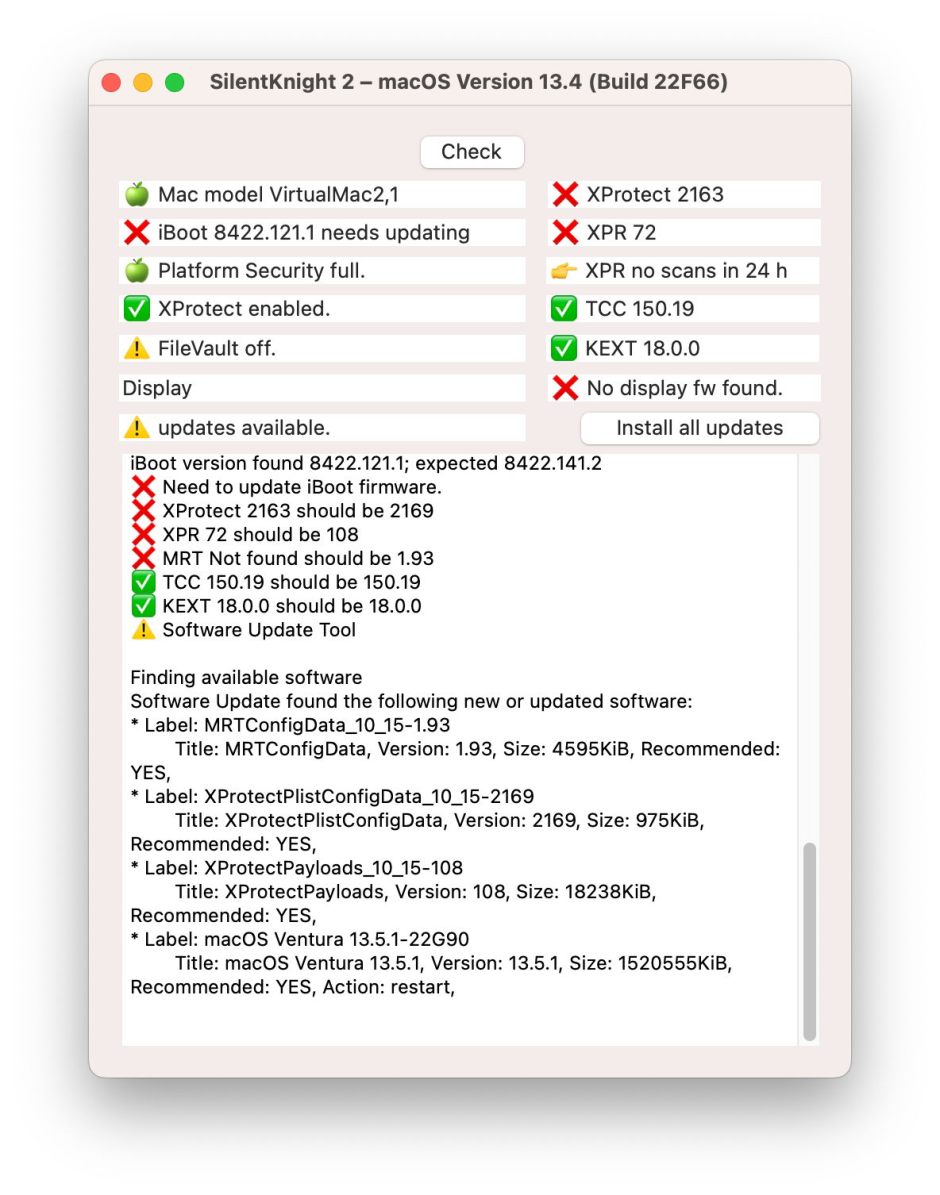
For example, a Mac that is still running macOS 13.4, and hasn’t received any updates to security data such as XProtect and XProtect Remediator, will only be offered the 13.5.1 macOS update following a manual check triggered by opening Software Update settings. Although XProtect and XProtect Remediator updates are delivered and installed individually, they aren’t listed in the updates available. If the 13.5.1 update is installed when automatic updates are all disabled, XProtect and XProtect Remediator aren’t updated, and aren’t offered as updates by Software Update settings.
If you want your Mac to receive updates to security data such as XProtect and XProtect Remediator, then you will need to enable those as automatic updates, or use an alternative method of obtaining them, such as the softwareupdate command tool, or SilentKnight.
Automatic updates
When enabled, these are scheduled and dispatched in the background, almost certainly using the DAS-CTS dispatch system as they have in the past. According to /System/Library/LaunchDaemons/com.apple.softwareupdate.plist, these should occur at intervals of about 6 hours.
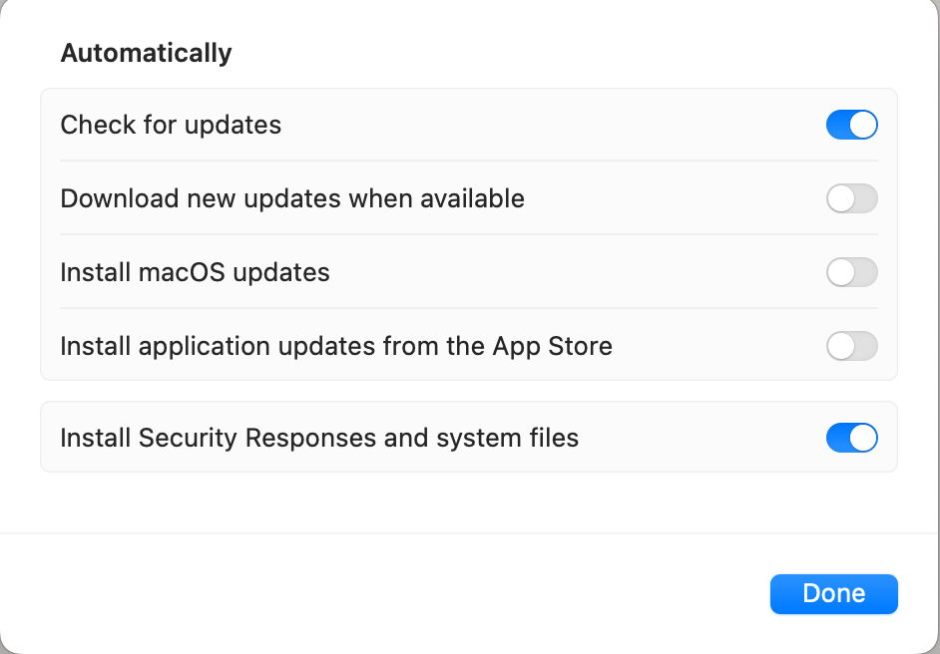
The recommended minimum configuration for automatic updates is to enable:
- Check for updates,
- Install Security Responses and system files.
The latter includes security data such as XProtect and XProtect Remediator. Apple also recommends enabling Download new updates when available, although as that includes potentially large macOS updates, many users would rather not do that.
As these are checked by background services, situations can arise in which checks aren’t made for far longer periods than 6 hours. Those are most likely to occur in notebooks that are usually either asleep or in active use. Although DAS will raise the priority of dispatching checks when they are overdue, that could readily postpone them for several days.
Another problem with automatic updates of security data such as XProtect and XProtect Remediator is that their updates occur silently, and the only way the user can check whether an update has occurred is to check Installations in System Information, to inspect the version numbers of their bundles in the Finder, or with a third-party utility such as SilentKnight.
MRT
Apple hasn’t deprecated its Malware Removal Tool, MRT, but it hasn’t been updated for well over a year, and appears to have been replaced by XProtect Remediator. MRT has been omitted from distributions of Ventura, but is currently installed as an update through Software Update. Apple needs to clarify whether MRT should be installed, and reconsider its distribution policy. It would appear to make best sense to remove it from all Macs running Catalina or later, as they run its successor XProtect Remediator.
Summary
- When you open Software Update settings, macOS immediately performs a partial manual check of available updates. This specifically doesn’t include important security components such as XProtect and XProtect Remediator.
- If you disable all automatic updates, your Mac is unlikely to be offered updates to security components such as XProtect and XProtect Remediator. You will then need to use another method to check for, download and install those updates, or your Mac could fall out of date.
- If you are prepared to enable a minimum of automatic updates, they should include Install Security Responses and system files, although that doesn’t give you control over when those updates occur.
- Software Update settings are in urgent need of revision, to protect users from inadvertently falling behind with updates to important security components.

