
A few people have contacted me recently after they have seen errors reported when checking an APFS volume using First Aid in Disk Utility. Instead of that report giving a file name and path, though, it has given just an inode number, such as:
warning: inode (id 402194151): Resource Fork xattr is missing for compressed file
Before you can decide what to do about that, you need to know which items are causing these errors. This article suggests some ways to do that.
inodes
Every item in an HFS+ or APFS file system has a number unique within that file system (volume), known as its inode. Each volume has its own unique number too, and together they can be used in a low-level file system known as volfs to specify those items uniquely, in a path like
/.vol/16777224/363940889
which refers to the item with an inode of 363940889 on volume 16777224.
Volume numbers start at around hexadecimal 1000000, and the internal Data volume is typically given the decimal number 16777238 (0x1000016) in APFS. Within each volume are two hidden special items, /.file and /.vol/, which can be used to determine the volume inode of that volume.
Inodes and volfs paths aren’t intended for use in the GUI, and aren’t revealed in the Finder’s Get Info dialog, for instance. Unless you have exceptional ability, remembering two very large numbers isn’t a good thing to try. But where a command or script needs to be able to locate precisely the same file wherever it’s gone and whatever name it’s now going under, there’s nothing comparable. Inodes and volfs not only work across different file systems such as APFS and HFS+, but they’re also cross-platform, and common among varieties of Unix and Linux. There’s even an equivalent, the file ID, in Windows.
What you need to do now is convert from a volfs path to a regular APFS path.
Convert from inode to APFS path
You’ll sometimes see Terminal’s find command with the option -inum recommended as a way to convert from an inode to a regular path. Although you can do that, it’s easier to use the command GetFileInfo instead. For that you’ll need the full volfs path, including the volume number.
To find the volume number, use my free utility Precize, and open another file on the same volume. The second line in its window gives the full volfs path for that file. Copy the start of that, leaving the second number, the inode, such as
/.vol/16777238/
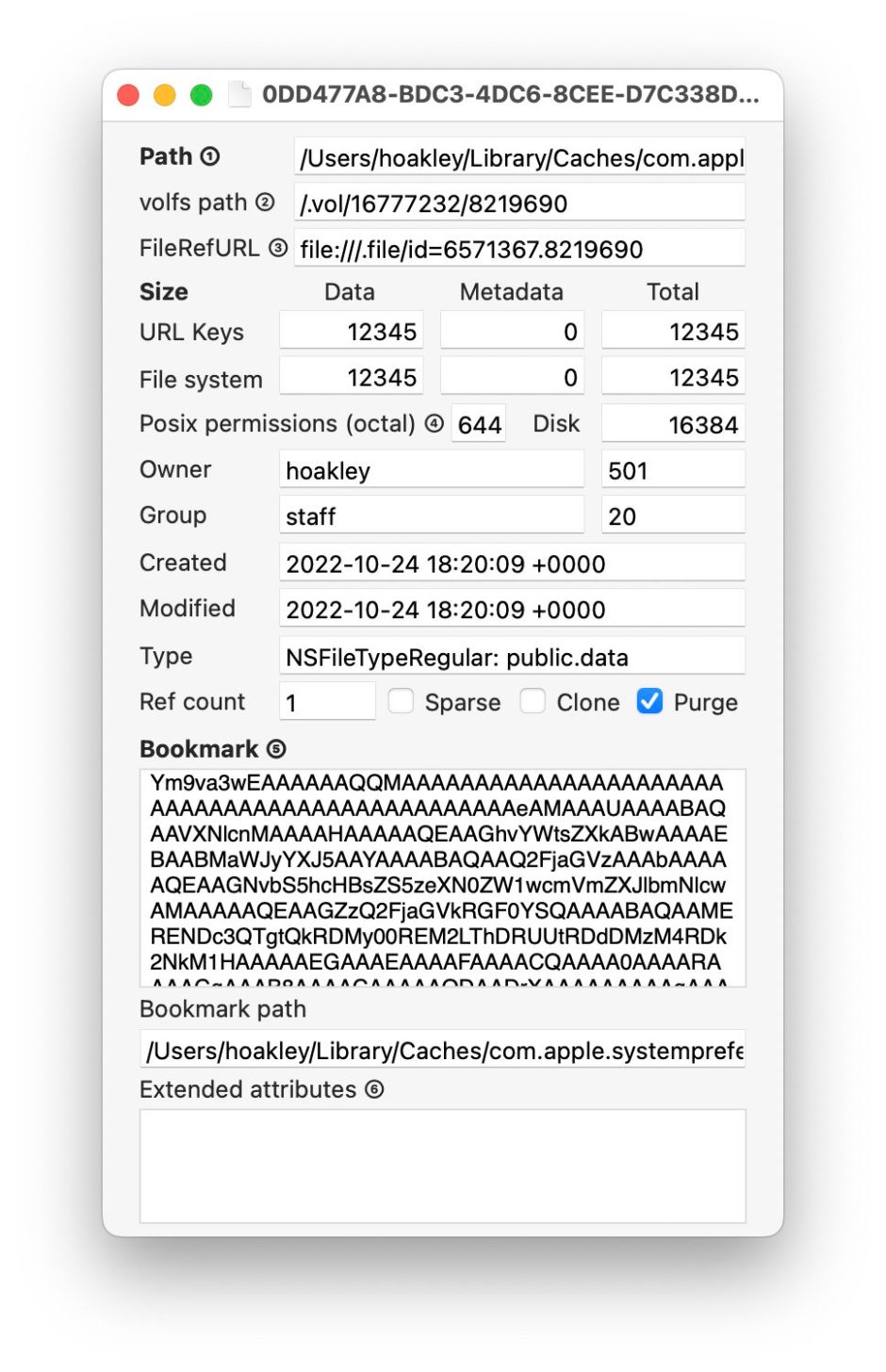
In Terminal, type
GetFileInfo
with a space at the end, and paste the text you copied from Precize. Then copy and paste the inode number given in the First Aid warning, to assemble the whole command
GetFileInfo /.vol/16777238/402194151
Press Return, and after a few seconds, you should see something like
file: "/Users/hoakley/Library/Mobile Documents/com~apple~CloudDocs/backup1/0MintsSpotlightTest4syzFiles/SpotTestA.rtf"

type: "\0\0\0\0"

creator: "\0\0\0\0"

attributes: avbstclinmedz

created: 05/17/2023 08:45:00

modified: 05/17/2023 08:45:00
giving the full path and filename that you want.
GetFileInfo is one of the oldest commands in macOS, and has been deprecated as long as anyone can remember. I suspect that Apple is still trying to work out what can substitute for it.
Get a volfs path for a file
Use Precize to run this the other way around: open the file and read the path in that second line. To copy the whole of it, press Command-2.
The simplest ways of obtaining inodes and so building volfs paths in Terminal are using the -i option to the ls command, and for individual items using stat:
ls -i lists each item in the current directory, giving its inode first, e.g.
22084095 00swift

13679656 Microsoft User Data

22075835 Wolfram Mathematica
and so on;
stat myfile.text returns
16777220 36849933 -rw-r--r-- 1 hoakley staff […] myfile.text
where the first number is the volume number, and the second is the inode of that item, or /.vol/16777220/36849933
APFS stores the inode of each file system object in its record header, in j_inode_key_t/j_key_t
Links and FileRefURL
Hard links show identical inodes to their originals, while symbolic links and Finder aliases both have their own inode numbers, as distinct file system objects which in turn point to other objects. Finder aliases and their data equivalent, Bookmarks, contain the inode number of that item in their _NSURLFileIDKey field. However, their NSURLDocumentIdentifierKey isn’t an inode number, even though it might look like one.
For further confusion, you may also come across Apple’s File Reference URL, which looks like a volfs path, with two reference numbers separated by a period/stop. The first number is a different volume reference number, not the volume number, but the second number is that item’s inode number. In case you were ever to need them, they’re given in the third line in the Precize window.

