
Skip to content

The Eclectic Light Company

Macs & painting – 🦉 No AI content
Main navigation
  • Downloads
  • Freeware
  • M-series Macs
  • Mac Problems
  • Mac articles
  • Macs
  • Art
hoakley July 4, 2023 Macs, Technology

How to diagnose and control login and background items

Many apps now use helper apps and services to handle some of their work. One long-established reason for doing this is when an app needs to do something at a higher level of privilege, typically as root. Rather than the whole app running as root, just the code that needs elevated privilege is moved into a privileged helper. Other helpers might be used to manage a service from the menu bar, or to run a periodic background service.

Diagnosing problems with helper apps and services is extremely difficult, and made harder by the fact that most are now XPC services and only revealed by their entry in Activity Monitor’s lists. When they’re in trouble, they can cause almost anything, including:

  • unexpected or abnormal behaviour,
  • their entry in Activity monitor can take high % CPU and/or memory,
  • spinning beachballs and sluggish performance,
  • general instability.

Safe mode

The most important test to establish whether any such behaviour is likely to be the result of a third-party helper app or service is to start up in Safe mode and demonstrate that the problem disappears then. This is because Safe mode blocks these helper apps and services from being launched. If it doesn’t help, then it doesn’t disprove a helper app or service from being involved, but makes it less likely. Unfortunately, Safe mode doesn’t help you establish what’s the cause, nor what you should do about it.

Which Library?

In the past, most helper apps and services have been run by launchd on the basis of property lists in LaunchDaemons and LaunchAgents folders in the main Library folder, or in ~/Library/LaunchAgents. One good way to distinguish these is to create a new user account and see if the problem affects that too: if it doesn’t, then it’s more likely that the helper app or service is being launched from the Library folder in your Home folder rather than the main Library, in other words that the problem lies somewhere in your Home folder.

Up to and including Monterey, that’s about the most systematic you can be. From there on it’s down to your suspicions, guessing which LaunchAgents and LaunchDaemons are associated with which apps, and striking lucky if it’s a login item, which is more likely to be stored in the app or its supporting folders.

Ventura

Thankfully this has changed in Ventura, in its System Settings > General > Login Items. This is just as well, as from Ventura onwards property lists that previously had to be installed in Library LaunchDaemons and LaunchAgents folders can now be kept inside their app, making them even harder to locate.

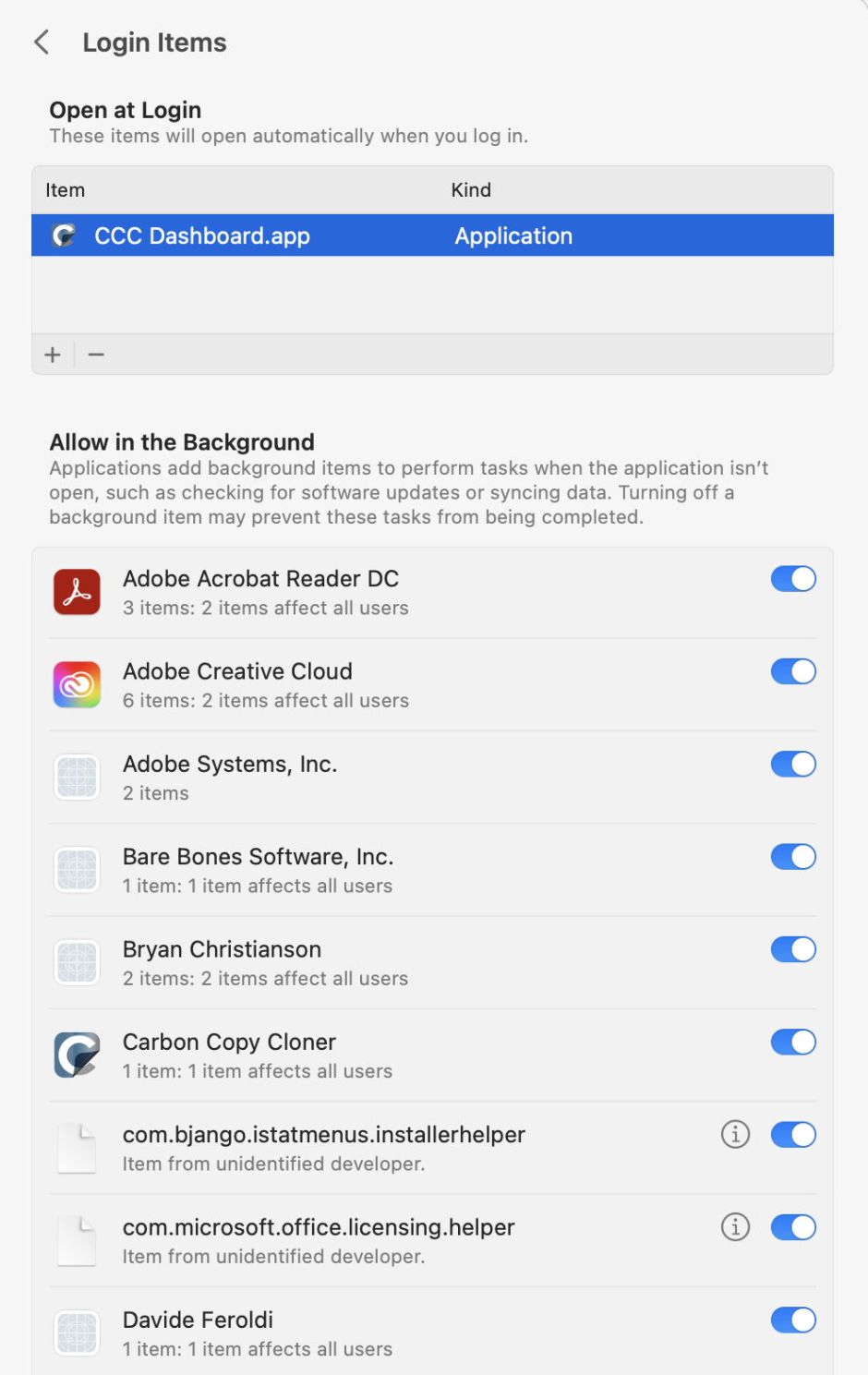
There are two distinct sections in the Login Items settings: at the top is a list of all Login Items currently recognised, and below is the list of Background Items.
loginitems1

Login Items

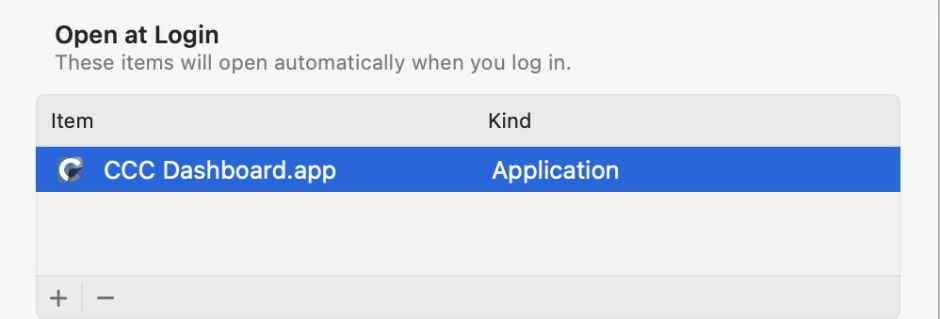
To remove a Login Item, select it in the list and click the – button to delete it. It really is that simple, although removing a Login Item installed by an app is likely to affect what it can do, and how it works. In this case, the Login Item shown starts a helper app for Carbon Copy Cloner; without that, the app loses some of its functionality.
loginitems2

To log in without Login Items being started automatically, press and hold the Shift key when you click on the Log In button, and keep it held until the Dock appears. Existing items won’t be opened until you log in again.

Background Items

If your Mac has been in use some years, or has been migrated from an older system, you’re likely to see many Background Items listed here. However, your control over them is limited: all you can do is turn them off and on. If you try disabling some of them, you may see that they’re automatically re-enabled. Many appear unidentifiable. A few have Info buttons, revealing where they are on your Mac, but many don’t. One useful piece of information given for some is whether that item affects all users, in other words is in a folder outside your Home folder, which includes the main Library and Applications folders.

loginitems3

The nuclear solution is to blow the whole lot away, and start from scratch, but if you don’t then delete those old apps and their components, including property lists and support files tucked away in Application Support, LaunchAgents and LaunchDaemons folders, then many will return to haunt you. To remove all third-party Login Items and reset to installation defaults, you can use the undocumented command
sudo sfltool resetbtm
This uses a command tool originally intended to manage the Shared File List, which has gained additional features covering Service Management, although its man page hasn’t caught up yet and the most help you’ll get is from its usage info.

A better and more systematic approach is to obtain a detailed listing of all those Background Items, and uninstall or delete those you no longer need, or are just old and unnecessary. For this, you need a BTM dump, using another undocumented option to the sfltool command:
sudo sfltool dumpbtm > ~/Documents/btmdump.text
to write it to the text file btmdump.text in your Documents folder. This file is also invaluable if you’re going to nuke Login Items in a reset, as it provides a record of what you might need to restore afterwards.

BTM dump

This lists full Service Management information for every item currently being managed, by user ID. Normally, the two important user IDs would be 0 for root and 501 for the primary admin user, but here the first list, with a UID of -2, appears to be a composite covering most Background Items. You should also check those for the current user, such as 501. A typical entry might be:

#28:
UUID: 58AA238A-CE72-4A09-BB6B-627A0D51CBC0
Name: com.microsoft.autoupdate.helper
Developer Name: Microsoft AutoUpdate
Team Identifier: UBF8T346G9
Type: curated legacy daemon (0x90010)
Disposition: [enabled, allowed, visible, notified] (11)
Identifier: com.microsoft.autoupdate.helper
URL: file:/// Library/LaunchDaemons/com.microsoft.autoupdate.helper.plist
Executable Path: /Library/PrivilegedHelperTools/com.microsoft.autoupdate.helper
Generation: 3
Assoc. Bundle IDs: [com.microsoft.autoupdate2 ]
Parent Identifier: Microsoft AutoUpdate

When removing Background Items, this gives the location of the Property List used by launchd to load them, as the URL, and the location of the executable that is loaded. The Developer Name given is taken from the code signing certificate. The Disposition field is probably most relevant to identifying those causing problems, as it should reflect the status of that entry in the Login Items list, and whether the user has been notified. There’s currently no way to change or correct those, at least using the tools available.

Finally, any changes you make to these items won’t be reflected in the Launch Items lists until Service Management maintenance has been run overnight.

Summary

  • Login and background items can cause a wide range of generic problems.
  • Clues may come from processes in Activity Monitor.
  • Start up in Safe mode to discover whether this is likely to be the result of third-party software rather than the system itself.
  • Create a new user account and log into that to discover whether the culprit is likely to be in ~/Library rather than /Library.
  • In Monterey and earlier, discovering what’s responsible is educated guesswork.
  • In Ventura, use System Settings > General > Login Items
  • Temporarily disable all Login Items by pressing and holding the Shift key when you click on the Log In button, and keep it held until the Dock appears (Ventura).
  • If the responsible Background Item isn’t obvious, obtain a BTM dump and browse that (Ventura).

Further reading

Apple’s traditional approach (2016)
New Service Management scheme

Share this:

  • Click to share on X (Opens in new window) X
  • Click to share on Facebook (Opens in new window) Facebook
  • Click to share on Reddit (Opens in new window) Reddit
  • Click to share on Pinterest (Opens in new window) Pinterest
  • Click to share on Threads (Opens in new window) Threads
  • Click to share on Mastodon (Opens in new window) Mastodon
  • Click to share on Bluesky (Opens in new window) Bluesky
  • Click to email a link to a friend (Opens in new window) Email
  • Click to print (Opens in new window) Print
Like Loading...

Related

Posted in Macs, Technology and tagged LaunchAgents, launchd, LaunchDaemons, login, Login Item, macOS 13, Service Management, sfltool, troubleshooting, Ventura. Bookmark the permalink.

13Comments

Add yours
  1. 1
    EcleX's avatar
    EcleX on July 4, 2023 at 2:51 pm

    Thanks again for the useful reference article. Twice for the summary!

    LikeLiked by 1 person

    • 2
      hoakley's avatar
      hoakley on July 4, 2023 at 7:50 pm

      Thank you.
      Howard.

      LikeLike

  2. 3
    Don's avatar
    Don on July 4, 2023 at 5:27 pm

    Excellent article thanks as always!

    LikeLiked by 1 person

    • 4
      hoakley's avatar
      hoakley on July 4, 2023 at 7:50 pm

      Thank you.
      Howard.

      LikeLike

  3. 5
    Doug's avatar
    Doug on July 5, 2023 at 11:23 pm

    So, what would you do with an entry like this, since there’s nothing to go look at.

    UUID: F1B97EE8-ECFD-4E81-922F-6BAD4EA5DD2A
    Name: (null)
    Developer Name: (null)
    Type: developer (0x20)
    Disposition: [disabled, allowed, visible, not notified] (2)
    Identifier: Unknown Developer
    URL: (null)
    Generation: 3

    LikeLiked by 1 person

    • 6
      hoakley's avatar
      hoakley on July 6, 2023 at 11:12 am

      Oh. However, there’s one valuable entry there: “disabled”. Maybe that explains the lack of information?
      Howard.

      LikeLike

  4. 7
    Dominik Hoffmann's avatar
    Dominik Hoffmann on July 7, 2023 at 2:39 am

    I am not sure about how, but Apple needs to enforce for developers of any type of background process item to provide the link to the main app. I need to be able to readily tie a LaunchAgent or whatever is listed to the app it belongs to.

    This afternoon I took a while to track down a couple of background process items’s connection to apps. In a couple of cases they were named after the developer (probably the name registered with the developer account used to sign the code). This does not make it easy to identify the provenance of the code. I had only one item that was left over from an app I had once had on a previous computer and since deleted.

    LikeLiked by 1 person

    • 8
      hoakley's avatar
      hoakley on July 7, 2023 at 7:46 am

      Thank you.
      The problem with naming has been put to Apple, but in many cases I don’t think it can do any better.
      This should all improve as we move to more modern apps.
      Howard.

      LikeLike

  5. 9
    Joao's avatar
    Joao on July 10, 2023 at 2:57 pm

    Can the “Mac Evaluation Utility” from Apple also report on all login items? I can see it on my report all Apps I’m aware, inclusive Login Items like /Applications/Setapp/AlDente Pro.app

    LikeLiked by 1 person

    • 10
      hoakley's avatar
      hoakley on July 10, 2023 at 3:45 pm

      I’m sorry, that’s a utility only available to AppleSeed sites. I don’t have access to that, nor do most with Macs.
      Howard.

      LikeLike

  6. 11
    Michael Tsai - Blog - How to Diagnose and Control Login and Background Items on July 11, 2023 at 7:01 pm

    […] Howard Oakley: […]

    LikeLike

  7. 12
    hmijail's avatar
    hmijail on July 19, 2023 at 10:50 am

    Here’s something curious: I got an app (“Home Assistant”, open source and available in brew) that keeps restarting by itself every few hours, even though it’s disabled in the “Allow in the Background” list, not present in the “Open at Login” list and not present in Activity Monitor. If this was malware this would be a bad situation!
    KnockKnock doesn’t show anything that could cause it to start. Neither does Lingon X.
    After much testing, I managed to isolate it to Home Assistant being enabled in Privacy & Security/Focus. Once I disabled it there, the auto-starting stopped.
    Any idea whether the OS somehow runs apps that are registered there? I haven’t seen any mention of something like this anywhere!

    LikeLiked by 1 person

    • 13
      hoakley's avatar
      hoakley on July 19, 2023 at 2:23 pm

      I’m sorry, but I haven’t a clue. It seems rather strange to me, but I know little about how Focus is implemented.
      Howard.

      LikeLike

·Comments are closed.

Quick Links

  • Free Software Menu
  • System Updates
  • M-series Macs
  • Mac Troubleshooting Summary
  • Mac problem-solving
  • Painting topics
  • Painting
  • Long Reads

Search

Monthly archives

  • December 2025 (51)
  • November 2025 (74)
  • October 2025 (75)
  • September 2025 (78)
  • August 2025 (76)
  • July 2025 (77)
  • June 2025 (74)
  • May 2025 (76)
  • April 2025 (73)
  • March 2025 (78)
  • February 2025 (67)
  • January 2025 (75)
  • December 2024 (74)
  • November 2024 (73)
  • October 2024 (78)
  • September 2024 (77)
  • August 2024 (75)
  • July 2024 (77)
  • June 2024 (71)
  • May 2024 (79)
  • April 2024 (75)
  • March 2024 (81)
  • February 2024 (72)
  • January 2024 (78)
  • December 2023 (79)
  • November 2023 (74)
  • October 2023 (77)
  • September 2023 (77)
  • August 2023 (72)
  • July 2023 (79)
  • June 2023 (73)
  • May 2023 (79)
  • April 2023 (73)
  • March 2023 (76)
  • February 2023 (68)
  • January 2023 (74)
  • December 2022 (74)
  • November 2022 (72)
  • October 2022 (76)
  • September 2022 (72)
  • August 2022 (75)
  • July 2022 (76)
  • June 2022 (73)
  • May 2022 (76)
  • April 2022 (71)
  • March 2022 (77)
  • February 2022 (68)
  • January 2022 (77)
  • December 2021 (75)
  • November 2021 (72)
  • October 2021 (75)
  • September 2021 (76)
  • August 2021 (75)
  • July 2021 (75)
  • June 2021 (71)
  • May 2021 (80)
  • April 2021 (79)
  • March 2021 (77)
  • February 2021 (75)
  • January 2021 (75)
  • December 2020 (77)
  • November 2020 (84)
  • October 2020 (81)
  • September 2020 (79)
  • August 2020 (103)
  • July 2020 (81)
  • June 2020 (78)
  • May 2020 (78)
  • April 2020 (81)
  • March 2020 (86)
  • February 2020 (77)
  • January 2020 (86)
  • December 2019 (82)
  • November 2019 (74)
  • October 2019 (89)
  • September 2019 (80)
  • August 2019 (91)
  • July 2019 (95)
  • June 2019 (88)
  • May 2019 (91)
  • April 2019 (79)
  • March 2019 (78)
  • February 2019 (71)
  • January 2019 (69)
  • December 2018 (79)
  • November 2018 (71)
  • October 2018 (78)
  • September 2018 (76)
  • August 2018 (78)
  • July 2018 (76)
  • June 2018 (77)
  • May 2018 (71)
  • April 2018 (67)
  • March 2018 (73)
  • February 2018 (67)
  • January 2018 (83)
  • December 2017 (94)
  • November 2017 (73)
  • October 2017 (86)
  • September 2017 (92)
  • August 2017 (69)
  • July 2017 (81)
  • June 2017 (76)
  • May 2017 (90)
  • April 2017 (76)
  • March 2017 (79)
  • February 2017 (65)
  • January 2017 (76)
  • December 2016 (75)
  • November 2016 (68)
  • October 2016 (76)
  • September 2016 (78)
  • August 2016 (70)
  • July 2016 (74)
  • June 2016 (66)
  • May 2016 (71)
  • April 2016 (67)
  • March 2016 (71)
  • February 2016 (68)
  • January 2016 (90)
  • December 2015 (96)
  • November 2015 (103)
  • October 2015 (119)
  • September 2015 (115)
  • August 2015 (117)
  • July 2015 (117)
  • June 2015 (105)
  • May 2015 (111)
  • April 2015 (119)
  • March 2015 (69)
  • February 2015 (54)
  • January 2015 (39)

Tags

APFS Apple Apple silicon backup Big Sur Blake Bonnard bug Catalina Consolation Console Corinth Delacroix Disk Utility Doré El Capitan extended attributes Finder firmware Gatekeeper Gérôme High Sierra history of painting iCloud Impressionism landscape LockRattler log M1 Mac Mac history macOS macOS 10.12 macOS 10.13 macOS 10.14 macOS 10.15 macOS 11 macOS 12 macOS 13 macOS 14 macOS 15 malware Metamorphoses Mojave Monet Monterey Moreau myth narrative OS X Ovid painting performance Pissarro Poussin privacy Renoir riddle Rubens Sargent security Sierra SilentKnight Sonoma SSD Swift Time Machine Tintoretto Turner update upgrade Ventura xattr Xcode XProtect

Statistics

  • 20,914,762 hits
Blog at WordPress.com.
Footer navigation
  • Free Software Menu
  • About & Contact
  • Macs
  • Painting
  • Downloads
  • Mac problem-solving
  • Extended attributes (xattrs)
  • Painting topics
  • SilentKnight, Skint, SystHist, silnite, LockRattler & Scrub
  • DelightEd & Podofyllin
  • xattred, SpotTest, Spotcord, Metamer & xattr tools
  • 32-bitCheck & ArchiChect
  • XProCheck, T2M2, LogUI, Ulbow, blowhole and log utilities
  • Cirrus & Bailiff
  • Precize, Alifix, UTIutility, Sparsity, alisma, Taccy, Signet
  • Versatility & Revisionist
  • Text Utilities: Textovert, Nalaprop, Dystextia and others
  • PDF
  • Keychains & Permissions
  • Updates
  • Spundle, Cormorant, Stibium, DropSum, Dintch, Fintch and cintch
  • Long Reads
  • Mac Troubleshooting Summary
  • M-series Macs
  • Mints: a multifunction utility
  • VisualLookUpTest
  • Virtualisation on Apple silicon
  • System Updates
  • Saturday Mac Riddles
  • Last Week on My Mac
  • sysctl information
Secondary navigation
  • Search

Post navigation

Trojan Epics: 19 Reclaiming the throne
Ukrainian Painters: Wladimir Baranoff-Rossiné

Begin typing your search above and press return to search. Press Esc to cancel.

  • Reblog
  • Subscribe Subscribed
    • The Eclectic Light Company
    • Join 8,873 other subscribers
    • Already have a WordPress.com account? Log in now.
    • The Eclectic Light Company
    • Subscribe Subscribed
    • Sign up
    • Log in
    • Copy shortlink
    • Report this content
    • View post in Reader
    • Manage subscriptions
    • Collapse this bar
 

Loading Comments...
 

    %d