
Skip to content

The Eclectic Light Company

Macs & painting – 🦉 No AI content
Main navigation
  • Downloads
  • Freeware
  • M-series Macs
  • Mac Problems
  • Mac articles
  • Macs
  • Art
hoakley February 15, 2023 Macs, Technology

Controlling Login and Background Items in Ventura

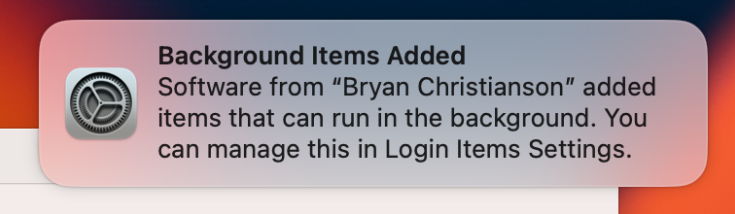
Prior to Ventura, control of Login Items was rudimentary and limited. Most of them weren’t exposed to the user at all, and those you were allowed to see were buried in a tab only displayed for Admin users in the Users & Groups preference pane. Ventura changes this by giving fuller access, but for many of the items listed it’s only more frustrating. It’s even worse for some users, who are repeatedly troubled by spurious notifications about adding Login or Background Items at every startup. This article explains what’s going on, and how you can regain control.
loginitems0

Ventura’s new Login Items is misnamed from the start, as they also include Background Items. If you see lots of notifications immediately after you log in, those identified as either Login or Background Items are originating from these settings, in System Settings > General > Login Items.

Login Items are apps started automatically by launchd when that user logs in, and continue running until you quit that app manually or log out again. They normally help the system to run other, often faceless, apps and services automatically.

Background Items are processes started and managed by launchd according to property lists normally (but no longer exclusively) installed in LaunchAgents and LaunchDaemons folders in either the top-level Library folder, or that inside your Home folder. These should be faceless services that interact with apps and other software, including Login Items, to provide them with services. For example, when an app has to perform tasks as root, a suitably privileged helper may be run in the background for the purpose.

While you can add your own apps and more as Login Items, and configure tasks to be run in the background, most of these are installed by regular apps you install into the main Applications folder. When you run them for the first time, they configure the support files they need, and then appear as Login and Background Items. The way that apps do this has changed in Ventura, and recent versions should start using those newer methods. For the time being, though, most apps will continue using the traditional and complex approach. This change may explain some of the problems arising now.

System Settings

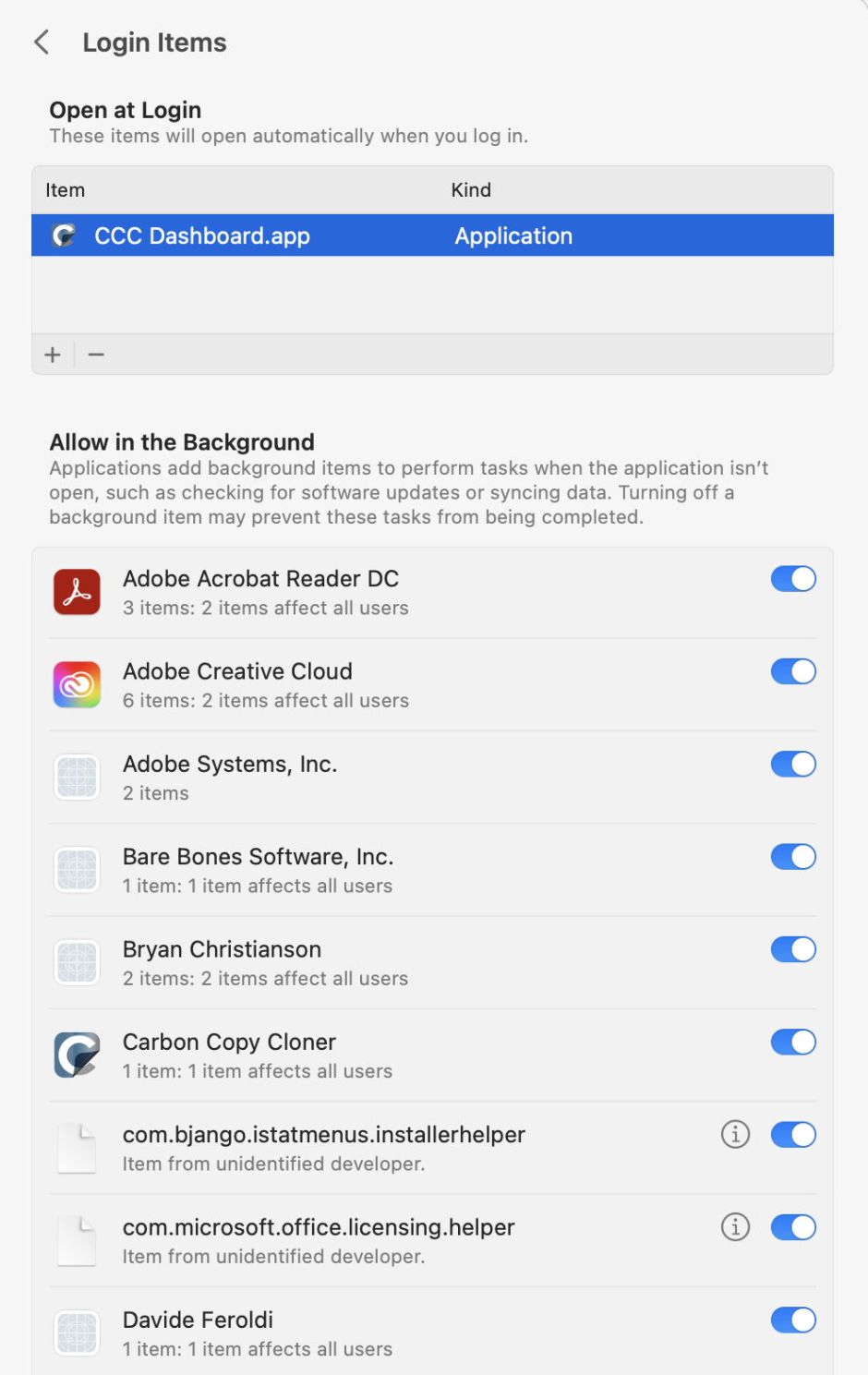
There are two distinct sections in the Login Items settings: at the top is a list of all Login Items currently recognised, and below is the list of Background Items.
loginitems1

Login Items

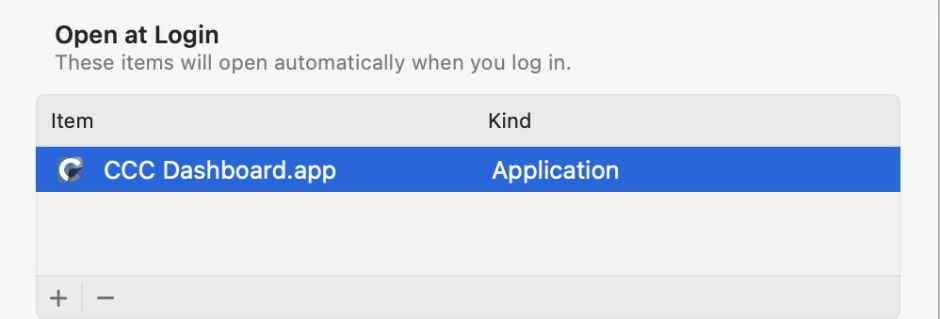
To add an app as a new Login Item, click the + button and select it. To remove a Login Item, select it in the list and click the – button to delete it. It really is that simple, although removing a Login Item installed by an app is likely to affect what it can do, and how it works. In this case, the Login Item shown starts a helper app for Carbon Copy Cloner; without that, the app loses some of its functionality.
loginitems2

If you want to log in without Login Items being started automatically, press and hold the Shift key when you click on the Log In button, and keep it held until the Dock appears. Existing items won’t be opened until you log in again.

Background Items

If your Mac has been in use some years, or has been migrated from an older system, you’re likely to see many Background Items listed here. However, your control over them is limited and may even be illusory. There are no convenient + or – buttons to change the list, and all you can do is turn them off and on. If you try disabling some of them, you may see that they’re automatically re-enabled. Neither does fiddling with those controls help the problem of all those notifications.

loginitems3

Worse still, many of those listed appear unidentifiable. A few have Info buttons, which should at least reveal where they are on your Mac, but that often doesn’t help much, and the most enigmatic don’t have that luxury.

If you do work out which app owns a Background Item and manage to uninstall or remove it, you’ll also notice that the Background Item doesn’t get removed from this list. This is because removed items are only purged during routine maintenance by Service Management, and that normally happens during the night, provided that your Mac is left running and awake. If you do make any changes affecting the list of Background Items, don’t expect to see them until the following morning.

Background problems

Background Items aren’t likely to cause problems on a shiny new Apple silicon Mac that hasn’t been migrated from a previous system, unless you install software which didn’t follow the old rules, let alone the new ones. The best solution then is to thoroughly remove or uninstall that software, and install something more up-to-date and better behaved.

It’s Macs with a longer history, perhaps inherited by migration, that are more likely to annoy you with spurious notifications, and to contain bizarre and unidentifiable Background Items.

The nuclear solution is to blow the whole lot away, and start from scratch, but if you don’t then delete those old apps and their components, including property lists and support files tucked away in Application Support, LaunchAgents and LaunchDaemons folders in Library folders, then many will return to haunt you. To remove all third-party Login Items and reset to installation defaults, you can use the undocumented command
sudo sfltool resetbtm
This uses a command tool originally intended to manage the Shared File List, which seems to have gained additional features covering Service Management, although its man page hasn’t caught up yet and the most help you’ll get is from its usage info.

A better and more systematic approach is to obtain a detailed listing of all those Background Items, and uninstall or delete those you no longer need, or are just old and unnecessary. For this, you need a BTM dump, using another undocumented option to the sfltool command:
sudo sfltool dumpbtm > ~/Documents/btmdump.text
to write it to the text file btmdump.text in your Documents folder. This file is also invaluable if you’re going to nuke Login Items in a reset, as it provides a record of what you might need to restore afterwards.

BTM dump

This lists full Service Management information for every item currently being managed, by user ID. Normally, the two important user IDs would be 0 for root and 501 for the primary admin user, but here the first list, with a UID of -2, appears to be a composite covering most Background Items. You should also check those for the current user, such as 501. A typical entry might be:
#28:
UUID: 58AA238A-CE72-4A09-BB6B-627A0D51CBC0
Name: com.microsoft.autoupdate.helper
Developer Name: Microsoft AutoUpdate
Team Identifier: UBF8T346G9
Type: curated legacy daemon (0x90010)
Disposition: [enabled, allowed, visible, notified] (11)
Identifier: com.microsoft.autoupdate.helper
URL: file:/// Library/LaunchDaemons/com.microsoft.autoupdate.helper.plist
Executable Path: /Library/PrivilegedHelperTools/com.microsoft.autoupdate.helper
Generation: 3
Assoc. Bundle IDs: [com.microsoft.autoupdate2 ]
Parent Identifier: Microsoft AutoUpdate

When removing Background Items, this gives the location of the Property List used by launchd to load them, as the URL, and the location of the executable that is loaded. The Developer Name given is taken from the code signing certificate, and has been criticised as being confusing when presented to users in dialogs.

The Disposition field is probably most relevant to identifying those causing problems, as it should reflect the status of that entry in the Login Items list, and whether the user has been notified. Sadly, there doesn’t appear to be any way to change or correct those, at least using the tools currently available.

Finally, remember that any changes you make to these items won’t be reflected in the Launch Items lists until Service Management maintenance has been run overnight.

While weeding out old software and its Background and Launch Items becomes much easier with the aid of a BTM dump, at the end of your work you may still suffer some notifications about them following login. At least those should be fewer in number.

Key points

  • Login Items contains two lists: Login Items, which are under your control, and Background Items, which can only be turned on and off.
  • Background items are mostly controlled using Property Lists traditionally installed in LaunchAgents and LaunchDaemons folders.
  • Ventura introduces a new scheme for managing Launch and Background Items.
  • Removing old software responsible for Background Items is best performed with the aid of a BTM dump.
  • Obtain a BTM dump before resetting Launch Items to installation defaults.

Further reading

Apple’s traditional approach (2016)
New Service Management scheme

Share this:

  • Click to share on X (Opens in new window) X
  • Click to share on Facebook (Opens in new window) Facebook
  • Click to share on Reddit (Opens in new window) Reddit
  • Click to share on Pinterest (Opens in new window) Pinterest
  • Click to share on Threads (Opens in new window) Threads
  • Click to share on Mastodon (Opens in new window) Mastodon
  • Click to share on Bluesky (Opens in new window) Bluesky
  • Click to email a link to a friend (Opens in new window) Email
  • Click to print (Opens in new window) Print
Like Loading...

Related

Posted in Macs, Technology and tagged LaunchAgents, launchd, LaunchDaemons, login, Login Item, macOS 13, Service Management, sfltool, Ventura. Bookmark the permalink.

59Comments

Add yours
  1. 1
    alricbark's avatar
    Alan B on February 15, 2023 at 8:06 am

    A most useful article. Notifications about VMware Fusion has been a particular problem when I log in. However having removed it completely now (in favour of Liviable), that particular problem has gone away.

    LikeLiked by 2 people

    • 2
      hoakley's avatar
      hoakley on February 15, 2023 at 8:53 am

      Thank you. Judging by the number of reports, something isn’t right in VMware’s background items.
      Howard

      LikeLiked by 2 people

    • 3
      hoakley's avatar
      hoakley on February 15, 2023 at 12:44 pm

      Thank you.
      Howard.

      LikeLiked by 1 person

  2. 4
    charlie's avatar
    charlie on February 15, 2023 at 8:11 am

    Thanks Howard. Learned something new today (BTM Dump).

    This issue came up recently when I and others noticed unknown osascripts in “Allow in the Background” with “Item from unidentified developer”. I was able to figure it out by applying some grep-fu to LaunchAgents and LaunchDaemons folders and looking at the file names of the plist files it found. Turns out a good amount of the osascripts were moldy turds that hadn’t been cleaned up.

    I’m surprised there isn’t a system maintenance script that cleans these up when the app that installed them is no longer present.

    LikeLiked by 3 people

    • 5
      hoakley's avatar
      hoakley on February 15, 2023 at 8:54 am

      Thank you.
      Howard

      LikeLiked by 1 person

    • 6
      hoakley's avatar
      hoakley on February 15, 2023 at 12:43 pm

      Thank you.
      Howard.

      LikeLiked by 1 person

  3. 7
    Jerry's avatar
    Jerry on February 15, 2023 at 10:50 am

    Good information again. Was just thinking again of another thing – SilentKnight while helpful it makes no sense including major updates in the software list for automatic installation – I know one can install other updates manually in SilentKnight, but guess you can count the users on one finger that want to install also a new system version with SilentKnight … .

    LikeLiked by 2 people

    • 8
      hoakley's avatar
      hoakley on February 15, 2023 at 12:39 pm

      Thank you.
      It’s completely off-topic but the issue of updates has been debated here at length and repeatedly. The bottom line is:
      – there’s no way to obtain a list of only non-macOS updates, so all lists contain both mixed together
      – lists provided can’t be parsed robustly to distinguish different updates without errors
      – the solution is for SilentKnight to have a wide range of options, which it does, if you care to read its Help reference, which hardly anyone can be bothered to
      – so now, instead of users bombarding me with complaints that they inadvertently installed an update they didn’t want, they now bombard with emails complaining that SilentKnight didn’t install updates, because they unintentionally disabled it
      – the moral is never give software away, and charge for support.
      Howard.

      LikeLiked by 2 people

      • 9
        Jerry's avatar
        Jerry on February 15, 2023 at 12:42 pm

        Sorry, just did not find any relevant place to comment on. I understand your points. So I am happy with what you offer as it is! Just thought maybe there was some other reasons for why it worked like it did.

        LikeLiked by 1 person

  4. 10
    andynormancx's avatar
    andynormancx on February 15, 2023 at 12:11 pm

    When I first upgraded to Ventura I had none of the problems other people were having with endless notifications about background items.

    Then I made the mistake of deciding to use the Allow in Background settings to stop a few things that I didn’t want running. So I disabled it for Adobe Creative Cloud, Microsoft Edge and Steam.

    That was a mistake…

    Soon afterwards I started getting notifications telling me that Steam and Edge would like to run background items (but not for Adobe Creative Cloud for some reason). The notifications kept coming.

    So I thought, I give in, I’ll renable them. But that didn’t help.

    I am still getting mutiple notificatons each day telling me that Steam and Edge have background items 😕

    I want/need these apps installed, so I guess I’m now stuck waiting for either Apple or the app developers to change something to stop the notifications happening ?

    LikeLiked by 1 person

    • 11
      hoakley's avatar
      hoakley on February 15, 2023 at 12:40 pm

      Have you looked at the BTM dump?
      Howard.

      LikeLike

      • 12
        andynormancx's avatar
        andynormancx on February 15, 2023 at 12:57 pm

        I have, I tried removing the plists for those, but as soon as I run the apps the plists get recreated and presumably registered.

        LikeLiked by 1 person

        • 13
          hoakley's avatar
          hoakley on February 15, 2023 at 4:52 pm

          Yes: running an app will normally do that. If you want the property lists to stay removed, you have to remove (or not use) the app. I am explaining more tomorrow morning.
          Howard.

          LikeLike

      • 14
        andynormancx's avatar
        andynormancx on February 15, 2023 at 6:59 pm

        Argh, I think my Mac must have heard me complaining about it.

        I installed 13.2.1, restarted and now it is telling me about a new background item for “osascript” 👎

        LikeLiked by 1 person

        • 15
          hoakley's avatar
          hoakley on February 15, 2023 at 8:20 pm

          Time for a BTM dump, I think.
          Howard.

          LikeLike

  5. 16
    frpsr's avatar
    frpsr on February 15, 2023 at 12:29 pm

    Knowing very little of the interactions of Software & Operating systems the angst incurred with unsolicited daily notification may require a fresh install of the OS and a one by one reinstall of relied upon data . Reading suggestions that include , for myself , obscure if quotidian acronyms lays a mountain on top of irritations from observed , to undefined . Reading observations while puzzling out the meaning leaves a Gordian resolution with the clarity of a new born .
    Suggestions discovered in frustration . FRPSR

    LikeLiked by 1 person

    • 17
      hoakley's avatar
      hoakley on February 15, 2023 at 12:42 pm

      I can spare you the trouble of reinstalling macOS: that won’t help. All it does it provide you with exactly what you’ve got already.
      Have you looked at a BTM dump?
      Howard.

      LikeLiked by 1 person

      • 18
        frpsr's avatar
        frpsr on February 15, 2023 at 2:54 pm

        Saying a clean , or fresh , install with a one by one application of items recreates the same tedious notification honorifics is sobering . Reading about BTM management will do , thank you . FRPSR .

        LikeLiked by 1 person

  6. 19
    CarAnalogy's avatar
    CarAnalogy on February 15, 2023 at 3:01 pm

    Thanks for explaining how to do the BTM dump. I had two login items listed only as ‘sh’ with the info button unhelpfully showing me sh in the bin folder. BTM dump showed which application put the shell script there, even though in the list it just shows as ‘unidentified developer.’

    I really hope Apple reads your blog, you consistently point out real areas where Apple can make improvements with lots of actionable information.

    LikeLiked by 1 person

    • 20
      Duncan's avatar
      Duncan on February 15, 2023 at 3:37 pm

      “I really hope Apple reads your blog, you consistently point out real areas where Apple can make improvements with lots of actionable information.”

      I read about problems/annoyances like this, and I’m left wondering if Apple’s developers actually use their own OS and software for day-to-day tasks. (Actually, this applies to many companies that release half-baked or ill-considered products.) Or do they live in some isolated environment where their configurations never vary from whatever comes fresh out of the box on day one?

      LikeLiked by 1 person

      • 21
        hoakley's avatar
        hoakley on February 15, 2023 at 4:54 pm

        Thank you. Hopefully tomorrow morning’s article explains why these problems are occurring now. In many cases, it may be the fault of the app and not macOS.
        Howard.

        LikeLike

    • 22
      hoakley's avatar
      hoakley on February 15, 2023 at 4:52 pm

      Thank you.
      Howard.

      LikeLike

  7. 23
    Simon's avatar
    Simon on February 15, 2023 at 3:23 pm

    Does anybody have an idea what “OSMessageTracer” is supposed to do? It appears to be from Apple, but at the same time it’s being listed (BTM) as “legacy daemon” and it’s older than this M1 Pro MBP. It’s coming from
    /Library/LaunchDaemons/com.apple.installer.osmessagetracing.plist
    Safe to remove?

    LikeLiked by 1 person

    • 24
      hoakley's avatar
      hoakley on February 15, 2023 at 3:25 pm

      Where’s its binary located?
      Howard

      LikeLike

      • 25
        Simon's avatar
        Simon on February 15, 2023 at 3:31 pm

        Good catch! It’s in
        /System/Library/PrivateFrameworks/OSInstaller.framework/Resources/OSMessageTracer
        so I guess that means it’s part of macOS and can’t be removed.

        LikeLiked by 1 person

        • 26
          hoakley's avatar
          hoakley on February 15, 2023 at 3:32 pm

          Correct.
          Unless it’s giving you serious grief, I’d let that be.
          Howard

          LikeLike

        • 27
          Simon's avatar
          Simon on February 15, 2023 at 7:33 pm

          Thank you, Sir. As always, your handholding is much appreciated.

          LikeLiked by 1 person

        • 28
          hoakley's avatar
          hoakley on February 15, 2023 at 8:20 pm

          Thank you.
          Howard.

          LikeLike

  8. 29
    RalphB's avatar
    RalphB on February 15, 2023 at 3:45 pm

    Once again, a tremendously helpful – and useful – post, Howard. Thank you! This, especially, is what’s frustrating (as you point out): “Worse still, many of those listed appear unidentifiable. A few have Info buttons, which should at least reveal where they are on your Mac, but that often doesn’t help much, and the most enigmatic don’t have that luxury.”
    Some of these have mere developer “people” names. I can identify some of them (from software I have purchased), but some are completely enigmatic. Yesterday, I had one new “background” notification simply called “open.” Open what? for whom/what? Is this an Apple item? or malware? (etc.)
    I will attempt a BTM dump to see if I can identify some ancient cruft.
    But you’re right that Apple needs to help us with more effective tools for cleaning out legacy junk.

    LikeLiked by 1 person

    • 30
      hoakley's avatar
      hoakley on February 15, 2023 at 4:54 pm

      Thank you.
      Howard.

      LikeLiked by 1 person

    • 31
      Scott's avatar
      Scott on February 15, 2023 at 10:31 pm

      Just saw a discussion today about “open” on Reddit. From Apple one person claimed.

      Anyone know what this background task is that I just got notified of? Should I be concerned? It’s in /usr/bin from MacOS

      LikeLiked by 2 people

      • 32
        hoakley's avatar
        hoakley on February 15, 2023 at 11:04 pm

        Amazing.
        The open command tool is signed by Apple, and protected by SIP too.
        The important question isn’t whether something’s running it, but what is doing that, which is readily discovered from the BTM dump.
        Howard.

        LikeLiked by 1 person

  9. 33
    hstriepe's avatar
    hstriepe on February 15, 2023 at 3:45 pm

    We should give a shoutout to Lingon, Peter Borg’s most excellent app to handle these items and even help you create new ones all within a simple GUI. I have used it for years and it beats using TextEdit and command line tools. Well worth the small fee.
    Find it and some other treasures here: https://www.peterborgapps.com

    LikeLiked by 3 people

    • 34
      hoakley's avatar
      hoakley on February 15, 2023 at 4:55 pm

      Thank you: yes, for the moment that’s an excellent tool. As I explain tomorrow, I’m not sure how long that will last, though.
      Howard.

      LikeLiked by 1 person

      • 35
        hstriepe's avatar
        hstriepe on February 15, 2023 at 5:40 pm

        Always another angle! Thanks for your sleuthing.

        LikeLiked by 2 people

    • 36
      Milo's avatar
      Milo on February 21, 2023 at 11:51 am

      Lingon works very well. I use it on my Macs to monitor launchd tasks. There is also KnockKnock from Objective-See. Although it’s more geared towards finding malware and potentially even more confusing if you’re not an expert user.

      LikeLiked by 2 people

    • 37
      josehill-real's avatar
      josehill-real on February 22, 2023 at 7:44 pm

      I concur. In my experience so far, I’ve been able to use Lingon to identify all of the mysterious, unidentified Background items on my Mac. Excellent tool.

      LikeLiked by 2 people

  10. 38
    Valdo's avatar
    Valdo on February 15, 2023 at 7:36 pm

    Incredible annoying this thing! On each computer start two Epson notices jumped up although those were disabled in settings. Deleted the related plists and done!

    LikeLiked by 2 people

    • 39
      hoakley's avatar
      hoakley on February 15, 2023 at 8:21 pm

      So long as that Epson software doesn’t open again and re-install them.
      Howard.

      LikeLiked by 1 person

  11. 40
    prehensileblog's avatar
    prehensileblog on February 15, 2023 at 8:03 pm

    Here’s an AppleScript that I’ve been using since even before Lion Mac OS X 10.5 I think. The thing about WordPress is that I can’t really leave it in a format that is working (meaning I don’t know how), but the fix is pretty easy, just replace curly quotes with straight ones.

    –Run the script
    –Select one or more login items from the list and click OK.
    –Choose whether to reveal the login item in the Finder or to remove it from the current login items.
    –See if it works for you! (Tip: try revealing ’em first and if you don’t really want ’em removed after you test removing, just open login items in Users & Groups in System Settings and drag ’em back in there!)

    tell application “System Events”
    activate
    set loginItems to name of every login item
    choose from list loginItems with multiple selections allowed
    end tell
    set theResult to result
    if theResult is false then
    tell me to quit
    else
    activate
    if (count of items of theResult) is not 0 then
    if (count of items of theResult) is 1 then
    display dialog “What do you want to do with” & ¬
    space & every item of theResult & “?” buttons ¬
    {“Cancel”, “Reveal it”, “Remove it”}
    else
    display dialog “What do you want to do with
    the selected login items?” buttons ¬
    {“Cancel”, “Reveal them”, “Remove them”}
    end if
    if button returned of result contains “Remove” then
    repeat with i in theResult
    tell application “System Events”
    delete (every login item whose name is (i as text))
    end tell
    end repeat
    set this_user to (do shell script “id -un”)
    do shell script “killall -u” & space & this_user & space & “cfprefsd”
    do shell script “killall -u root cfprefsd” with administrator privileges
    else if button returned of result contains “Reveal” then
    repeat with i in theResult
    tell application “System Events”
    set loginitempaths to (get the path of every login item)
    repeat with loginitempath in loginitempaths
    if loginitempath contains (i as text) then
    set g to (loginitempath as text)
    end if
    end repeat
    end tell
    set actual_Path to POSIX file g
    tell application “Finder”
    activate
    reveal (actual_Path as text)
    end tell
    end repeat
    end if
    end if
    end if

    LikeLiked by 1 person

    • 41
      hoakley's avatar
      hoakley on February 15, 2023 at 8:21 pm

      Thank you.
      Have you tested this in Ventura yet?
      Howard.

      LikeLiked by 1 person

    • 42
      baron's avatar
      baron on March 10, 2023 at 12:38 am

      prehensileblog said on February 15, 2023 at 8:03 pm:
      “The thing about WordPress is that I can’t really leave it in a format that is working (meaning I don’t know how), but the fix is pretty easy, just replace curly quotes with straight ones.”
      There is a second manipulation to perform :
      – Replace n-dash (–) at the beginning of the comment lines by two hyphens (-). Then the script will compile correctly in Script Editor.

      LikeLiked by 2 people

      • 43
        hoakley's avatar
        hoakley on March 10, 2023 at 8:57 am

        Thank you.
        Howard.

        LikeLike

      • 44
        hstriepe's avatar
        hstriepe on March 30, 2023 at 4:42 pm

        Also needs quote replacements.

        LikeLike

  12. 45
    prehensileblog's avatar
    prehensileblog on February 15, 2023 at 8:19 pm

    I tried to use your web site to comment, but the login procedure appeared to work without leaving a comment appeared. I’ll try this way. If you received too many instances, please excuse me.

    Here’s an AppleScript that I’ve been using since even before Lion Mac OS X 10.5 I think. The thing about WordPress is that I can’t really leave it in a format that is working (meaning I don’t know how), but the fix is pretty easy, just replace curly quotes with straight ones. Usually two find replace operations in Script Editor do the job. One for left curly quotes and one for right. In Script Editor, typing the straight quote is default for shift – quote.

    –Run the script –Select one or more login items from the list and click OK. –Choose whether to reveal the login item in the Finder or to remove it from the current login items. –See if it works for you! (Tip: try revealing ’em first and if you don’t really want ’em removed after you test removing, just open login items in Users & Groups in System Settings and drag ’em back in there!)

    tell application “System Events” activate set loginItems to name of every login item choose from list loginItems with multiple selections allowed end tell set theResult to result if theResult is false then tell me to quit else activate if (count of items of theResult) is not 0 then if (count of items of theResult) is 1 then display dialog “What do you want to do with” & ¬ space & every item of theResult & “?” buttons ¬ {“Cancel”, “Reveal it”, “Remove it”} else display dialog “What do you want to do with the selected login items?” buttons ¬ {“Cancel”, “Reveal them”, “Remove them”} end if if button returned of result contains “Remove” then repeat with i in theResult tell application “System Events” delete (every login item whose name is (i as text)) end tell end repeat set this_user to (do shell script “id -un”) do shell script “killall -u” & space & this_user & space & “cfprefsd” do shell script “killall -u root cfprefsd” with administrator privileges else if button returned of result contains “Reveal” then repeat with i in theResult tell application “System Events” set loginitempaths to (get the path of every login item) repeat with loginitempath in loginitempaths if loginitempath contains (i as text) then set g to (loginitempath as text) end if end repeat end tell set actual_Path to POSIX file g tell application “Finder” activate reveal (actual_Path as text) end tell end repeat end if end if end if

    Laine Lee

    >

    LikeLiked by 1 person

    • 46
      hoakley's avatar
      hoakley on February 15, 2023 at 8:23 pm

      Laine,
      Thank you. Most comments here, particularly long ones like yours, are moderated, and Akismet looks for potential spam. As you’ll see, your first (two) comments did get here, after I had checked them manually and approved them.
      I’m sorry I have to do that, but I’m sure you don’t want to see dozens of spam comments here.
      Howard.

      LikeLiked by 1 person

      • 47
        prehensileblog's avatar
        prehensileblog on February 15, 2023 at 8:32 pm

        Thanks, Howard. Sorry you’ve had to deal with the extra instances. I do still use the script in Ventura and it appears to work fine. It’s one of the few scripts for under the hood manipulation that still does. Thanks again! Your blog has helped me a lot.

        Sincerely, Laine Lee

        >

        LikeLiked by 1 person

        • 48
          hoakley's avatar
          hoakley on February 15, 2023 at 11:02 pm

          No problems – I’m quite used to it. I value the comments posted here, particularly those like yours that should help others.
          Howard.

          LikeLiked by 1 person

      • 49
        Laine Lee's avatar
        Laine Lee on February 15, 2023 at 9:10 pm

        OK, thanks. Accuracy for my post is sort of absent (intimidated by the reply interface, I’m afraid). The script works even in Ventura, but Lion was 10.7, and Leopard was 10.5, and Login items is under General in System Settings. Do I get an award for sloppiest blogger ever? Thanks again.

        LikeLiked by 1 person

        • 50
          hoakley's avatar
          hoakley on February 15, 2023 at 11:02 pm

          No problems.
          Howard.

          LikeLiked by 1 person

  13. 51
    prehensileblog's avatar
    prehensileblog on March 30, 2023 at 7:33 am

    I’d like to provide one more minor method related to this article, and it’s a simple way to manually backup your Launchpad configuration. The Launchpad configuration is simply the unique instance of Launchpad settings contained in files that already exists the temporary items folder nested in your Home folder. I like to use Launchpad occasionally, so being able to back it up and to retrieve the custom arrangement that I’ve already backed up can be very useful.

    This reply would need to be longer than I plan to make it to explain how to have total control over management of the Launchpad feature of macOS. Instead, I’ll just include a minimal explanation. If there’s enough interest, I’ll provide more info about the method I use to manage Launchpad either for Howard to publish here, or for a post on my own blog.

    Normally, new app installations provide a custom icon in Launchpad, so that next time you open Launchpad, you can click that icon to launch or switch to that new app. You can also manually include app icons for your apps in Launchpad. You may find Launchpad in your Dock, or you can configure a keyboard shortcut to launch it from Keyboard of System Settings. (Similar settings are available for systems before Ventura, but different details are required for configuration.)

    Anyway, you may use the following AppleScript to open the folder containing the Launchpad settings folder for the current user. (The blog turns the 3 pairs of quotation marks in the AppleScript snippet included below into curly ones, so to allow the script to compile and run in Script Editor, replace them with straight quotes, which are used by default when you type in Script Editor.)

    #
    set i to POSIX file (do shell script “echo $TMPDIR”)
    tell application “Finder”
    set f to get container of folder i as alias as string
    reveal f & “0:com.apple.dock.launchpad:db:db”
    activate
    end tell
    #

    After you run the AppleScript, and the “db” window opens in Finder, copy the “db” file to another location where you’d like to back up your Launchpad settings. The other two files (db-shm and db-wal) can be ignored just for backup purposes, but to restore the Launchpad settings, you’ll need to delete all three, then just re-add the “db” file you already backed up. It’s also important to restart the Mac immediately after you’ve made any changes to the folder, but that doesn’t apply to simply copying (backing up) the “db” file to another location.

    Important! Deleting the Launchpad configuration files should be considered hacking (although it’s not really dangerous to your system) because to do it, you must modify (delete) files that your Mac installs and maintains by default. That means that you may have to temporarily disable SIP (System Integrity Protection) to make the changes required to use this method. You don’t have to disable SIP just to backup the database file (“db”).Before SIP was implemented, it was simply a matter of knowing which files were related to the configuration of Launchpad. Many people will warn that performing a modification such as this should be avoided, but that’s up to you. At least now you know where your Launchpad database lives in your home folder.

    Oh well, it was too long anyway. Maybe my next post will be shorter.

    LikeLiked by 1 person

    • 52
      hoakley's avatar
      hoakley on March 30, 2023 at 8:43 am

      Thank you.
      Howard.

      LikeLiked by 1 person

      • 53
        prehensileblog's avatar
        prehensileblog on March 30, 2023 at 5:55 pm

        I noticed that your blog respected some markdown in my recent reply (“Important!” was made bold), so I’ll probably be able to include unformatted versions of AppleScripts in future replies.

        LikeLiked by 1 person

        • 54
          hoakley's avatar
          hoakley on March 30, 2023 at 7:01 pm

          It’s standard WordPress from Automattic.
          Howard.

          LikeLike

  14. 55
    zevrix's avatar
    zevrix on April 12, 2023 at 4:47 am

    Your screenshots induced me to ask an off-topic question:

    I wonder if you know how to control the appearance of NSSwitch buttons?

    On your screenshots they appear in a “clean” form, that is without the additional small marks inside the button. Which is the look I prefer.

    That’s how they appear on one of the two Ventura installations on my MBP M1 Pro 16″ (but not on another installation).

    On my main machine – Mac Studio M1 Max – NSSwitch always appears with those additional marks (which I find annoying).

    So yeah I wonder if you may be aware of a secret setting that controls this appearance? I couldn’t find any.

    Thanks!

    LikeLiked by 1 person

    • 56
      hoakley's avatar
      hoakley on April 12, 2023 at 7:35 am

      I’m sorry, I don’t know. I don’t see any additional marks here, on Intel or Apple silicon.
      Howard.

      LikeLiked by 1 person

      • 57
        zevrix's avatar
        zevrix on April 12, 2023 at 6:42 pm

        Interesting…

        That’s what I see on 3 out of 4 Ventura installations on two machines:

        I’ll keep investigating this mystery.

        LikeLiked by 1 person

        • 58
          hoakley's avatar
          hoakley on April 12, 2023 at 6:48 pm

          That’s because you’ve enable System Settings > Accessibility > Display > Differentiate without colour.
          It shows I for on and O for off then.
          Howard.

          LikeLiked by 1 person

        • 59
          zevrix's avatar
          zevrix on April 12, 2023 at 7:20 pm

          Oh man… Thanks a lot! My life is so much better now.

          I guess I check this option sometimes just in case when I disable transparency.

          I never bothered to find out what “Differentiate without color” does as it didn’t result in any obvious changes. Now that I looked it up it appears that up until Ventura it didn’t really do anything indeed (save for an obscure status icon change in Messages).

          LikeLiked by 1 person

·Comments are closed.

Quick Links

  • Free Software Menu
  • System Updates
  • M-series Macs
  • Mac Troubleshooting Summary
  • Mac problem-solving
  • Painting topics
  • Painting
  • Long Reads

Search

Monthly archives

  • December 2025 (52)
  • November 2025 (74)
  • October 2025 (75)
  • September 2025 (78)
  • August 2025 (76)
  • July 2025 (77)
  • June 2025 (74)
  • May 2025 (76)
  • April 2025 (73)
  • March 2025 (78)
  • February 2025 (67)
  • January 2025 (75)
  • December 2024 (74)
  • November 2024 (73)
  • October 2024 (78)
  • September 2024 (77)
  • August 2024 (75)
  • July 2024 (77)
  • June 2024 (71)
  • May 2024 (79)
  • April 2024 (75)
  • March 2024 (81)
  • February 2024 (72)
  • January 2024 (78)
  • December 2023 (79)
  • November 2023 (74)
  • October 2023 (77)
  • September 2023 (77)
  • August 2023 (72)
  • July 2023 (79)
  • June 2023 (73)
  • May 2023 (79)
  • April 2023 (73)
  • March 2023 (76)
  • February 2023 (68)
  • January 2023 (74)
  • December 2022 (74)
  • November 2022 (72)
  • October 2022 (76)
  • September 2022 (72)
  • August 2022 (75)
  • July 2022 (76)
  • June 2022 (73)
  • May 2022 (76)
  • April 2022 (71)
  • March 2022 (77)
  • February 2022 (68)
  • January 2022 (77)
  • December 2021 (75)
  • November 2021 (72)
  • October 2021 (75)
  • September 2021 (76)
  • August 2021 (75)
  • July 2021 (75)
  • June 2021 (71)
  • May 2021 (80)
  • April 2021 (79)
  • March 2021 (77)
  • February 2021 (75)
  • January 2021 (75)
  • December 2020 (77)
  • November 2020 (84)
  • October 2020 (81)
  • September 2020 (79)
  • August 2020 (103)
  • July 2020 (81)
  • June 2020 (78)
  • May 2020 (78)
  • April 2020 (81)
  • March 2020 (86)
  • February 2020 (77)
  • January 2020 (86)
  • December 2019 (82)
  • November 2019 (74)
  • October 2019 (89)
  • September 2019 (80)
  • August 2019 (91)
  • July 2019 (95)
  • June 2019 (88)
  • May 2019 (91)
  • April 2019 (79)
  • March 2019 (78)
  • February 2019 (71)
  • January 2019 (69)
  • December 2018 (79)
  • November 2018 (71)
  • October 2018 (78)
  • September 2018 (76)
  • August 2018 (78)
  • July 2018 (76)
  • June 2018 (77)
  • May 2018 (71)
  • April 2018 (67)
  • March 2018 (73)
  • February 2018 (67)
  • January 2018 (83)
  • December 2017 (94)
  • November 2017 (73)
  • October 2017 (86)
  • September 2017 (92)
  • August 2017 (69)
  • July 2017 (81)
  • June 2017 (76)
  • May 2017 (90)
  • April 2017 (76)
  • March 2017 (79)
  • February 2017 (65)
  • January 2017 (76)
  • December 2016 (75)
  • November 2016 (68)
  • October 2016 (76)
  • September 2016 (78)
  • August 2016 (70)
  • July 2016 (74)
  • June 2016 (66)
  • May 2016 (71)
  • April 2016 (67)
  • March 2016 (71)
  • February 2016 (68)
  • January 2016 (90)
  • December 2015 (96)
  • November 2015 (103)
  • October 2015 (119)
  • September 2015 (115)
  • August 2015 (117)
  • July 2015 (117)
  • June 2015 (105)
  • May 2015 (111)
  • April 2015 (119)
  • March 2015 (69)
  • February 2015 (54)
  • January 2015 (39)

Tags

APFS Apple Apple silicon backup Big Sur Blake Bonnard bug Catalina Consolation Console Corinth Delacroix Disk Utility Doré El Capitan extended attributes Finder firmware Gatekeeper Gérôme High Sierra history of painting iCloud Impressionism landscape LockRattler log M1 Mac Mac history macOS macOS 10.12 macOS 10.13 macOS 10.14 macOS 10.15 macOS 11 macOS 12 macOS 13 macOS 14 macOS 15 malware Metamorphoses Mojave Monet Monterey Moreau myth narrative OS X Ovid painting performance Pissarro Poussin privacy Renoir riddle Rubens Sargent security Sierra SilentKnight Sonoma SSD Swift Time Machine Tintoretto Turner update upgrade Ventura xattr Xcode XProtect

Statistics

  • 20,919,673 hits
Blog at WordPress.com.
Footer navigation
  • Free Software Menu
  • About & Contact
  • Macs
  • Painting
  • Downloads
  • Mac problem-solving
  • Extended attributes (xattrs)
  • Painting topics
  • SilentKnight, Skint, SystHist, silnite, LockRattler & Scrub
  • DelightEd & Podofyllin
  • xattred, SpotTest, Spotcord, Metamer & xattr tools
  • 32-bitCheck & ArchiChect
  • XProCheck, T2M2, LogUI, Ulbow, blowhole and log utilities
  • Cirrus & Bailiff
  • Precize, Alifix, UTIutility, Sparsity, alisma, Taccy, Signet
  • Versatility & Revisionist
  • Text Utilities: Textovert, Nalaprop, Dystextia and others
  • PDF
  • Keychains & Permissions
  • Updates
  • Spundle, Cormorant, Stibium, DropSum, Dintch, Fintch and cintch
  • Long Reads
  • Mac Troubleshooting Summary
  • M-series Macs
  • Mints: a multifunction utility
  • VisualLookUpTest
  • Virtualisation on Apple silicon
  • System Updates
  • Saturday Mac Riddles
  • Last Week on My Mac
  • sysctl information
Secondary navigation
  • Search

Post navigation

Reading visual art: 36 Modern chimeras
In Memoriam Pierre-Paul Prud’hon 1: Joséphine

Begin typing your search above and press return to search. Press Esc to cancel.

  • Reblog
  • Subscribe Subscribed
    • The Eclectic Light Company
    • Join 8,874 other subscribers
    • Already have a WordPress.com account? Log in now.
    • The Eclectic Light Company
    • Subscribe Subscribed
    • Sign up
    • Log in
    • Copy shortlink
    • Report this content
    • View post in Reader
    • Manage subscriptions
    • Collapse this bar
 

Loading Comments...
 

    %d