
Trimming is important in SSDs as it ensures they can erase unused memory blocks ready for re-use. Although some may perform their own housekeeping, if an SSD is left untrimmed for long enough its write speed collapses, as memory blocks then have to be erased immediately before they can be written to.
As a general rule, all original Apple internal SSDs enjoy full support for Trimming, and third-party external drives with NVMe interfaces should too. Slower drives with SATA interfaces are those most likely not to support Trimming, and are also those that are hardest to get useful information about. In the past System Information has sometimes reported whether a connected drive does Trim, but that is often not mentioned when you look in USB, NVMExpress, PCI, SATA, Storage and Thunderbolt/USB4 sections there, and hasn’t been reliable.
Trimming isn’t supported by all file systems either. While both APFS and HFS+ will normally Trim an SSD each time it’s mounted, a drive formatted in an old PC file system like ExFAT is most unlikely to be Trimmed at all.
How to verify Trim
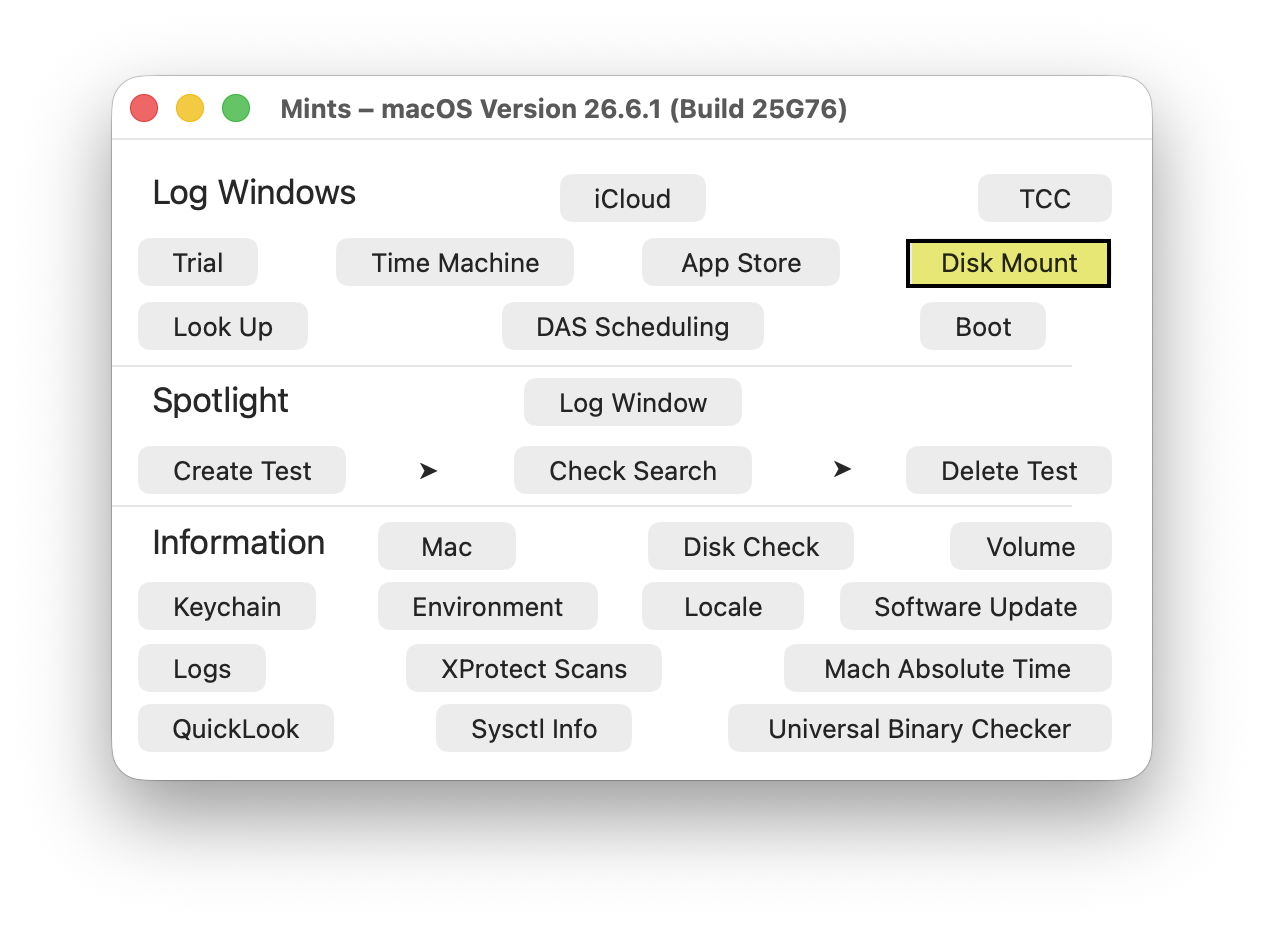
Use Mints to verify whether your external drive does get trimmed correctly when it’s mounted, with its Disk Mount feature. What you do is:
- Eject and disconnect the external drive.
- Connect the drive at a known time, according to the Mac’s clock, for example when its seconds turn to 00.
- Leave the Mac alone until all that disk’s volumes have been mounted.
- 20 seconds after connecting the drive, or 10 seconds after the last of its volumes has mounted, open the Mints app.
- Click on the Disk Mount button, and set the time in its log window to the time at which you connected the drive.
- Set the period to a minimum of 20 seconds, long enough to cover the period up to 5 seconds after the last volume mounted.
- Uncheck all the category checkboxes except the first, APFS +.
- Click the Get log button.
- When log entries are displayed, scroll to the end and look back for APFS trim entries as shown below.
This only works for APFS, though, as log entries for HFS+ don’t show Trimming clearly. If you’d rather use a different log browser like LogUI or the log show command, use the predicate senderImagePath CONTAINS[c] "apfs", or in LogUI set senderImagePath in its Predicate menu to apfs.
Read the log
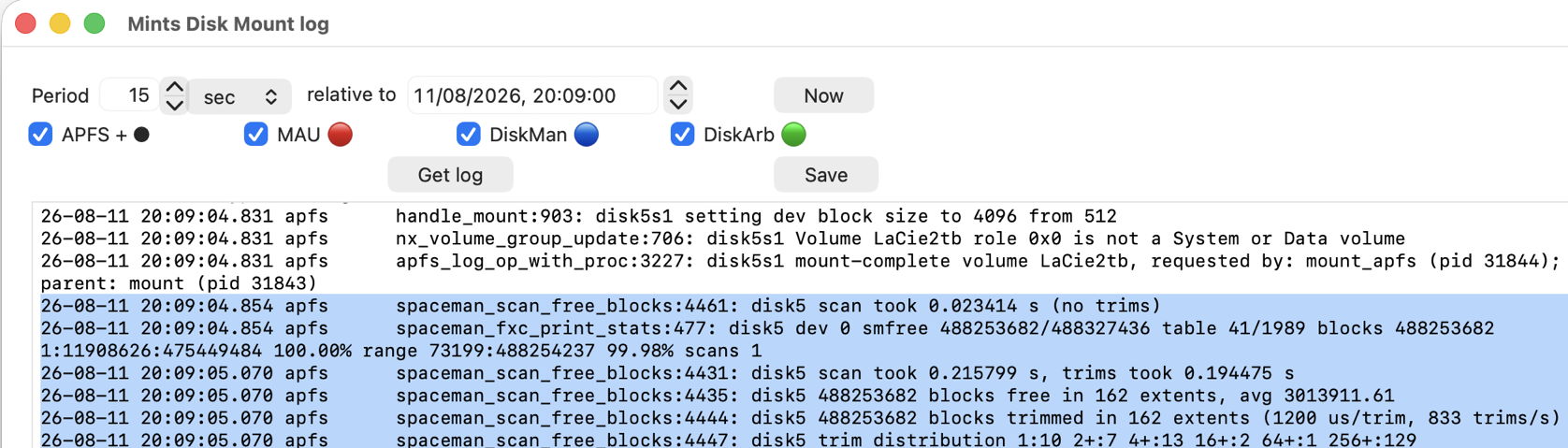
Shown in black are many log entries, a few of which come from APFS. You should look for those whose message starts with spaceman_trim_free_blocks, as those record the APFS Space Manager ‘Spaceman’ scanning for free memory blocks and Trimming them. Previous versions of macOS are different, as those messages start with spaceman_scan_free_blocks instead and show different codes.
Trim performed
Log entries recording the mounting of a volume include:
08.452131 apfs dev_init:296: disk4s2 device accelerated crypto: 0 (compiled @ Aug 30 2026 18:52:12)

08.452147 apfs dev_init:299: disk4s2 device_handle block size 4096 block count 488327436 features 0 external

08.723482 apfs apfs_log_op_with_proc:3279: disk5s1 mounting volume LaCie Rugged Mini SSD, requested by: mount_apfs (pid 2208); parent: mount (pid 2207)

08.724627 apfs apfs_log_op_with_proc:3279: disk5s1 mount-complete volume LaCie Rugged Mini SSD, requested by: mount_apfs (pid 2208); parent: mount (pid 2207)
When Trims are performed, they can take several seconds. If your log extract isn’t long enough to catch them, try extending its period.
In this case, just over a second later Spaceman reports the times it took to scan and perform Trims:
09.823034 apfs spaceman_trim_free_blocks:4149: disk5 scan took 1.099817 s, trims took 1.087611 s

09.823046 apfs spaceman_trim_free_blocks:4153: disk5 424953800 blocks free in 50405 extents, avg 8430.78

09.823048 apfs spaceman_trim_free_blocks:4162: disk5 424953800 blocks trimmed in 50405 extents (21 us/trim, 46344 trims/s)

09.823049 apfs spaceman_trim_free_blocks:4165: disk5 trim distribution 1:40027 2+:8815 4+:1416 16+:18 64+:12 256+:117

09.823050 apfs spaceman_trim_free_blocks:4173: disk5 trims dropped: 51774 blocks 44663 extents, avg 1.15

09.823053 apfs spaceman_fxc_print_stats:475: disk5 smfree 424953813/488327436 table 1988/1989 blocks 424893923 3:213729:421098016 99.98% range 73199:488254237 99.98% scans 1
Although you may not always see it, Spaceman’s last entry could give figures from its scan like these:
09.823055 apfs spaceman_fxc_print_stats:494: disk5 scan_stats[2]: foundmax 421098016 extents 48329 blocks 59894 long 3 avg 1 0.01% range 1919456:65302111 13.37%
No Trim
When no Trims are attempted, you should still see entries recording the mounting of APFS volumes:
04.175 apfs dev_init:296: disk4s2 device accelerated crypto: 0 (compiled @ Aug 30 2026 18:52:12)

04.175 apfs dev_init:299: disk4s2 device_handle block size 4096 block count 158678373 features 0 external

05.445 apfs handle_mount:893: disk5s1 vol-uuid: 050B73FB-A58F-4C64-B150-87D540810FBE block size: 4096 block count: 24414063 (unencrypted; flags: 0x1; features: 1.0.2)

05.446 apfs apfs_log_op_with_proc:3279: disk5s1 mount-complete volume CrucialRes100gb, requested by: mount_apfs (pid 2329); parent: mount (pid 2328)
But several seconds after those, there are no entries from Spaceman.
Marking
Once you have verified that an SSD does Trim correctly, mark its enclosure to ensure you don’t have to check it again, and you’ll never be in doubt.
I’m very grateful to Richard for drawing my attention to these changes brought in Golden Gate.

