
Now a major part of Apple’s services, iCloud was born out of the near-disaster of its predecessor MobileMe in October 2011. MobileMe had become known for its unreliability and poor syncing since its introduction in 2008. Within a week of its launch, Apple claimed that iCloud had 20 million users, although many of those would have been iPhone rather than Mac users, and most would have had free entry-level subscriptions without paying for additional storage beyond the basic 5 GB, with very few then paying for the top tier of 2 TB.

Since then iCloud has provided five main types of service:
- shared databases for bundled apps like Contacts, Calendar and Notes and third-party apps, through CloudKit;
- shared files in iCloud Drive, and inside app-specific container folders;
- iCloud mail;
- additional specialist services including Messages on iCloud, Find My, and extras bundled with iCloud+ such as Private Relay and HomeKit Secure Video;
- anonymous macOS support, including the CloudKit notarisation ticket service, and XProtect updates for Sequoia and later.
The last of those are provided to all Macs regardless of whether the user has signed in using an Apple Account. Others require the user to be signed into their Apple Account, with some of the additional services requiring a paid-for subscription to iCloud+, which is charged according to size of iCloud Drive allocated beyond the free basic allowance of 5 GB, up to a maximum of 12 TB. Monthly subscriptions currently range from $/€/£ 0.99 for 50 GB total to $/€ 59.99 or £54.99 for 12 TB. Paid levels of service are also open to Family Sharing across other Apple Accounts.
iCloud’s storage is distributed across several different cloud service providers, including Apple’s own data centres, and those of Google Cloud Platform and Amazon Web Services (AWS).
iCloud Interface
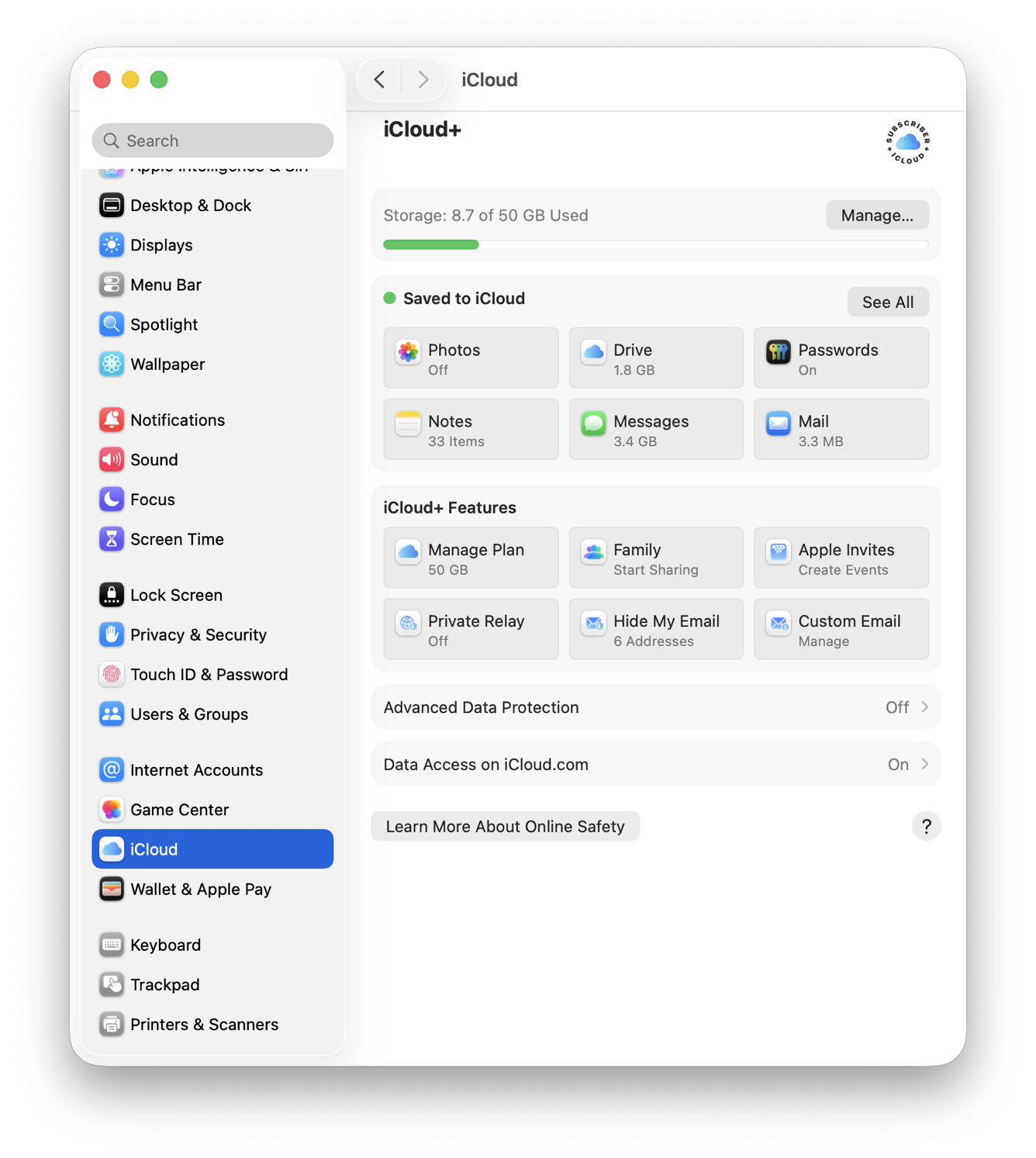
These have their own section in System Settings, also duplicated in Apple Account. Control over both CloudKit and iCloud Drive access by individual apps and services is revealed by the See All button. Key iCloud Drive settings include:
- whether to sync that Mac with iCloud Drive,
- whether to put that Mac’s Desktop and Documents folders into iCloud Drive as well,
- FileProvider mode, as Optimise Mac Storage,
- individual controls over which apps have their own containers in iCloud Drive,
- Advanced Data Protection to extend end-to-end encryption to some additional services (not available in the UK),
- whether to allow access to iCloud data over the internet via the iCloud.com portal.
At a file system level, iCloud Drive appears in the path ~/Library/Mobile Documents/com~apple~CloudDocs, thus in the user’s Home folder, but the Finder displays that in its own location of iCloud Drive; when Desktop and Documents folders are in iCloud Drive, those appear in their normal places in the Finder window sidebar. Conventions for direct manipulation such as moving and copying files therefore treat iCloud Drive as being part of the boot Data volume rather than networked storage. Thus, when dragging items between a user’s Home folder and iCloud Drive, a plain drag results in the item being moved, whereas an Option-drag will copy the item instead.
Syncing
Although there are limits imposed on the rate and frequency of CloudKit syncing, in normal circumstances changes in local or iCloud databases are synced as soon as is feasible. Throttles are used across several iCloud features including CloudKit itself, CloudKit Web Services and others, as detailed in TN3162. These can be applied when an app issues many CloudKit requests in a short time, or uses an inappropriate pattern of requests.
iCloud Drive operates in one of two modes:
- Replicated, in which all local copies of files stored in iCloud Drive are maintained in sync with those held remotely. This applies when Optimise Mac Storage is turned off in iCloud settings.
- Nonreplicated, where some or all local copies of files stored in iCloud Drive may not contain their data, which is only stored in the remote copy. This applies when Optimise Mac Storage is turned on.
Before macOS Sonoma in 2023, iCloud implemented these modes using custom local services, and some were able to evict files from local storage even though Optimise Mac Storage was disabled. Sonoma transferred iCloud Drive and third-party cloud services to use its new FileProvider API which now enforces the two modes rigorously.
When Optimise Mac Storage is enabled and iCloud Drive operates in nonreplicated mode, the status of files and folders in iCloud Drive is marked by icons.

The file at the top is currently being synced up from local storage to iCloud Drive, and its icon is also shown when syncing up in replicated mode. SpotTextA.txt has had its data evicted from local storage and exists there as a dataless file, ready to be materialised on demand by syncing its data down from remote storage. SpotTestB.rtf has been pinned, to prevent its data from eviction and thus behaves as if it’s in replicated mode. Actions to support each of those are provided in the contextual menu.
Originally files that had their data evicted from local storage were represented by stub files, but dataless files replaced them with the introduction of the FileProvider API, and are explained in TN3150.
File sync limits
Since iCloud Drive has changed to using dataless files for those evicted, it has generally preserved and synced file attributes including datestamps, and preserved and synced all data. Significant exceptions to this are BSD flags, such as the Locked or Immutable flag, which are neither preserved nor synced. Embedded metadata such as Exif fields are retained and synced in full, making them the most reliable metadata for iCloud Drive.
Although extended attributes should be retained in the local copy of files, the only extended attributes that are likely to sync across iCloud Drive are:
- com.apple.metadata:_kMDItemUserTags (Finder Tag)
- com.apple.lastuseddate#PS
- com.apple.quarantine
- com.apple.TextEncoding
- other xattrs explicitly assigned the S flag, with #S appended to their name.
Others, including those with names starting with com.apple.metadata:kMDItem, aren’t likely to sync down from iCloud Drive without explicit use of the S flag.
Document versions saved in that volume’s version database in the hidden .DocumentRevisions-V100 folder will normally only be saved locally, when the local copy of that file is saved, and aren’t synced up to iCloud Drive at all. This can have complicated effects when the same iCloud Drive file is edited on different clients.
Spotlight indexing of contents isn’t synced, but those files in iCloud Drive whose data is stored locally will be indexed and searchable locally even when their data is later evicted from local storage. A similar principle applies to QuickLook thumbnails and previews, and those that have been cached locally remain accessible after eviction. At one time, selecting an evicted file and calling for its thumbnail or preview was a simple way to force the file to be downloaded, but that has now been fixed.
One bonus of storing files in iCloud Drive is the ability to recover them up to 30 days after deletion through iCloud.com, provided that is enabled in iCloud settings.
Diagnostics and troubleshooting
No diagnostic or troubleshooting tools are provided. Log entries are written to the Unified log.

