
APFS uses two types of identifier for the components in file systems from its containers down to individual files: containers and volumes rely on UUIDs (or, historically, GUIDs), while files are identified by their inode number.
GUIDs/UUIDs are prescribed for the GUID Partition Table (GPT) for the whole physical disk, and are used to uniquely identify APFS volumes within each container. You can inspect them in Disk Utility and its command tool diskutil. If you ever need to keep track of containers or volumes, they’re indispensable.
Inode numbers crop up in all sorts of other places, as a file retains its inode number no matter where it’s moved to within a volume, or what you might like to name it. If you ever encountered an error when checking an APFS volume using First Aid in Disk Utility or fsck_apfs, you won’t be informed of the path and name of the item responsible, but given its inode number, in an entry like
warning: inode (id 402194151): Resource Fork xattr is missing for compressed file
That inode number can only be resolved to a path and file/folder name if you also have a second number giving the volume for that item, which is sadly independent of its UUID. As that will be for the volume being checked at the time, you should be able to identify that immediately. The only time that you might struggle to do that is with items in a snapshot; those should be the same as the volume they are taken from. However, as snapshots are read-only, there’s probably little point in pursuing errors in them.
Resolve an inode number
To resolve these in my free utility Mints, open its inode Resolver using the Window / Data… / Inode menu command. First, drag and drop another file from the same volume onto that window to obtain the volume number.

The Resolver then displays that file’s volfs path, such as
/.vol/16777242/1241014
All you need do now is paste the inode number given in the warning or error message in Disk Utility or fsck_apfs, into the Inode Number box at the top of the Resolver window, and click the Resolve button. Mints then looks up information for that inode number on the same volume, using GetFileInfo, and displays it below.

One drag and drop, a paste, and a click to discover what APFS is complaining about.
You’ll sometimes see Terminal’s find command with the option -inum recommended as a way to convert from an inode number to a regular path. Although you can do that, it’s easier to use the command GetFileInfo instead. For that you’ll need the full volfs path, including the volume number.
To find the volume number, you can use my free utility Precize, and open another file on the same volume. The second line in its window gives the full volfs path for that file. Copy the start of that, leaving the second number, the inode, such as
/.vol/16777238/
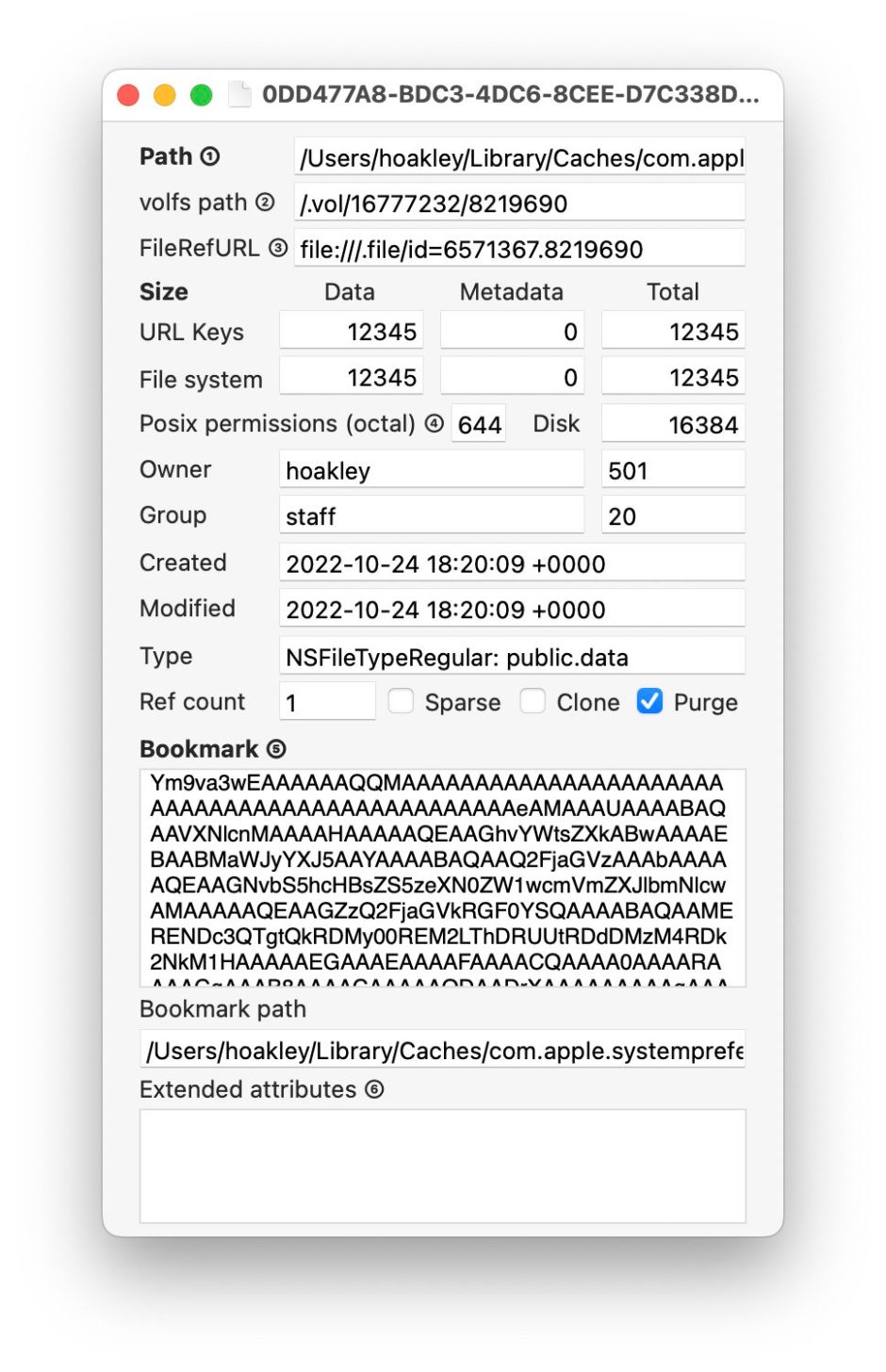
Alternatively, you can use the stat command as given below.
In Terminal, type
GetFileInfo
with a space at the end, and paste the text you copied from Precize. Then copy and paste the inode number given in the First Aid warning, to assemble the whole command, such as
GetFileInfo /.vol/16777238/402194151
Press Return, and after a few seconds, you should see something like
file: "/Users/hoakley/Library/Mobile Documents/com~apple~CloudDocs/backup1/0MintsSpotlightTest4syzFiles/SpotTestA.rtf"

type: "\0\0\0\0"

creator: "\0\0\0\0"

attributes: avbstclinmedz

created: 05/17/2023 08:45:00

modified: 05/17/2023 08:45:00
giving the full path and filename that you want.
GetFileInfo is one of the oldest commands in macOS, and has been deprecated as long as anyone can remember. I suspect that Apple is still trying to work out what can substitute for it. The attributes it reports, and those shown in Mints, can be decoded using the information in the Appendix below, taken from its man page.
Find a file’s inode number
Use Precize to run this the other way around: open the file and read the path in that second line. To copy the whole of it, press Command-2.
The simplest ways of obtaining inode numbers and so building volfs paths in Terminal are using the -i option to the ls command, and for individual items using stat:
ls -i lists each item in the current directory, giving its inode number first, e.g.
22084095 00swift

13679656 Microsoft User Data

22075835 Wolfram Mathematica
and so on;
stat myfile.text returns
16777220 36849933 -rw-r--r-- 1 hoakley staff […] myfile.text
where the first number is the volume number, and the second is the inode number of that item, or /.vol/16777220/36849933.
Read inode numbers
When you start looking at inode numbers of files in the SSV and Data volume, you’ll notice a useful pattern. Because the SSV as the System volume is firmlinked to the Data volume, both share the same volume ID number. On the face of it, you can’t then use volfs paths to determine which volume any given file is on. However, to make life a little easier for once, you can work it out from their inode number alone.
Files with very large inode numbers, such as 1152921500312437084, are in the SSV (and System volume), while those in the Data volume have smaller inode numbers, like 420316717. The volume ID used for all files and directories in the System and Data volumes isn’t fixed, but is typically slightly greater than 16777216, or hexadecimal 1000000, such as 16777232 (hex 1000010) or 16777242 (hex 100001A).
Appendix: Attribute codes returned by GetFileInfo and shown in Mints
In each case, when that attribute is set, GetFileInfo returns its code in CAPITALS; when it’s not set, it’s returned in lower case.
Codes used include:
a alias file
b has bundle
c custom icon (allowed on folders)
d located on the desktop (allowed on folders)
e extension is hidden (allowed on folders)
i inited, the Finder is aware of this file and has given it a location in a window (allowed on folders)
l locked
m shared (can run multiple times)
n file has no INIT resource
s system file (name locked)
t Stationery Pad file
v invisible (allowed on folders)
z busy (allowed on folders)

