
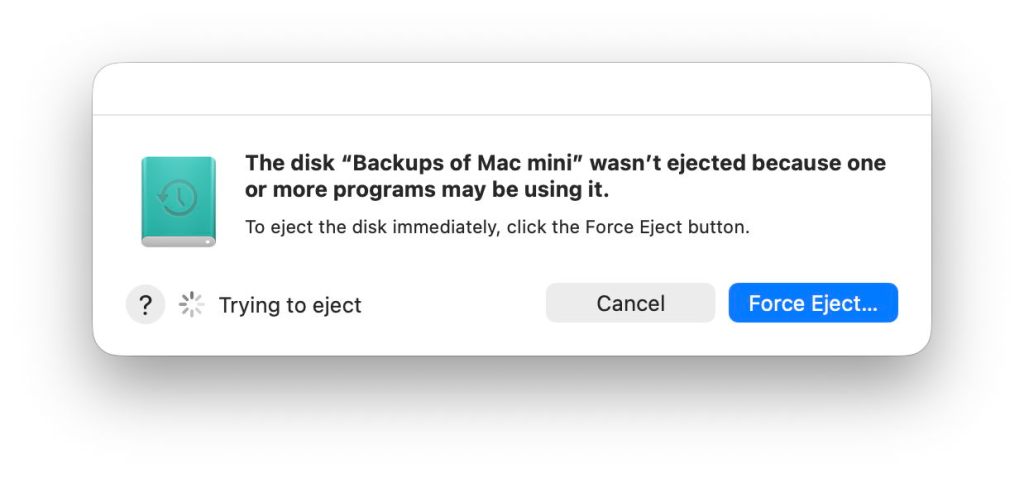
It always happens when you’re in a rush to get your MacBook Pro ready. When you try to eject its external disk, macOS tells you that volume or disk can’t be unmounted or ejected because “one or more programs may be using it”, and asks you whether you want to force it. Should you resort to force, or is there a better way?
Whatever you choose, don’t just disconnect the cable of an external disk. Not only will your Mac complain, but you could end up damaging the contents of its files, or even the file system on that volume. That would only worsen your problem.
Try again or force eject
If every second counts, you can cancel and try again, or go straight to force ejection, if it’s offered. macOS will then try to identify the processes that are still accessing that volume or disk, and kill them, before trying again to eject it. That can take time, and seldom appears successful even if you allow a minute or two for it to complete. However, when it does work, it’s likely to be the fastest solution.
If you encounter this problem when trying to run First Aid on a volume or container in Disk Utility, it’s often best to select the offending volume or container and unmount it using the tool in Disk Utility’s toolbar. You should also double-check that you’re trying the correct volume: if it’s one of the current boot volume group, System or Data, then you’re better off running First Aid in Recovery mode anyway.
Best options
When you have time to address this properly, or all else has failed, there are at least two good options, Jettison and Sloth.
Jettison, $6.95 from St. Clair Software, provides a menu bar control you can use to eject individual or all external disks, and will also do that automatically before sleep or after the display powers off. Every laptop Mac user should have this ready for ejecting external disks.
Sloth is free and open source by Sveinbjorn Thordarson, who now provides it fully signed and notarised. It’s an excellent wrapper for the lsof command detailed below, and tells you which processes you’d have to kill before that disk can be safely ejected.
Sloth
Using Sloth to tackle this problem is quick and simple. Open the app, and at the upper right select the volume you want to unmount. That will list all the processes currently known to be accessing that volume, excluding those running as root. To enable those to be shown, click on the padlock to the left of the blue Refresh button at the bottom right, and authenticate.
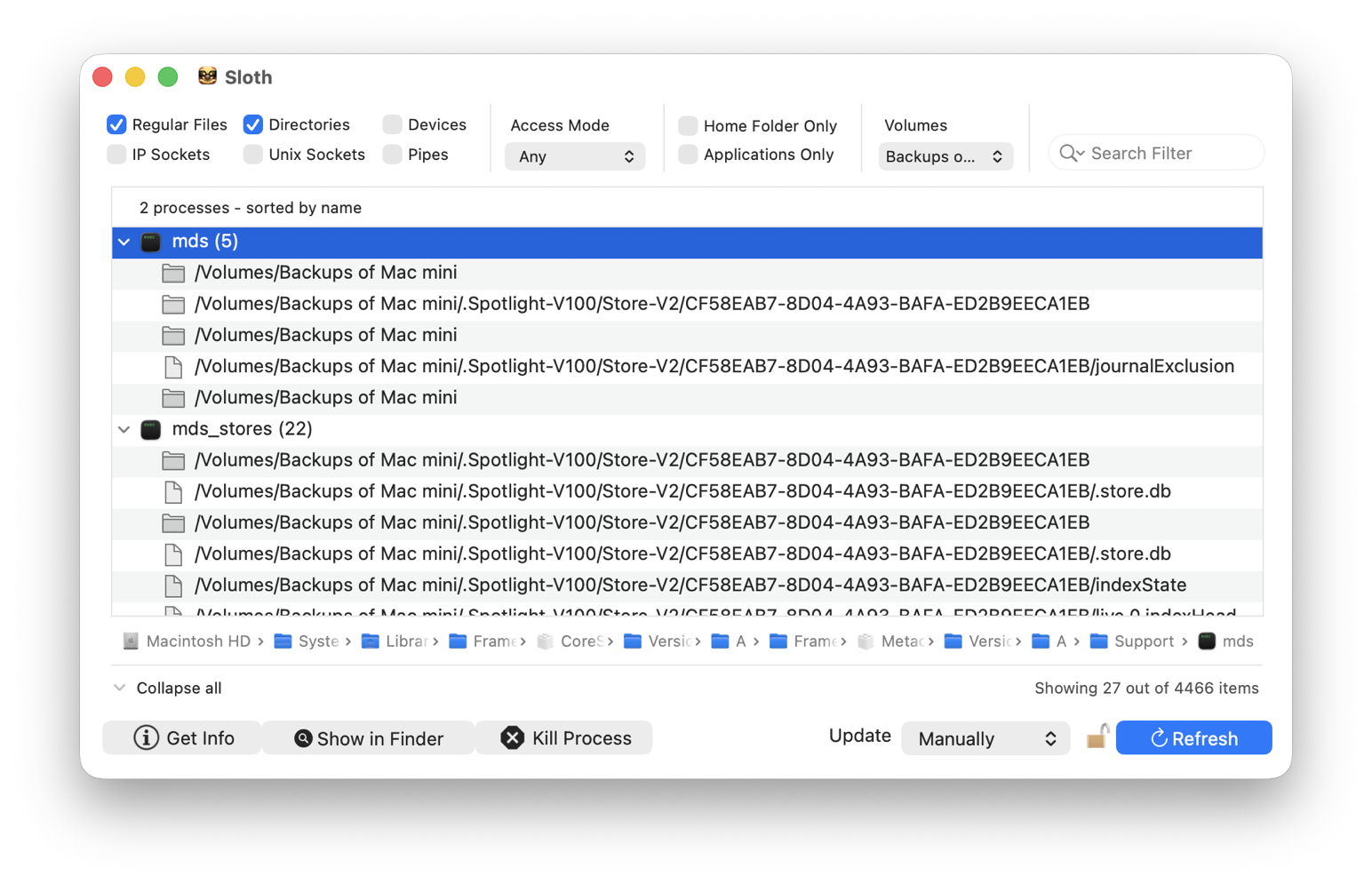
You can then select each process you want to kill in turn, and click on the Kill Process button at the foot of the window. Once that list is clear you should be able to unmount that volume and eject the disk without further complaint.
Sloth does a great deal more, so it’s worth taking some time to explore that with the aid of its Help page. There are alternatives, but Sloth is long-established and its author has now modernised it to include Sparkle update support and more.
lsof
If you’d rather use Terminal, the command you’re looking for is lsof.
To discover which files are open on any volume, use the command
sudo lsof /Volumes/myVol
where myVol is the name of the volume. If you’re unsure how to enter a volume name containing a space, locate it in the Finder’s listing for your Mac, and drag and drop that into Terminal. Once you’ve entered that, type your admin user password at the prompt, and you’ll see a list with entries like
mds 367 root 33r DIR 1,28 192 2 /Volumes/External2

mds 367 root 35u REG 1,28 0 87 /Volumes/External2/.Spotlight-V100/Store-V2/3DD5246F-9AEA-4F0E-9A53-AA63783C3C70/journalExclusion
which are the files and directories open on that volume. This needs to be run using sudo, as otherwise you won’t see any files that are opened by processes running as root, which are most often the culprits. Some recommend using grep, but that shouldn’t be necessary, as lsof is capable of its own filtering.

The information given about each open file contains, from the left:
- an abbreviated name of the command associated, here
mds, the Spotlight metadata server; - the open mode, as the single character following two digits, e.g. 33r is opened for read access only, while 35u is opened for read and write access;
- the type, DIR meaning directory, and REG meaning a regular file;
- the full path to the file or directory.
Once you know which processes are accessing files on that volume, you can decide whether to open the listing in one of Activity Monitor’s views, such as CPU or Disk, select that process, and click on the Stop tool to kill it.
Summary
- Never disconnect an external drive without ejecting it first.
- If you’re pushed for time, a force eject might work.
- If you do this often, buy Jettison.
- For a more thorough job, use Sloth or
lsof.

