
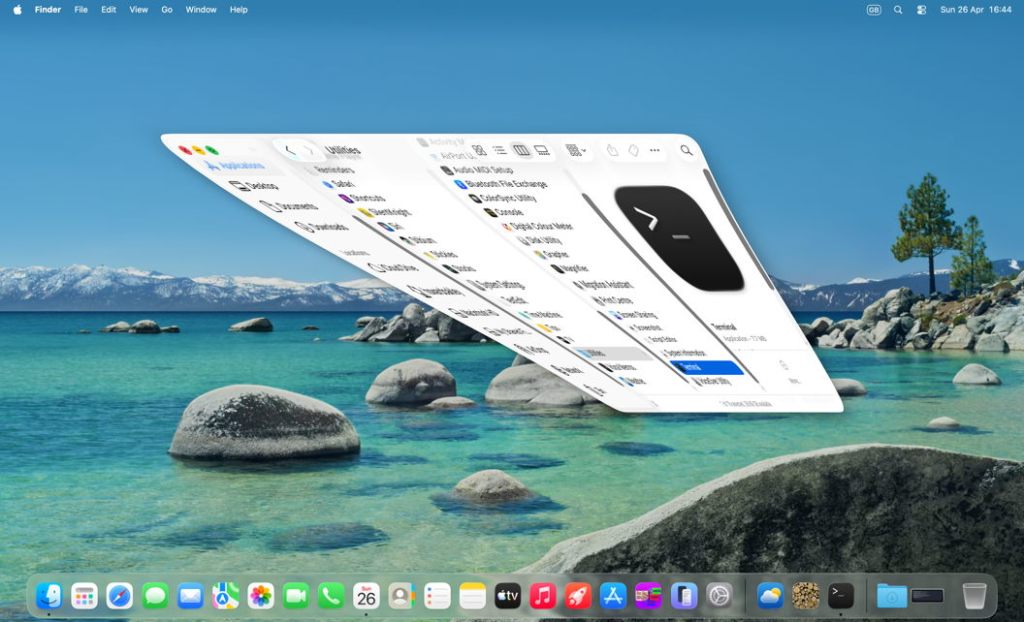
One of the joys of writing here is when I’m wrong, and a feature I thought was lost is just hidden a bit deeper. When I wrote that the Minimise Easter egg was defunct in macOS Tahoe, I was delighted to be corrected, thank you, as it’s still alive and flourishing.
In fact this had been documented just over a year ago by John Gruber on his Daring Fireball blog. I’ve added information from the macOS defaults site, and played around with this in a macOS 26.4.1 virtual machine.
Settings
To enable the Minimise Easter Egg for the Dock, enter the following command in Terminal:
defaults write com.apple.dock slow-motion-allowed -bool YES
without that, it simply won’t happen in recent versions of macOS.
To disable it again, you can use either of
defaults write com.apple.dock slow-motion-allowed -bool NO
or
defaults delete com.apple.dock slow-motion-allowed
macOS Defaults recommends enabling Automatically hide and show the Dock, in Desktop & Dock settings, but that’s optional and not required.
Options
Three different effects are available, two of them offered in the Minimised window animation popup menu in Desktop & Dock settings.
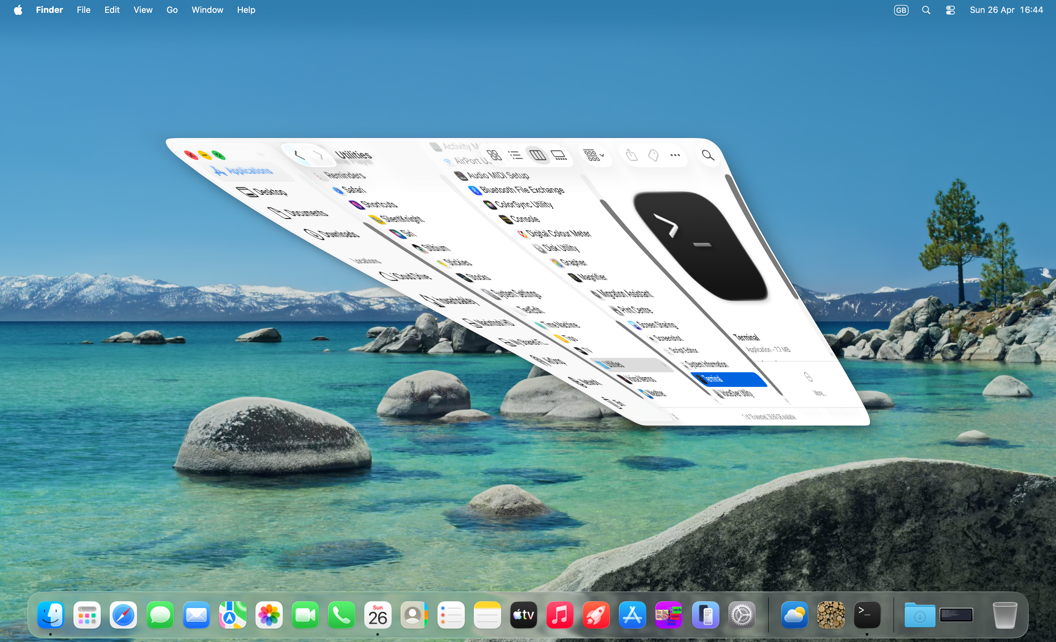
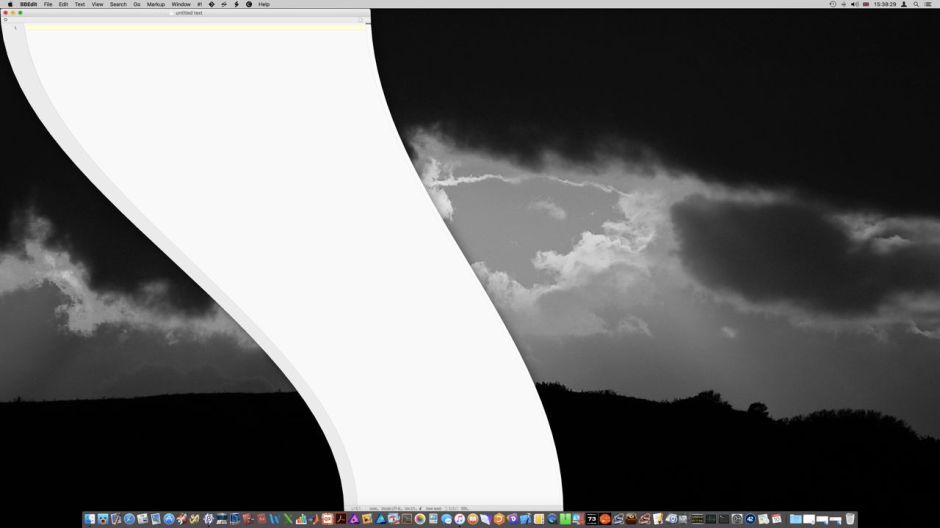
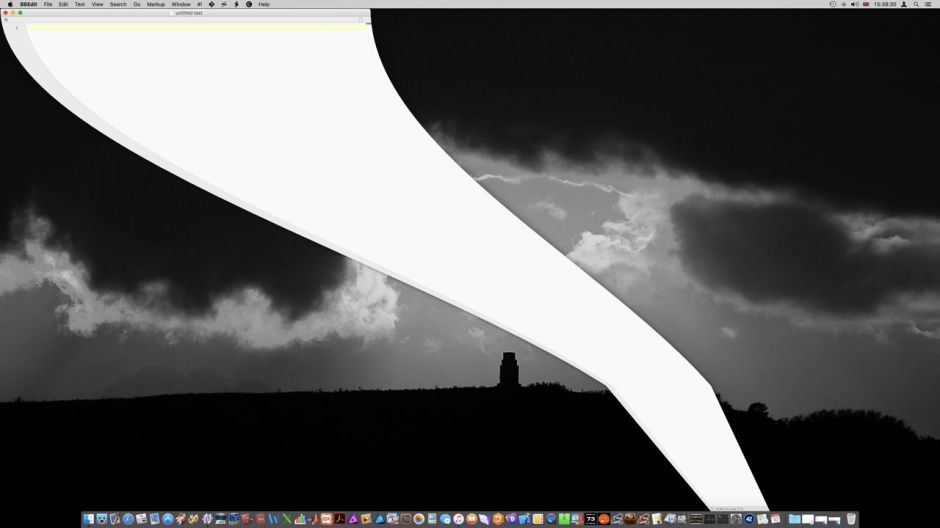
The default is genie, in which the window being minimised reverses the ‘genie’ effect commonly used in animations.
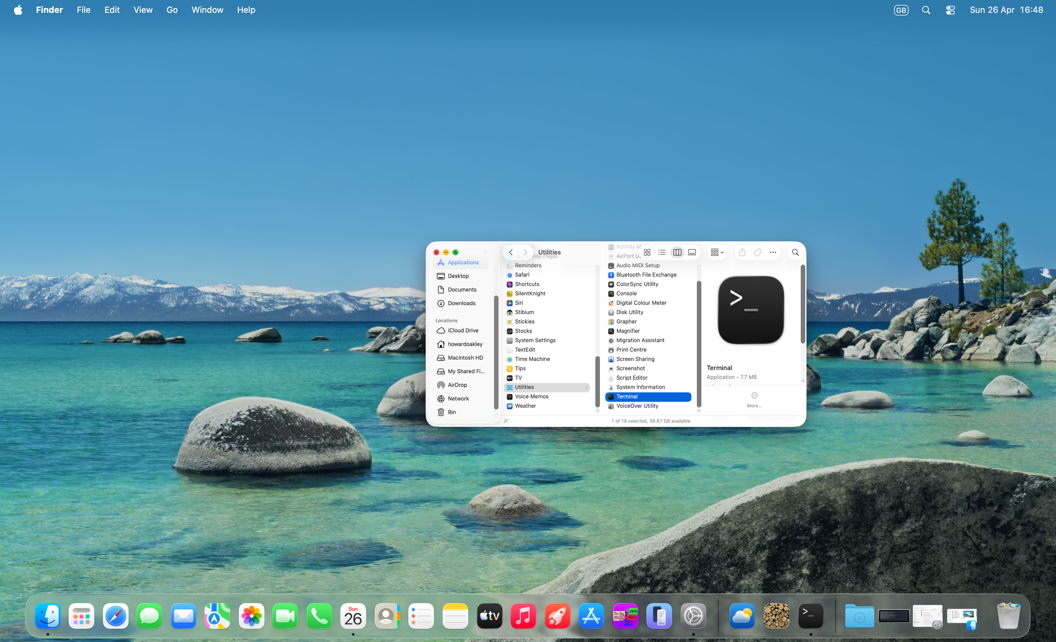
The other choice in Desktop & Dock settings, scale, shrinks the window uniformly as it moves down to the right end of the Dock.
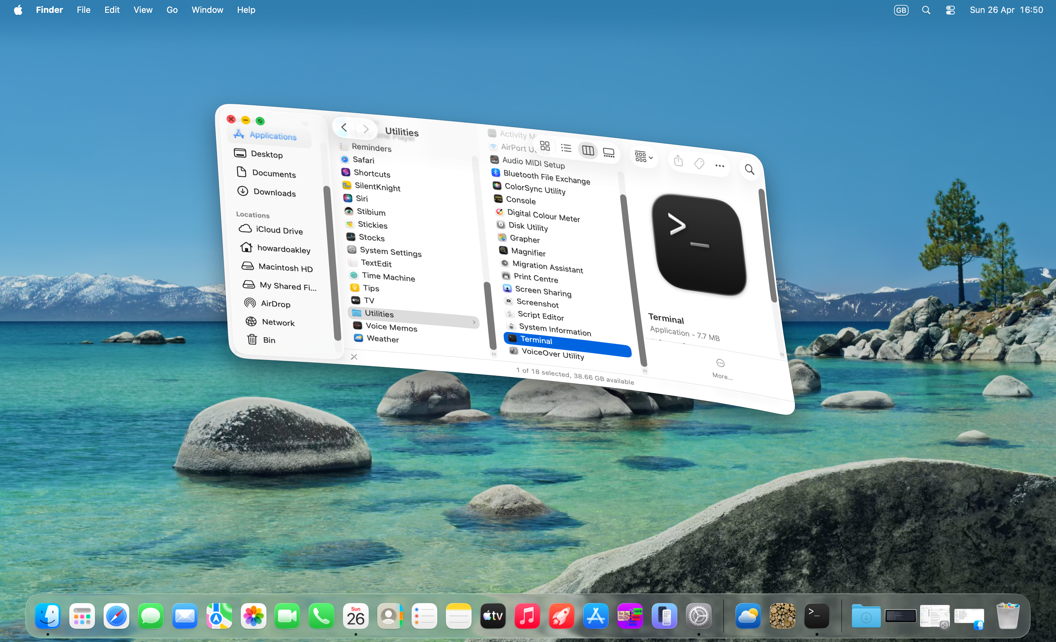
Hidden from there, and only available via Terminal, is the third option, suck, in which the lower right corner of the window is ‘sucked’ down to the right end of the Dock. To opt for that, enter the command
defaults write com.apple.dock "mineffect" -string "suck"
and you can use the same command with "genie" or "scale".
Applying settings
Changes made in Desktop & Dock settings are enforced automatically, without further action. Those using defaults in Terminal will only take effect after killing the Dock and allowing it to be restarted, with the command
killall Dock
Controls
To see the Minimise effect, use one of the following key combinations when clicking on the yellow Minimise traffic light button at the top left of a window:
- no key – full speed
- Control – slow
- Shift – much slower
- Control + Shift – slowest.
You can also use the Shift key for a slowed de-minimise effect when clicking on the minimised window in the Dock. As the Control key already has another meaning there, it won’t have the same effect.
History
Current effects are very different from those of a decade ago, as shown in the sequence of images below.


Thanks to the Apple engineers who have not only preserved this Easter Egg, but made it even more fun. And fun is really important.

