
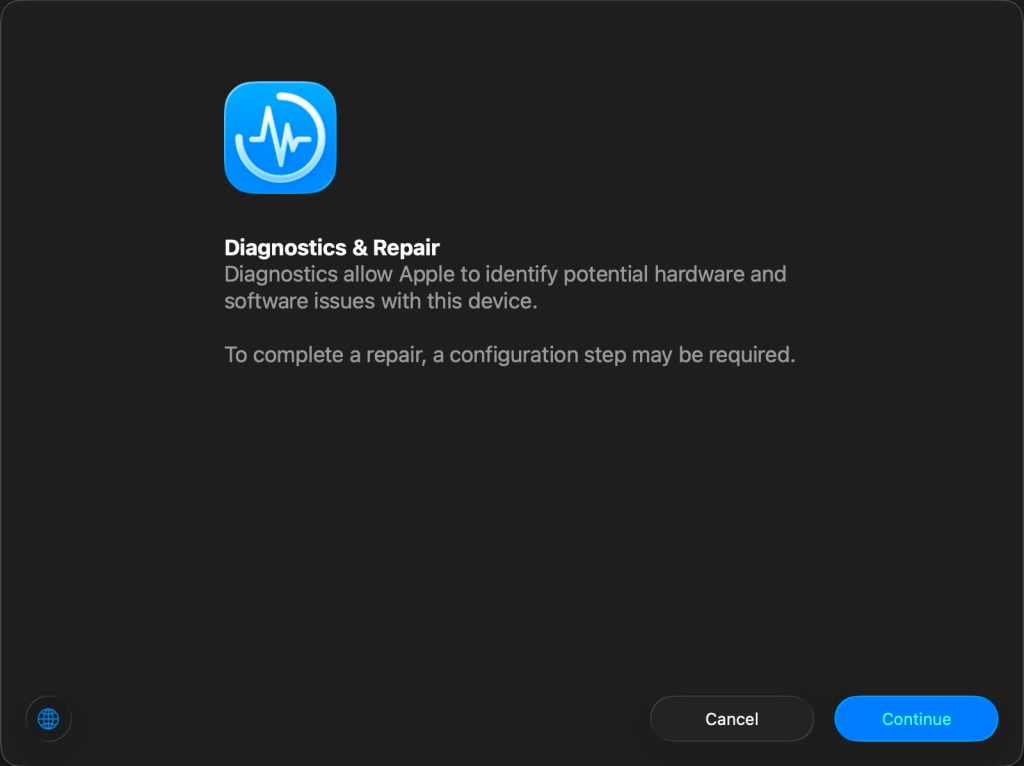
Life without documentation can get quite exciting, particularly when you discover a feature that changed beyond all recognition last September, with the release of macOS 26 Tahoe. I’m referring of course to what used to be Apple Diagnostics, but only in Apple silicon Macs. If you’re running Tahoe on an Intel Mac, then I’m afraid you’ll just have to be struggle along with what you’ve been using for the last few years.
Apple Diagnostics used to be the only part of Recovery that still relied on a keystroke command in Apple silicon Macs, and that hasn’t changed. Before starting your Mac up, if it’s a laptop connect its mains power adaptor if possible, and that will be included in the tests. Then press and hold the Power button until Recovery starts loading. Once it appears, press and hold the Command ⌘ and D keys until you hear the startup chime indicating the Mac has rebooted into Repair Assistant.
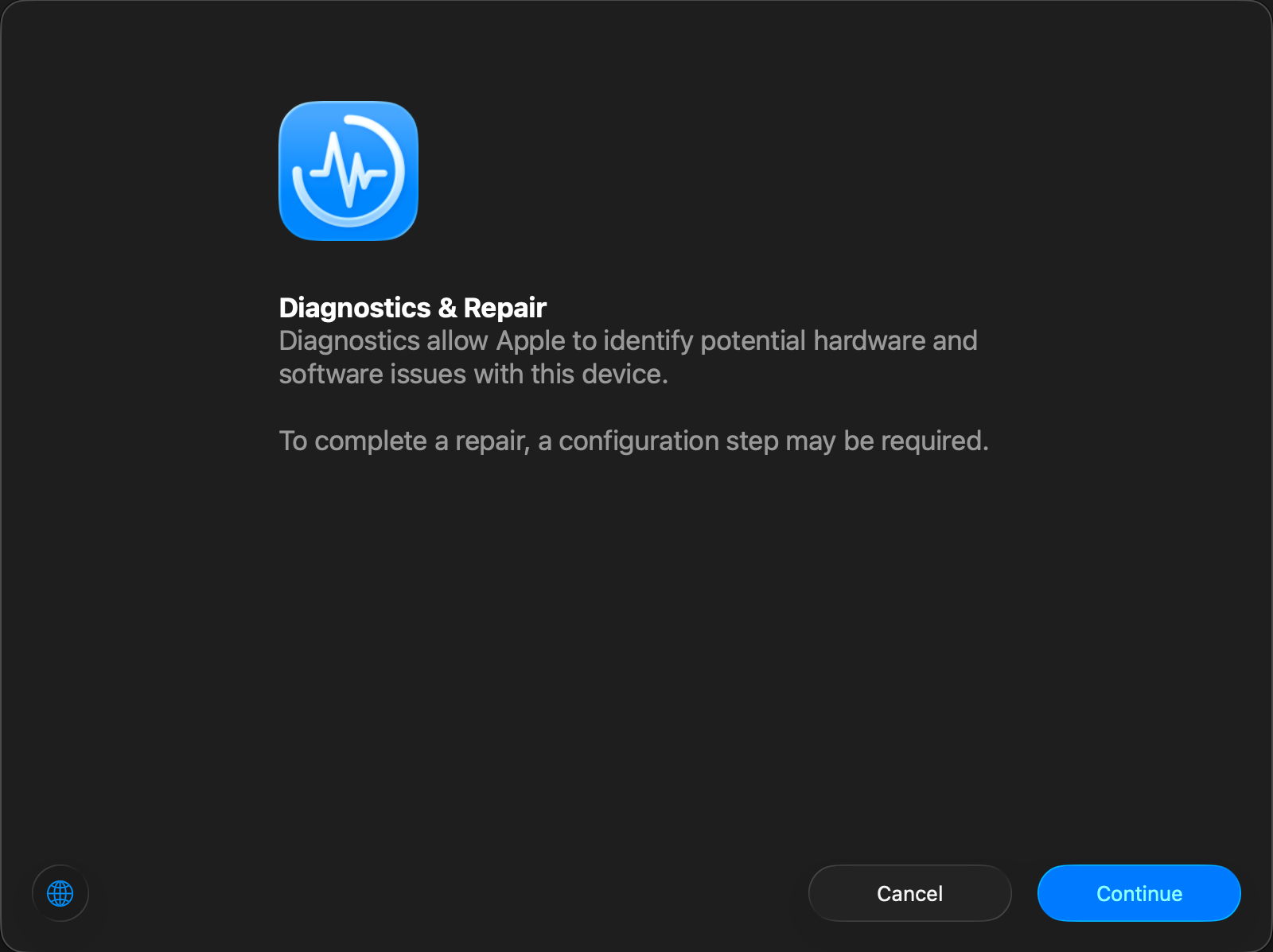
This is the welcome window, explaining how Repair Assistant can run diagnostics, as well as being used to complete hardware repairs.
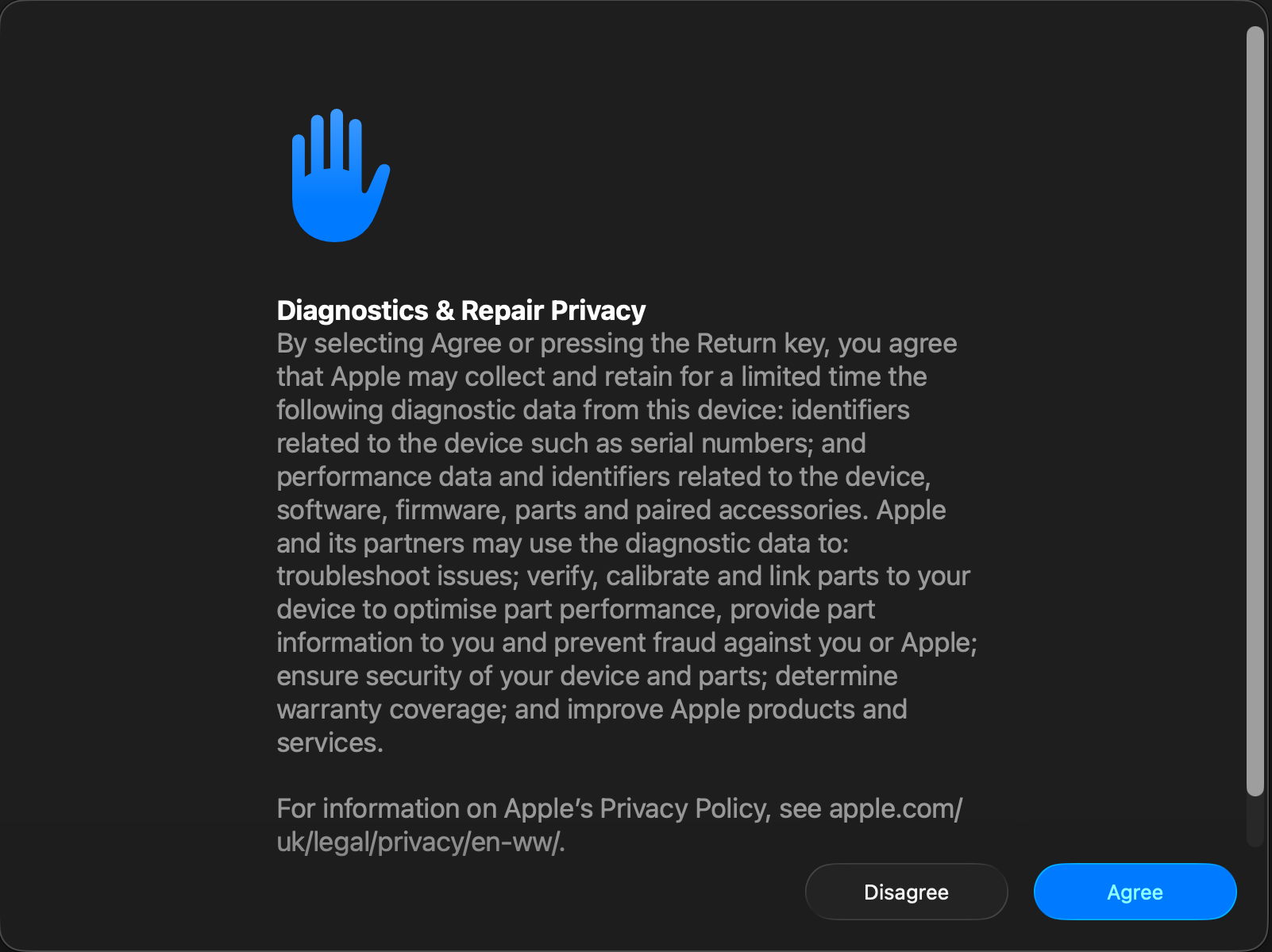
Then comes the inevitable privacy policy.
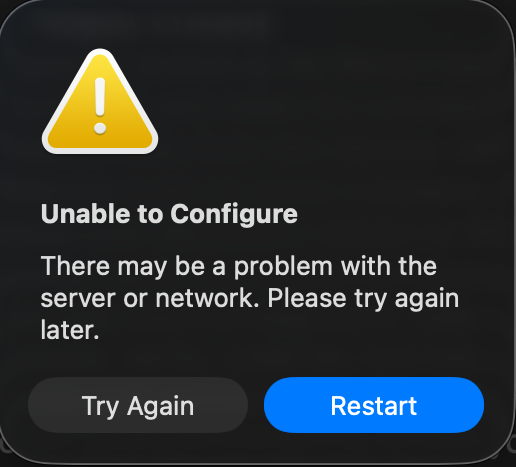
Unfortunately that’s as far as a virtual machine can get. On a real Apple silicon Mac you’ll then be invited to choose from the available diagnostic suites according to your Mac’s hardware, from:
- Mac Resource Inspector, to test the main Mac hardware over a period of 1-7 minutes;
- Display Anomalies, for any built-in LCD panel;
- Keyboard, only when built-in;
- Trackpad, only when built-in;
- Touch ID, for any built-in Touch ID sensor;
- Audio, to verify audio output using a set of test tones.
Currently these are run individually and there’s no means to run them all in sequence.
Once a test has completed, it’s marked with a green ✅ to indicate success, or a warning triangle or error symbol if the test couldn’t be attempted (power supply when not connected to a laptop) or problems were discovered. Individual tests and their results are listed from each test’s ⓘ button. After all these years, Apple is finally trusting us to know what tests have been performed, and not just giving us a cryptic code at the end.
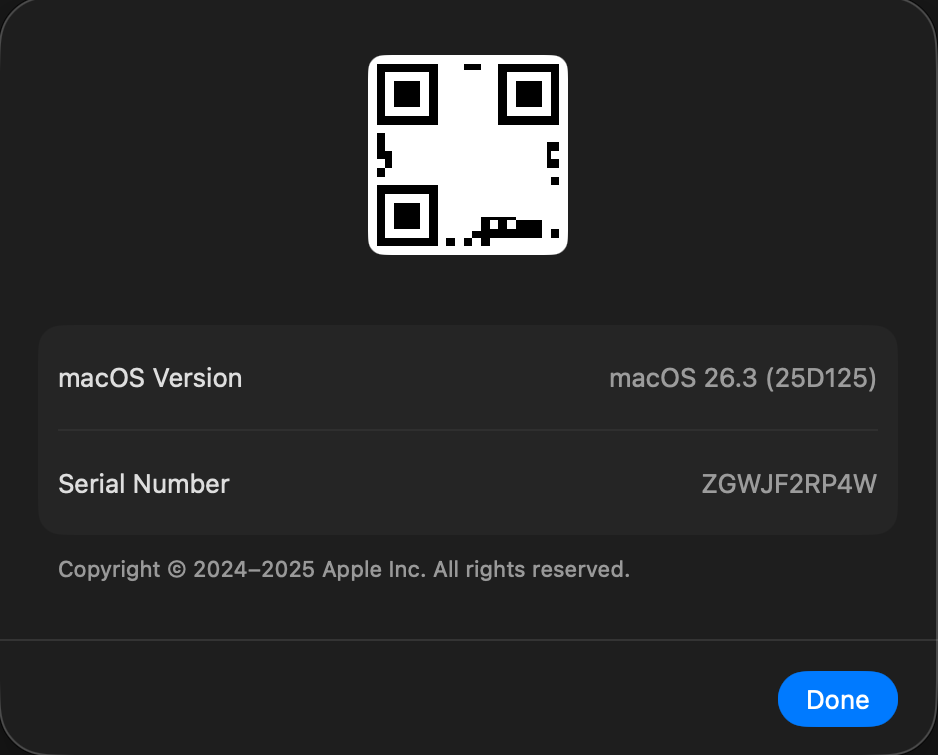
Repair Assistant’s substitute for an About window provides details of your Mac, including its serial number, and the version of macOS. Its QR code (lightly defaced here) simply provides the serial number in an accessible way.
This is a huge improvement on Apple Diagnostics, but there’s one slight glitch. Previous results from diagnostic testing were recorded in the Diagnostics section of System Information, but not those from Repair Assistant.
I was very surprised to come across this in macOS 26.3 when only intending to take a quick screenshot of Diagnostics. Although I was aware that a Repair Assistant had been rumoured prior to the release of Tahoe, I had thought that was only intended to help service engineers authorise some replacement parts that needed to be recognised by the Mac. I can still find no mention of how Repair Assistant replaced Apple Diagnostics five months ago.
Apple’s own documentation is as unhelpful as ever and unusually vague. It does refer to the version of Apple Diagnostics used depending “on your Mac, the version of macOS that it’s using, and whether certain parts of your Mac have been repaired or replaced”, but complete replacement was unexpected. The closest that note comes to its description is that “in macOS Tahoe 26 and later, you’re asked to choose a specific diagnostic to run, such as a diagnostic for your built-in display, keyboard, or trackpad. In earlier versions of macOS, this is automatic.”
It’s almost as if the author of that note had never used or seen Repair Assistant, and was basing that account on something overhead in passing. And that article is dated 19 December 2025.
Although Apple forgot to tell you about it five months ago, let me break the news that macOS 26 Tahoe brings a completely new and redesigned replacement for Apple Diagnostics in Apple silicon Macs. I’m impressed with it, and sorry I’ve only just caught up.
 The Eclectic Light Company