
Back in the days when macOS had just a single volume containing both the system and user data, clean installing (or re-installing) macOS was popular, and often performed when upgrading to the next major version of macOS. Since then we’ve been given separate but firmlinked System and Data volumes, and in Apple silicon Macs two extra hidden containers. This article explains how you can make the best use of your Mac’s features to perform a clean install.
What do you want to ‘clean’?
Before going any further, you have to decide exactly what you want to ‘clean’ when installing. Choose one or more of the following:
- Data volume
- System volume (SSV)
- firmware (Apple silicon).
If there are problems with user data or settings, then the first may well suffice. If you also want to return to a fresh copy of macOS, which might be an older version, then you’ll need to perform the first two. If you want to go the whole hog, then on Apple silicon Macs you can also install a fresh set of firmware. You also need to take into account whether the new version of macOS will be the same major version, or you want to revert to an older version of macOS, in a downgrade.
As each of these methods will wipe all your user data, prepare by making at least one full backup, then de-authorising that Mac for Apple media in one of the media apps like Music or TV. When you’re happy you’ve got everything you need to restore your documents and data, proceed as described below.
Data volume alone
Provided your Mac has a T2 or Apple silicon chip, destroying the current data volume is both quick and simple using EACAS. Open System Settings > General > Transfer or Reset and Erase All Content and Settings. That works by destroying the volume encryption key for the Data volume, so occurs almost instantly, and without adding many erase-write cycles to age your Mac’s SSD. Once that’s complete, starting your Mac up will take you through personalisation and setup, as if it were new, and the opportunity to migrate your user data from a backup or copy.
System and Data volumes
If this is an Apple silicon Mac, and you have a second Mac and a suitable cable, first consider performing a Restore in DFU mode (below), as that often proves quicker and simpler.
If it’s an Intel Mac, or you can’t, or don’t want to, restore in DFU mode, then you can still erase the System and Data volumes of the boot volume group in Recovery mode. Erasing those volumes is straightforward in Disk Utility: select the volume group, normally named Macintosh HD, and click on the Erase tool.
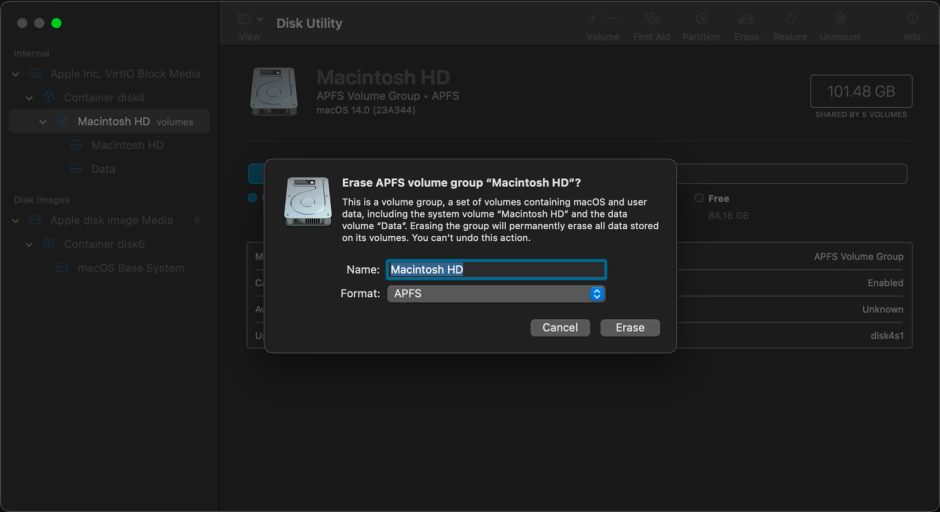
You’ll then be warned that you’re about to erase a volume group, and invited to set its new name and format. Once that has completed, the procedure differs according to whether this is an Intel or Apple silicon model. For Intel Macs with T2 chips, you should proceed to install macOS in Recovery mode. Apple recommends a slightly different procedure for Apple silicon Macs, where you should be invited to Erase and Restart. Once it has restarted, the Mac will try to activate itself over its Wi-Fi with Apple, then you should return to Recovery Utilities where you can install macOS.
Note this procedure doesn’t wipe and reinstall the Preboot or Recovery volumes in the boot volume group; to do that, you’ll need to restore in DFU mode.
You should never try to erase either the System or Data volume alone, because of their mutual firmlinks. If you want to install a fresh System, then start your Mac up in Recovery mode and use the Reinstall macOS feature there to install a fresh copy. However, that will be bit-for-bit identical to any other copy of that version of macOS, whether it has been installed using the Installer app, updated from a previous version, or installed as part of a restore in DFU mode. That’s guaranteed by its signature, and checked every time your Mac starts up.
System downgrade
Installing the same major version of macOS that was installed previously can be performed directly. In the case of the current release of macOS, that’s readily available in Recovery mode. Apple provides the following rules for the version that should then be installed.
For Apple silicon Macs,
- the current version of the most recently installed major version of macOS
- if you have just upgraded macOS, then erased the boot volume group in Recovery, “you may get” the version of macOS that was running before that upgrade.
For Intel Macs,
- if you entered Recovery using Command-R, the current version of the most recently installed major version of macOS
- if you entered using Command-Option-R, “you may get” the latest version of macOS compatible with that Mac
- if you entered using Command-Option-Shift-R, “you may get” the version of macOS installed when your Mac was new, or the closest version now available.
Installer apps for previous major versions of macOS often can’t be run from within a more recent version. The way to work around that is to create a bootable installer disk, most commonly a ‘thumb’ drive, although a partition on a hard disk or SSD may be more convenient. That still needs to be formatted as an HFS+ volume, and Apple provides detailed instructions in this article. Before trying that with an Intel Mac with a T2 chip you’ll need to start it up in Recovery, open Startup Security Utility, and enable it to start up from external disks.
External bootable installers work differently with Apple silicon Macs, as they don’t actually perform a full boot from them, but will run and install them from Recovery mode.
Deep clean
On an Apple silicon Mac, you can install fresh firmware and wipe and replace both System and Data volumes using a DFU Restore, described here. Apple has improved that from Sonoma onwards, as it’s no longer necessary to use Apple Configurator 2 on the Mac that’s performing this, but it can all be done in the Finder. To do that, you’ll need another Mac to perform the restore process, and a USB-C data cable to connect the two of them. Don’t try using a Thunderbolt cable, though, as it won’t work. Another secret for success is to plug that cable into the target Mac’s DFU port, that designated to support DFU connections.
Restoring in DFU mode replaces the Mac’s firmware, erases the boot volume group, and installs the bundled version of macOS, leaving that Mac in the same condition in which it was delivered to its first user, with a fresh copy of macOS ready to be personalised and set up. Although that part of the process is fairly quick, full migration is then required before user applications and documents are available. The great advantage of restoring is that you can pick which version of macOS and its firmware are installed from the list provided by Mr. Macintosh, and elsewhere.
Summary
- Decide how extensive the cleaning should be, Data or System volumes, or firmware.
- When possible, use EACAS to wipe the Data volume.
- On an Apple silicon Mac, if you want to clean deeper, consider restoring in DFU mode.
- In other cases, erase the System and Data volumes in Recovery mode.
- If downgrading macOS to an older major version, you may need to install that from an external bootable installer.
 The Eclectic Light Company