
It might appear obvious how to tell where a file or folder is on your Mac: all you should need to do is select the item in the Finder and Get Info for it, where the full path is revealed. As I’m sure you’ll have guessed, that’s sometimes accurate, but sometimes conforms to the illusions the Finder creates. Allow me to demonstrate using my free utility Precize, which aims for complete accuracy.
We’ll start with an easy one, any of the apps you have installed in your main /Applications folder.
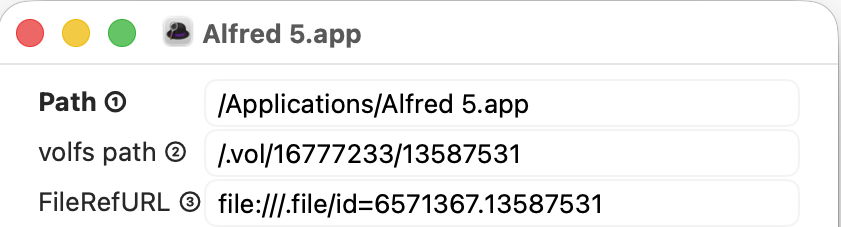
I picked Alfred, whose path is given as being in the main /Applications folder, which is on the Data volume, where I could install it. Look at the two lines below its path, and you’ll see its inode number, allocated by the file system, as the last on both lines, here 13587531. That’s relatively low, as we’ll see later, so confirms that it’s on the Data volume.
Now repeat that with one of the apps bundled with macOS.
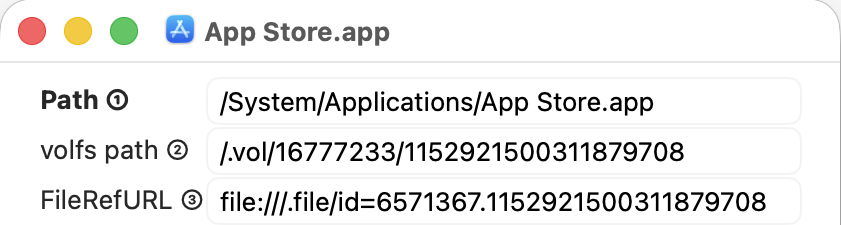
The App Store app has a different path, starting from /System, indicating that, although it might appear to be in the main /Applications folder, in fact that app is in the Signed System Volume (SSV) rather than the Data volume. The Finder agrees with this, and there’s added confirmation in the inode number of 1152921500311879708, which really is vast, and much larger than that of the Alfred app. As this app is part of the System, we can’t copy, move or remove it.
Now try Safari, another of the apps bundled with macOS.

Although the Finder tries to pretend this is alongside Alfred in the main /Applications folder, the path given by Precize is way off that, and gives its own clue that Safari is actually in the apps.dmg cryptex, which is here grafted into a folder in the Preboot volume, so in neither the System or Data volume. However, it has a very low inode number of 534152 indicating it has been grafted into that path. The other number, given before the inode number, is also different, and corresponds to the Preboot volume, rather than either of the volumes in the boot volume group.
For a finale, repeat this with one of your files stored in iCloud Drive.

While the Finder will continue its pretence that it’s in something called iCloud Drive, in fact it’s tucked away in a nest of folders inside your Home ~/Library folder. This means it’s on the Data volume, and it too has a low inode number of 341568 to confirm that, and the same volume reference number as Alfred and the App Store apps, but different from that of Safari. Of course, there’s also a copy of that file’s details and its data held in iCloud Drive, to which you don’t have direct access.
This isn’t just a trick or an exercise, though. The real location of a file or folder is important, as it tells you what you can do with it. You know that, subject to permissions, you should be able to move or remove items from your Data volume, including your iCloud Drive, but those in the SSV and cryptexes are immutable. You can run copies of apps from your Data volume, but not those in the SSV or a cryptex, which can’t be copied directly, and whose copies won’t launch. And if you need to access items in iCloud Drive from Terminal, you won’t find anything named iCloud Drive there, just a long path from your Home ~/Library folder.
You’ll never become lost in the file system again.
 The Eclectic Light Company