
I first looked in detail at how to archive webpages in Safari over three years ago, when I concluded that exporting to PDF was best, and confirmed that when I revisited the question a couple of months ago. One of the snags with those methods is that they not only save the article you want to preserve, but along with it comes all the furniture, including menus, search, lists of archives, tags and more. Rather than making a replica with all that overhead, why not select just the article we want to save?
There are currently two ways to do that in Safari, either using a textClipping or Gildas Lormeau’s extension SingleFile for Safari, from the App Store. Here I explain how you can do that using this page as my example.
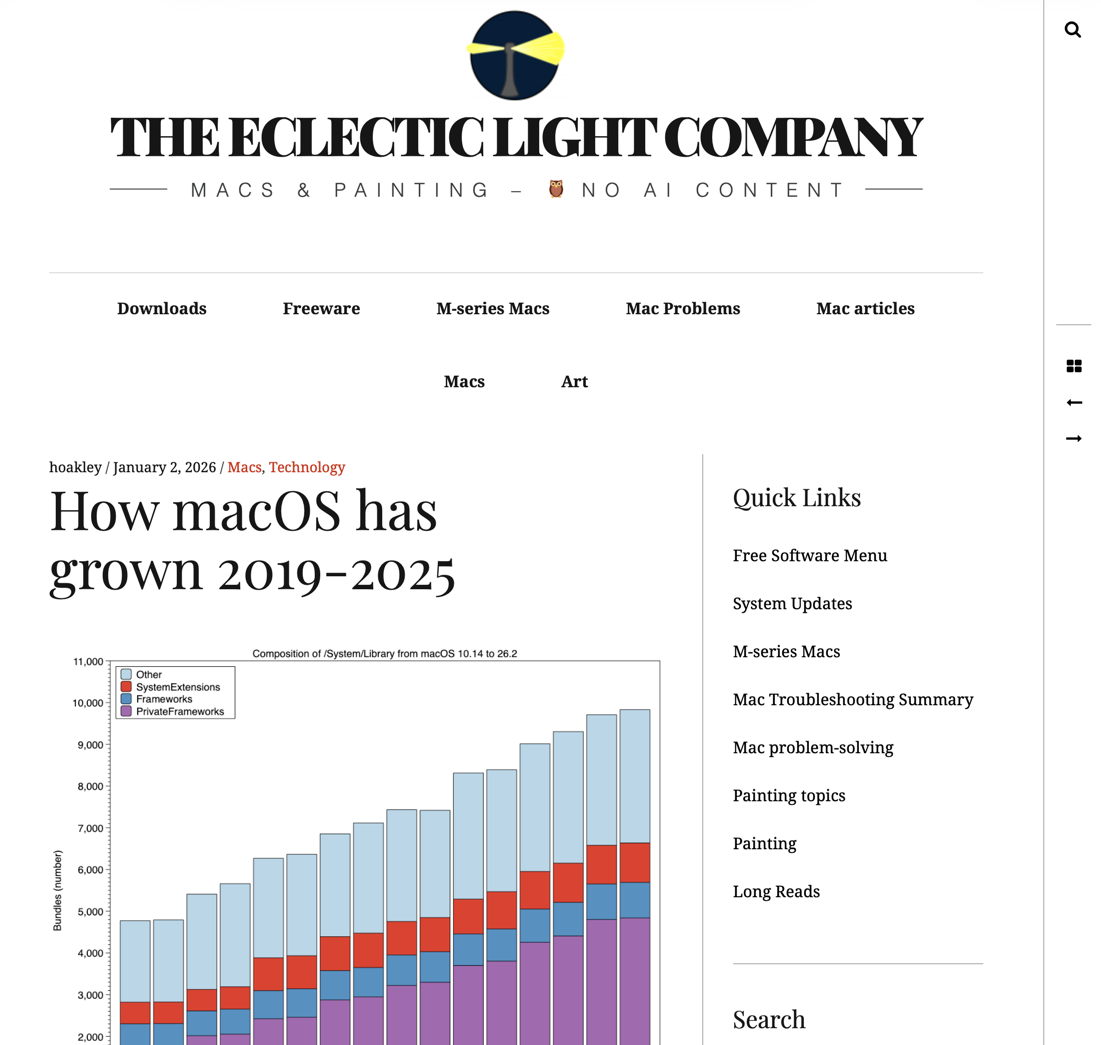
All the options built into Safari – Save As Web Archive, Save As Page Source, Save As PNG, and Export to PDF – include the page’s furniture, and some have other limitations, as explored previously. A full WebArchive file, including all the images, amounts to 2.7 MB, while a PDF is only 544 KB.
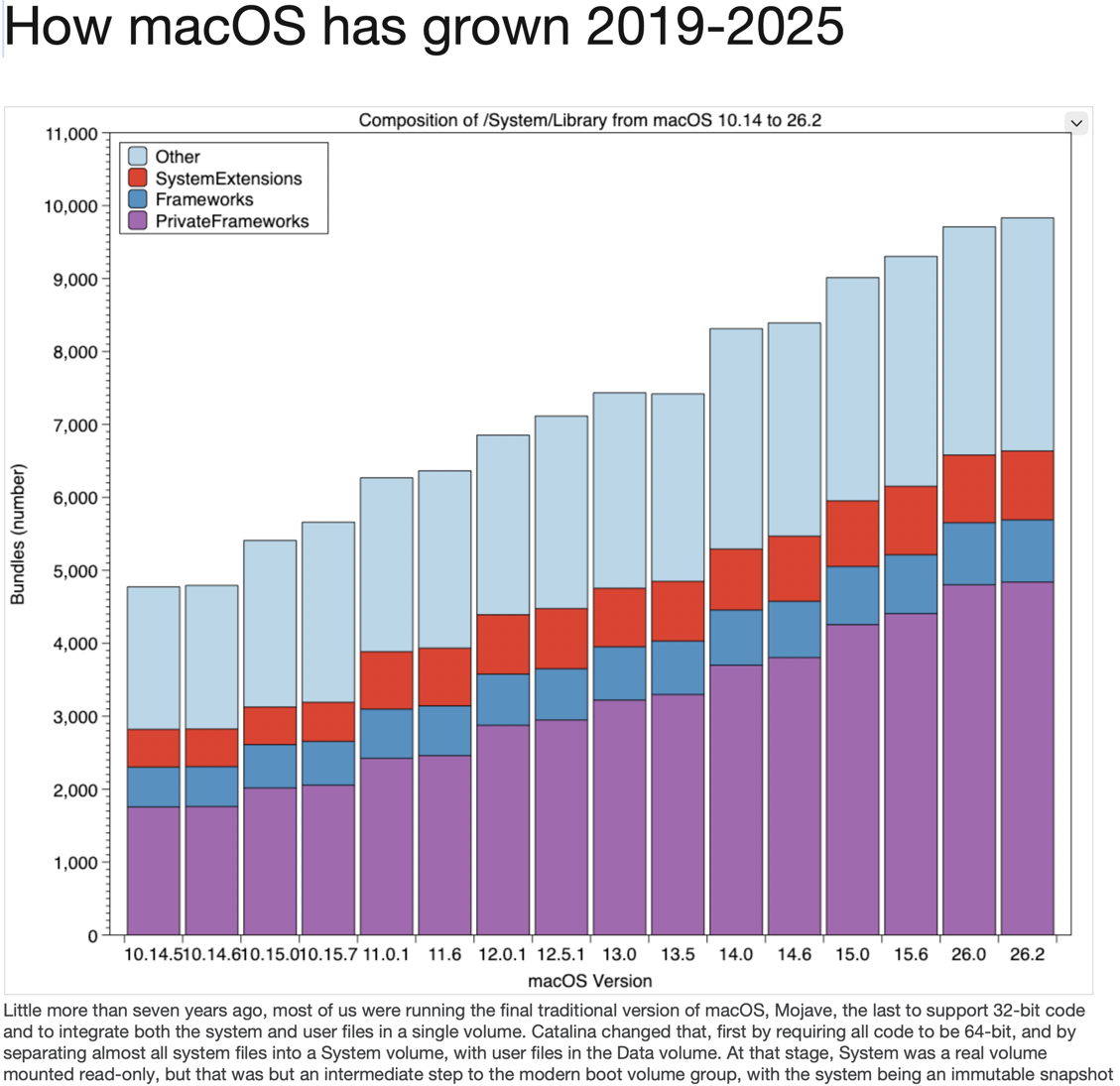
Now select just the contents of the article, by clicking just before the first letter of its title and dragging the selection down to the end. If you already have SingleFile installed, you can use the Save selection command in its menu to save that selection to a single 1.1 MB HTML file. That preserves its original layout faithfully, including its limited column width, but without any furniture.
Drag the selection to the Desktop to create a textClipping file there, ready to extract its contents in different formats using Disclipper. That textClipping file weighs in at 3.5 MB.
It’s worth noting that this method of saving the article contents overcomes one of the problems that can affect whole page options. The latter are prone to omit images from the later part of the article unless you scroll through it before saving or exporting, as Safari loads those lazily. When you select the whole of the article contents, that automatically forces Safari to load its whole contents, so none will be omitted from the textClipping file.
Directly accessing that textClipping is disappointing. TextEdit, which is capable of opening WebArchive format, will open it only as an RTFD file, complete with its embedded images, but its font and layout are largely lost.
Surprisingly, Safari doesn’t appear to open textClipping files, despite creating them with WebArchive data inside.
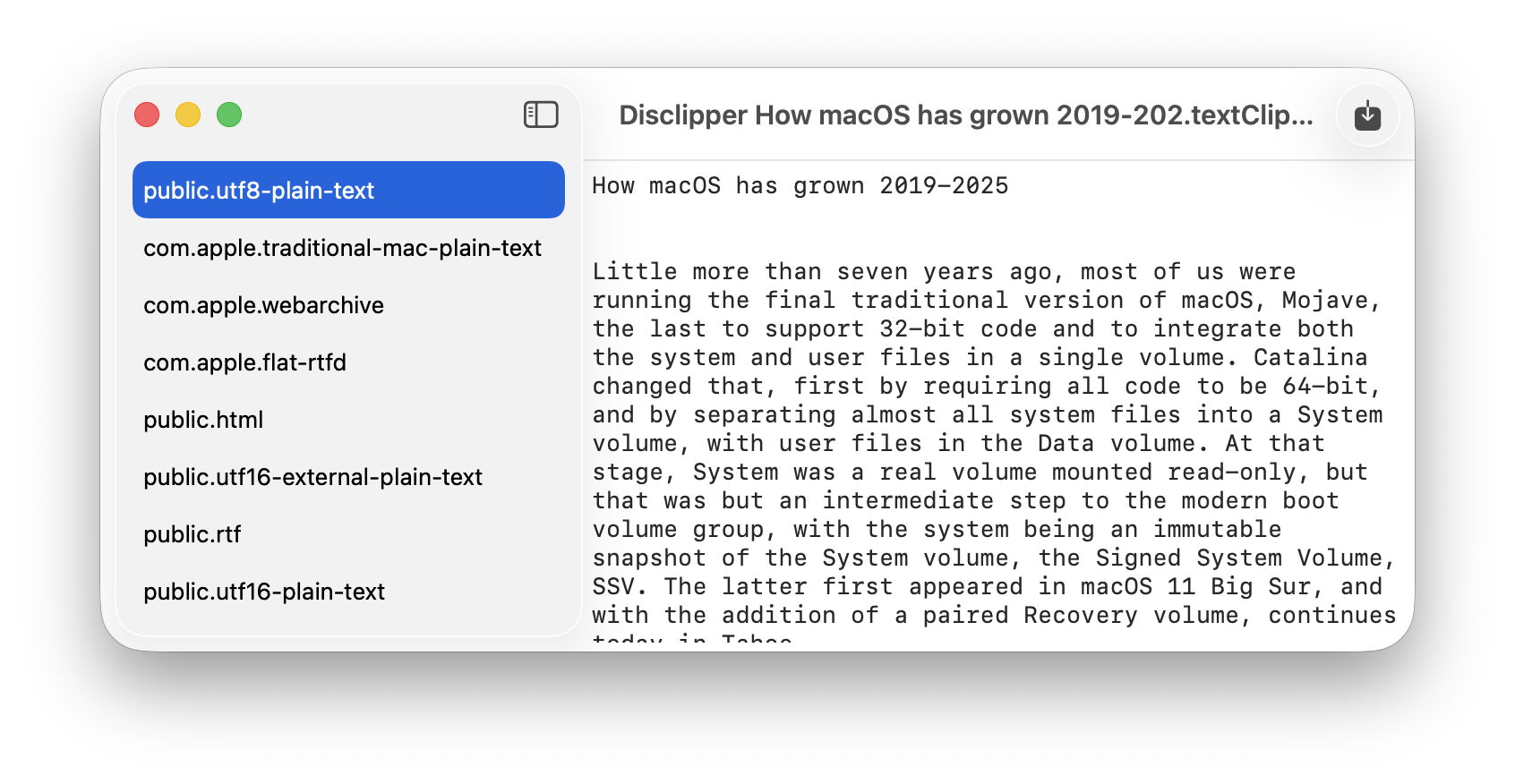
Drop that textClipping file onto Disclipper’s window, and you’ll have the option to save its contents in several formats including WebArchive, RTFD and HTML. Try each of those:
- Open the WebArchive in Safari, where it has changed styles but is complete with all images. This is 1.3 MB in size.
- Open the RTFD in TextEdit, where it’s the same as opening the textClipping, and complete with images. This is only 272 KB.
- Open the HTML in Safari, which then downloads its images from this website, so it isn’t suitable as a lasting archive, but is only 147 KB.
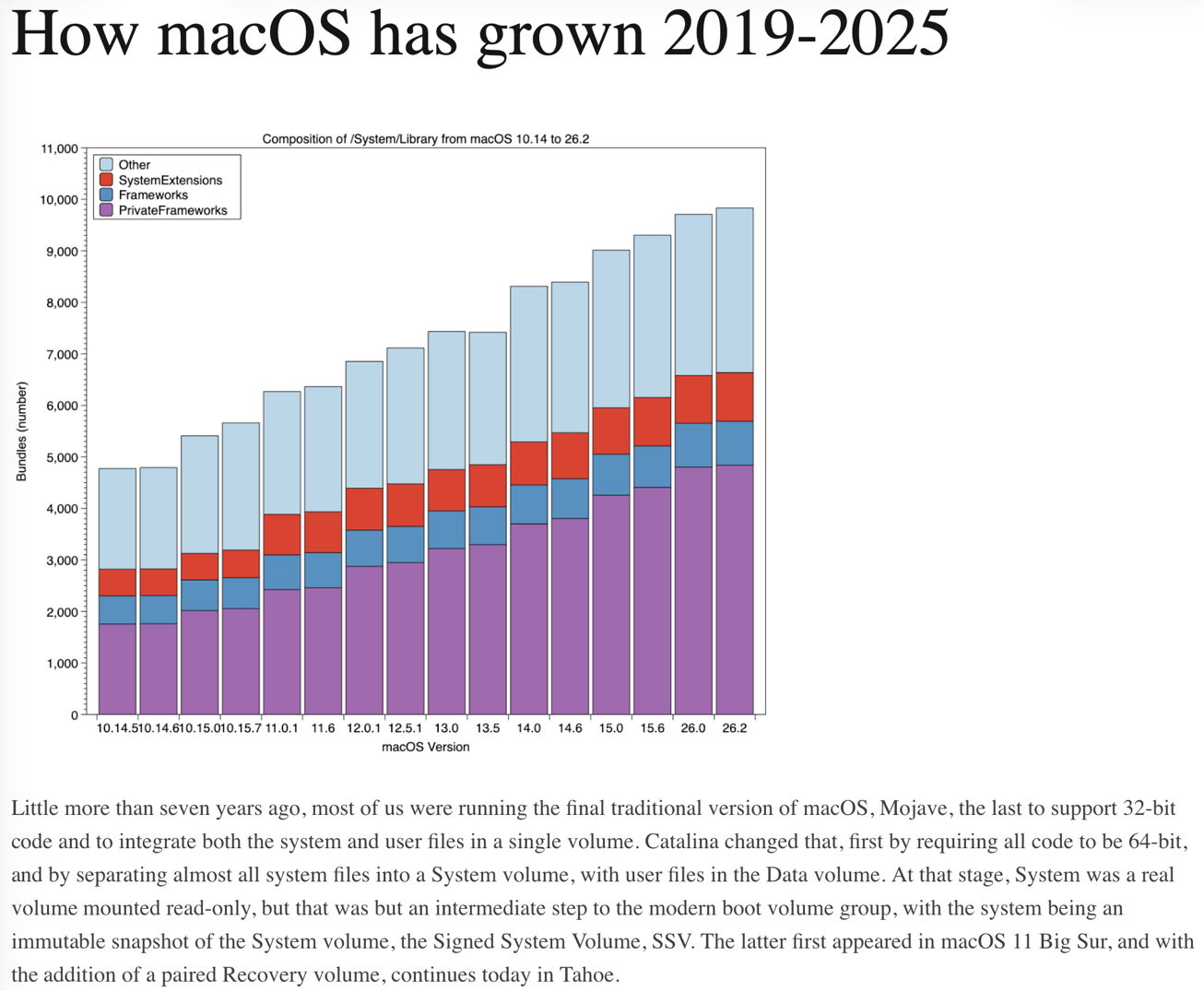
In this case, my preference is with the WebArchive version saved by Disclipper, although the similar RTFD version is a fifth of the size.
Should you want to extract just the text from the article, then using a textClipping should prove better than extracting it using Textovert, as the text saved to a textClipping should be that converted directly by Safari when it builds its transferrable data formats for a drag operation.
TextClipping files can thus be a useful intermediate when saving extracts of documents.
 The Eclectic Light Company