
Time Machine backups, Spotlight search, iCloud Drive storage and QuickLook previews are each very useful when and where you want them. But there are occasions when you want to exclude folders and files from their reach, or items are excluded when you want them included. This article is a brief reference to how you can control exclusion and inclusion.
Time Machine backups
Time Machine has several mechanisms for excluding items from its backups. The first of those used to be detailed in its Standard Exclusions listed in the hidden file .exclusions.plist at the top level of every backup, but that file has gone missing in backups made since upgrading to Tahoe, and is nowhere to be found.
This listed several categories of exclusions, of which the first are apiExclusionPaths, added by individual third-party apps. The equivalent of what used to appear in the previous StdExclusions.plist was given under the standardExclusionPaths key, containing:
- .DocumentRevisions-V100 – the version database on each volume,
- .Spotlight-V100 – Spotlight metadata,
- .Trashes – contents of Trash folders,
- .fseventsd – the File System Events database,
- /Library/Logs – traditional text log files,
- /Users/Guest – guest user files,
- /private/var (partial) – various transient files,
among many other ephemeral items.
Following those were stickyExclusionPaths, excluding various Photos Library contents. The key systemFilesExcluded was set to true to ensure the whole System volume was always excluded, following which were any userExclusionPaths you had set using tmutil or in Time Machine settings, using the Options… button.
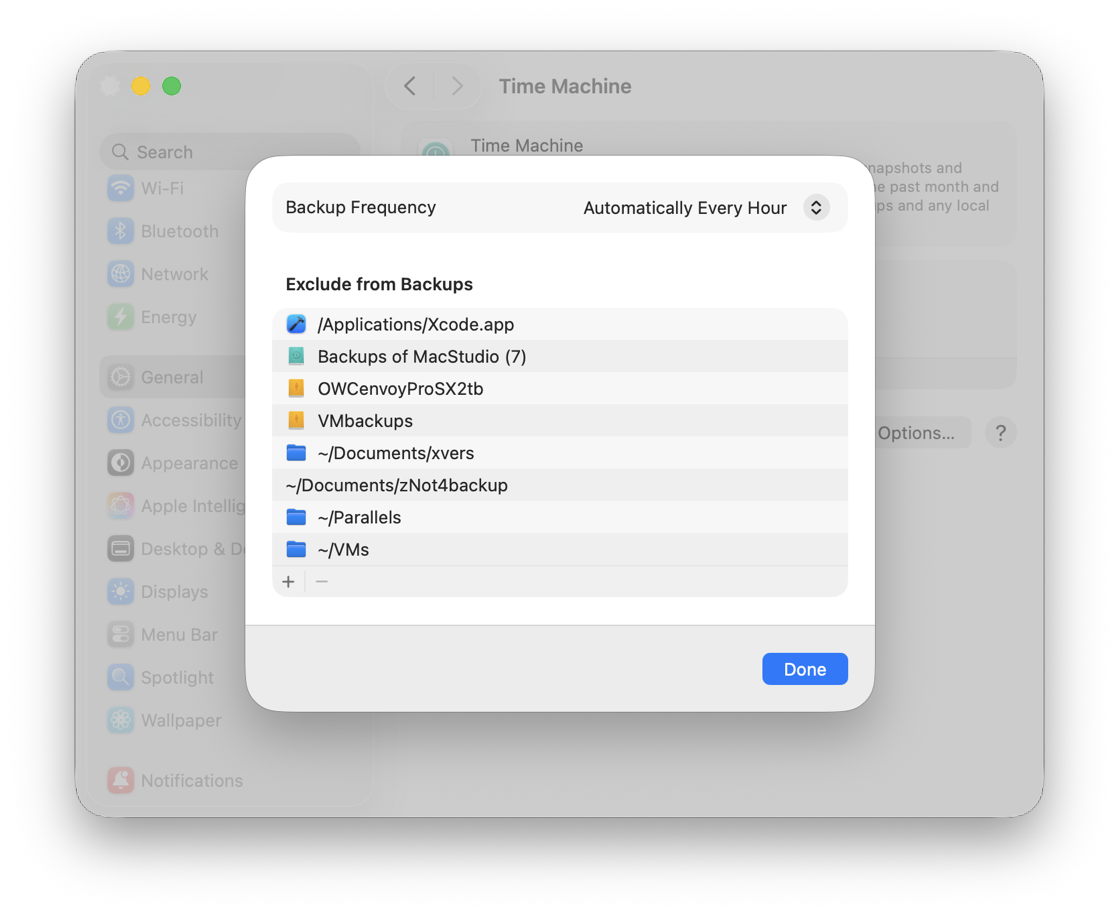
By default, volumes on external storage were automatically added to this exclusion list; if you wanted an external volume to be backed up by Time Machine then you needed to remove it from the exclusion list manually.
In addition to the rules given in the Standard Exclusion list, any file or folder can have an extended attribute of type com.apple.metadata:com_apple_backup_excludeItem attached to it as a ‘sticky’ exclusion, which should add it to the stickyExclusionPaths list and prevent it from being backed up by Time Machine. If you then remove that extended attribute, it should be backed up normally again.
I’m very grateful to Michael Bach for telling me that another possible way of excluding files or folders from Time Machine backups in some versions of macOS is to append the extension .nobackup to their name. I have tested this in Sequoia and Tahoe, and this does appear to work there.
While you can use tmutil to add items to, and remove items from, the exclusion list, it doesn’t appear able to list all current exclusions. You can test whether any individual item is currently being excluded from backups using the command
tmutil isexcluded path
where path gives the path to the folder or file. But in the absence of the exclusion list in Tahoe it doesn’t appear possible to obtain an overview of all exclusions.
Mike Bombich gives a thorough and detailed account of what CCC doesn’t copy on this page. Other backup utilities should also provide full lists on their support site.
Note that no folders or files can be excluded from APFS snapshots, whether made by Time Machine, CCC or any other app, as snapshots always capture the entire volume.
Spotlight search
There are now only two general methods of excluding folders from Spotlight’s indexing and search:
- appending the extension
.noindexto the folder name; - making the folder invisible to the Finder by prefixing a dot ‘.’ to its name.
System Settings offers Spotlight Privacy settings in two sections. Search results won’t normally prevent indexing of those items, but excludes them from appearing in search results. Spotlight’s indexing exclusion list is accessed from the Spotlight Privacy… button, where you can add items you don’t want indexed.
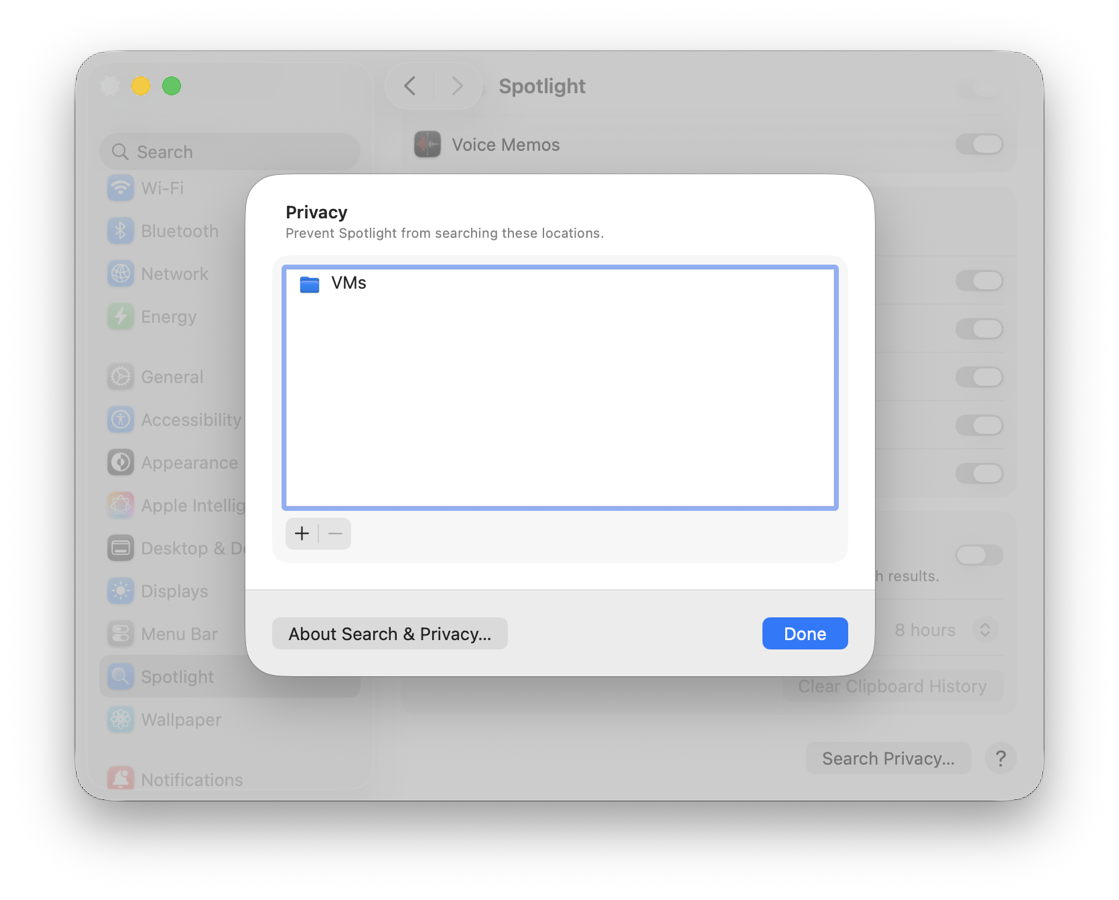
Spotlight may still index files in most Library folders, but withholds the results of any searches for those. The only folder there that does appear fully searchable is /Library/Application Support and its full contents.
There’s also a historical remnant in an extended attribute that can exclude individual files from search, com.apple.metadata:kMDItemSupportFileType, that can be attached to some old images. That renders the file unfindable for Local Spotlight search in a Finder Find window, although it should remain findable by apps using the NSMetadataQuery API.
iCloud Drive storage
This works primarily by inclusion, in that you copy or move items to the iCloud Drive folder when you want them to be copied up to iCloud Drive. There are occasions, though, when you might want to exclude specific folders and files that need to be in a folder in iCloud Drive, but you don’t want those items to be stored in the cloud. iCloud won’t sync items with the extensions .nosync or .tmp, so putting files inside folders whose name ends in either of those extensions will ensure that they’re not stored in iCloud Drive.
Other items intended for local housekeeping and similar purposes that are excluded from syncing include:
- .DS_Store files
- files whose name starts (A Document Being Saved
- .ubd files
- items with names containing .weakpkg
- desktop.ini files
- items with names starting with ~$
- items named $RECYCLE.BIN, which are trash folders
- items named icon\r, which are custom folder icons.
Files and folders with purposes that make iCloud syncing inappropriate include those:
- named iPhoto Library, and presumably now Photos Library too
- named Dropbox, .dropbox, or .dropbox.attr
- with the extension .photoslibrary, .photolibrary, .aplibrary, .migratedaplibrary, .migratedphotolibrary, or .migratedaperturelibrary
- named Microsoft User Data
- named ~ with an extension of 3 or more characters.
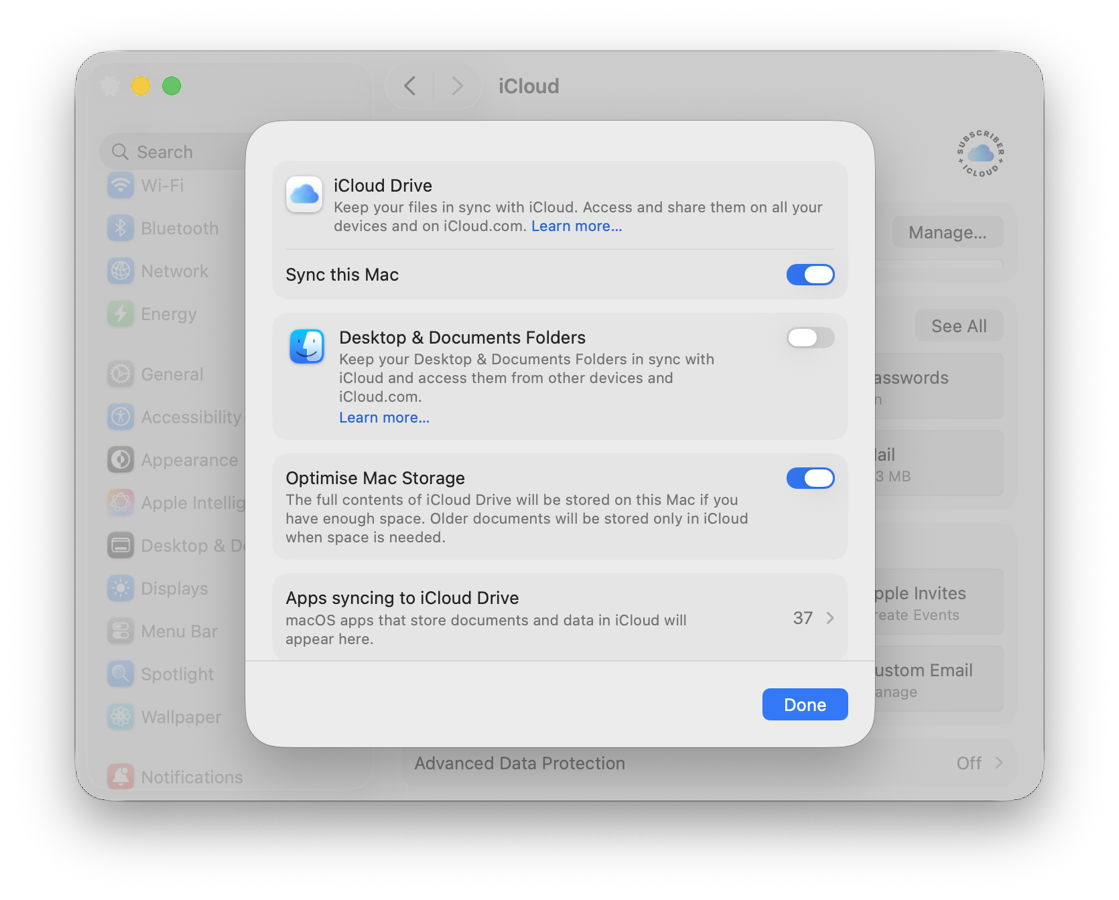
The only setting in System Settings gives control over Desktop & Documents folders, and those of individual apps; there’s no exclusion list available.
QuickLook
Although it has been claimed that making a folder invisible to Spotlight indexing by prefixing its name with a dot also blocks its contents from QuickLook thumbnails and previews, that isn’t correct. There’s currently no proven way to exclude any file or folder from QuickLook’s reach.
There’s one location that oddly blocks QuickLook thumbnails and previews from the Finder, in the entire contents of ~/Library/Messages/Attachments/, but they remain accessible to QuickLook from other apps.
Simple reference to folder controls
- Time Machine: add to settings with the Options… button, or using
tmutil; - Spotlight indexing: add to settings with the Spotlight Privacy… button, or append the extension
.noindexto the folder name; - iCloud Drive: append the extension
.nosyncor.tmpto the folder name. - QuickLook: none known.
 The Eclectic Light Company