
APFS has several ways of creating copies or links to files that can be confused. These are:
- conventional copy, to create a completely separate file
- clone file, a separate file that has common data with the original
- symbolic link or symlink, that’s just a path pointing to the original
- hard link, that’s really exactly the same file in disguise
- Finder alias, a more complex bookmark pointing to the original.
Symlinks and Finder aliases are easy to distinguish, as their icons have an arrow superimposed, and Get Info tells you they’re an Alias. While symlinks take almost no space at all, Finder aliases take a bit more. But at first sight, copies, clones and hard links all look identical. This article explores how you can tell them apart without resorting to Terminal’s command line.
First, a warning of a longstanding problem in the Finder: it can’t tell them apart, and can’t account correctly for the space they take on disk. To see what I mean, create a folder and a chunky file inside it, which I’ll call MyBigFile.tiff. In Terminal, create five hard links to it, numbered 2-5, using commands like
ln MyBigFile.tiff MyBigFile2.tiff
Then for good measure, clone MyBigFile.tiff twice by duplicating it in the Finder to create MyBigFileclone.tiff and MyBigFileclone2.tiff.

Select all seven files, and press Control-Command-I or Option-Command-I to Get Info on multiple items, and you’ll see the Finder thinks each of those seven files takes the same space on disk, in my case totalling 70 GB, even though we know that there’s only 10 GB of data stored between them. This has been a persistent shortcoming in the Finder since long before the introduction of APFS, and applies to both clone files and hard links.

Conventional copy

When we make a conventional copy of a file, a new inode is created for it, and each of the items that make up that file are copied, including the data stored in its file extents. This requires the same amount of additional disk space as used by the original file, as there’s nothing in common between the two files.
Clone file

Instead of duplicating everything, only the inode and its attributes (blue and pink) are duplicated to create a clone file, together with their file extent information. You can verify this by inspecting the numbers of those inodes, as they’re different, and information in the attributes such as the file’s name will also be different. There’s a flag in the file’s attributes to indicate that cloning has taken place.
Hard link
In hard links, exactly the same file is accessed through two different file paths. Although other file systems may handle this differently, according to Apple’s reference to APFS, this is how it handles hard links.

When you create a hard link to a file (blue), APFS creates two siblings (purple) with their own IDs and links, including different paths and names as appropriate. Those don’t replace the original inode, and there remains a single file object for the whole of that hardlinked file. Inode attributes keep a count of the number of links they have to siblings in their link (or reference) count. Normally, when a file has no hard links that’s one, and there are no sibling files. When a file is to be deleted, if its link count is only 1, the file and all its associated components can be removed, subject to the requirements of any clones and applicable snapshots. If the link count is greater than 1, then only the sibling being removed is deleted.
Using Precize
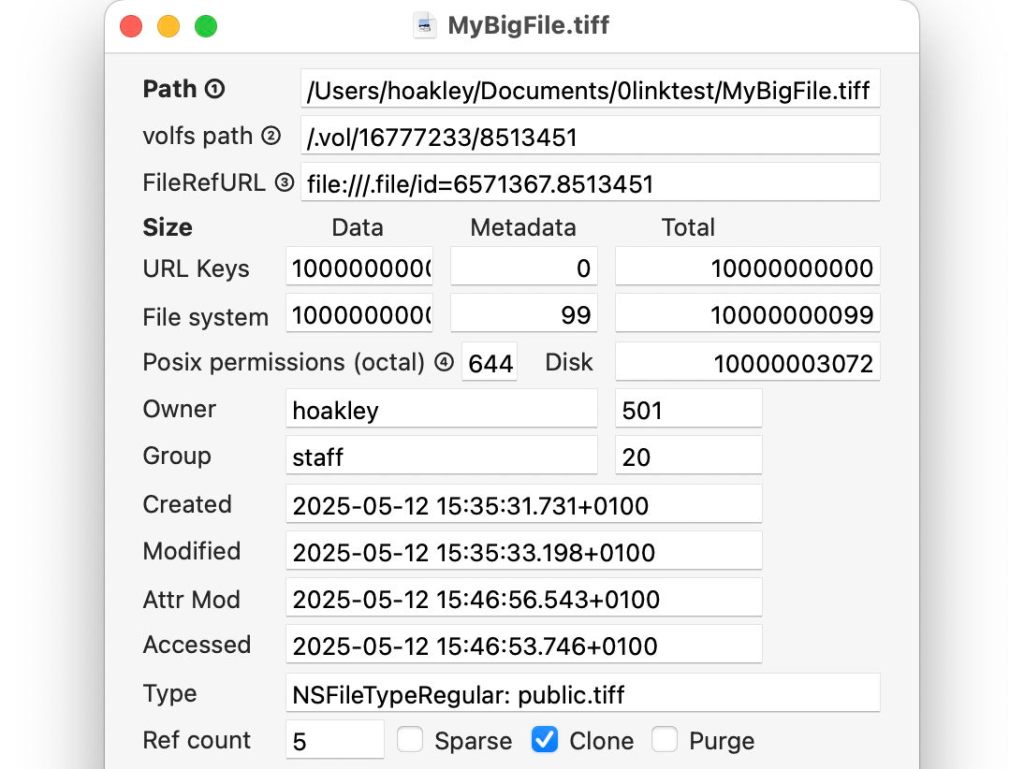
As the Finder can’t tell us which are hard links and which are clone files, we can resort to a utility like my free Precize. Drop the file onto its app icon, and these are what you should see.

This is the original file, which has now got four hard links and has two clones as well. If you drop any of those hard links onto Precize, you’ll see they’re the same file, with the same inode number given at the top in the volfs path and FileRefURL, in this case 8513451. Look at the bottom, and their Ref count is given as 5, because all five are hardlinked together to the same file. Because we’ve also cloned this file, the Clone checkbox at the bottom is ticked.

This is one of the two clone files made from that original. Because this is a different file that just happens to point to the same data, it has a different inode number in the volfs path and FileRefURL. Its Clone checkbox is ticked, as it is a clone, but it only has a single Ref count, as none of the hard links point to this clone file.
The same goes for the second clone, with its own inode number, ticked as a Clone, and single Ref count.
Are they identical?
The final question you might ask is whether files are identical. In the case of hard links, the answer is simple: as they’re the same file in disguise, yes, they are absolutely identical.
Clones require a bit more work, as they will continue to be shown as clones even though their contents may be quite different by then. The best answer is to compute the SHA-256 hash of the file’s data, and compare that between two clones. If you’re interested in any of their metadata contained in their extended attributes, then you’ll need to check those as well.
 The Eclectic Light Company