Until OS X 10.7 Lion, neither Classic Mac OS nor its successor OS X had any system-level support for creating or maintaining versions of files. In Classic days, some advanced users operated their own methods using the Save As command, and a few apps implemented their own schemes. One of my own CAD/CAM apps, for example, used the resource fork to store a limited number of previous versions of each file, but that was unusual.
Origins
Support wasn’t introduced until 2011, when Apple changed its Foundation API to support a new class NSFileVersion, described as saving “a snapshot of a file at a specific point in time” (note this isn’t a volume snapshot as in APFS). This was accompanied by changes in AppKit that moved away from the long-established Save As… command to Duplicate…, which proved unpopular at first.

Further down the File menu was the new Revert To item, and its Browse All Versions… command. This opened a browser similar to that of Time Machine, with the current document on the left, and the right side showing all the older versions saved in that volume’s database.

Since Lion, an increasing number of third-party apps have been giving access to this built-in versioning system.
Version database
Versions of files are stored in a hidden folder .DocumentRevisions-V100 at the root of each regular volume capable of storing them. Before the arrival of APFS, this consisted of:
- .cs containing the ChunkStorage folder containing nested folders of data chunks, and the very large ChunkStorageDatabase.
- LibraryStatus, a small file.
- PerUID containing a folder for each user ID, each in turn containing numbered folders containing saved versions of documents.
- db-V1 containing the sqlite database in which version files are maintained.
- metadata, a larger file containing various metadata and xattrs.
- purgatory, a folder presumably for versions due to be purged.
- staging, a folder that is often empty.
For example, the folder PerUID/501 contains many more folders numbered in time order, within each of which is another folder named com.apple.documentVersions containing that batch of version files for Apple’s apps. Each version file is named by UUID, with the correct extension.
The chunks contained in .cs and individual version files in PerUID are all referenced by the database. Deleting or removing any of those files will render the database out of sync, and require its reconstruction. It has sometimes been suggested that deleting large version files is a good way of fixing problems, but that may also cause its own. At worst, it could disable the versioning system, or cause it to malfunction. The contents of .DocumentRevisions-V100 aren’t intended to be manipulated even by advanced users, and the risks of tampering with them are great.
Following the introduction of APFS, its volumes have retained a similar .DocumentRevisions-V100 folder, but instead of containing ChunkStorage for versions, these may now contain cloned copies of each saved version, benefiting from the economy on storage space that would bring.
The database can grow to substantial size. On Macs that make light use of its features, it’s likely to be up to 100-200 MB in size on most active volumes, and some users report sizes of 5 GB or more when it’s used heavily. You can check current size using a command of the form
sudo du -sh [pathtovolume]/.DocumentRevisions-V100
followed by authentication. The correct path to use for that on the current Data volume is /System/Volumes/Data/.DocumentRevisions-V100, although that may now be blocked altogether on Apple silicon Macs.
Volume binding and iCloud
It appears that Time Machine backups normally included the .DocumentRevisions-V100 folder even though Time Machine was unable to restore file versions. By macOS Catalina this could be responsible for extremely slow backups, and that folder was added to the built-in exclusion list for Big Sur and later.
Versions are bound to the volume of the current version of a file. When a file is moved to a different volume, its saved versions on the original volume are lost. This is more complicated with iCloud Drive, though. In late 2018, files stored in iCloud Drive not only retained versions in their local volume, but some were also apparently saved in iCloud Drive too. This proved too erratic to be reliable, and in more recent macOS versions are no longer stored in iCloud, but retained in the local volume.
That too has proved complex: as of macOS 14 and iPadOS 17, apps such as Pages save local versions in macOS, but only iCloud Drive versions in iPadOS. Pages for iCloud can’t access versions in its own local storage or external storage, only in iCloud Drive, while Pages for macOS can only access versions in its own local storage or external storage, but not in iCloud Drive.
Quirks
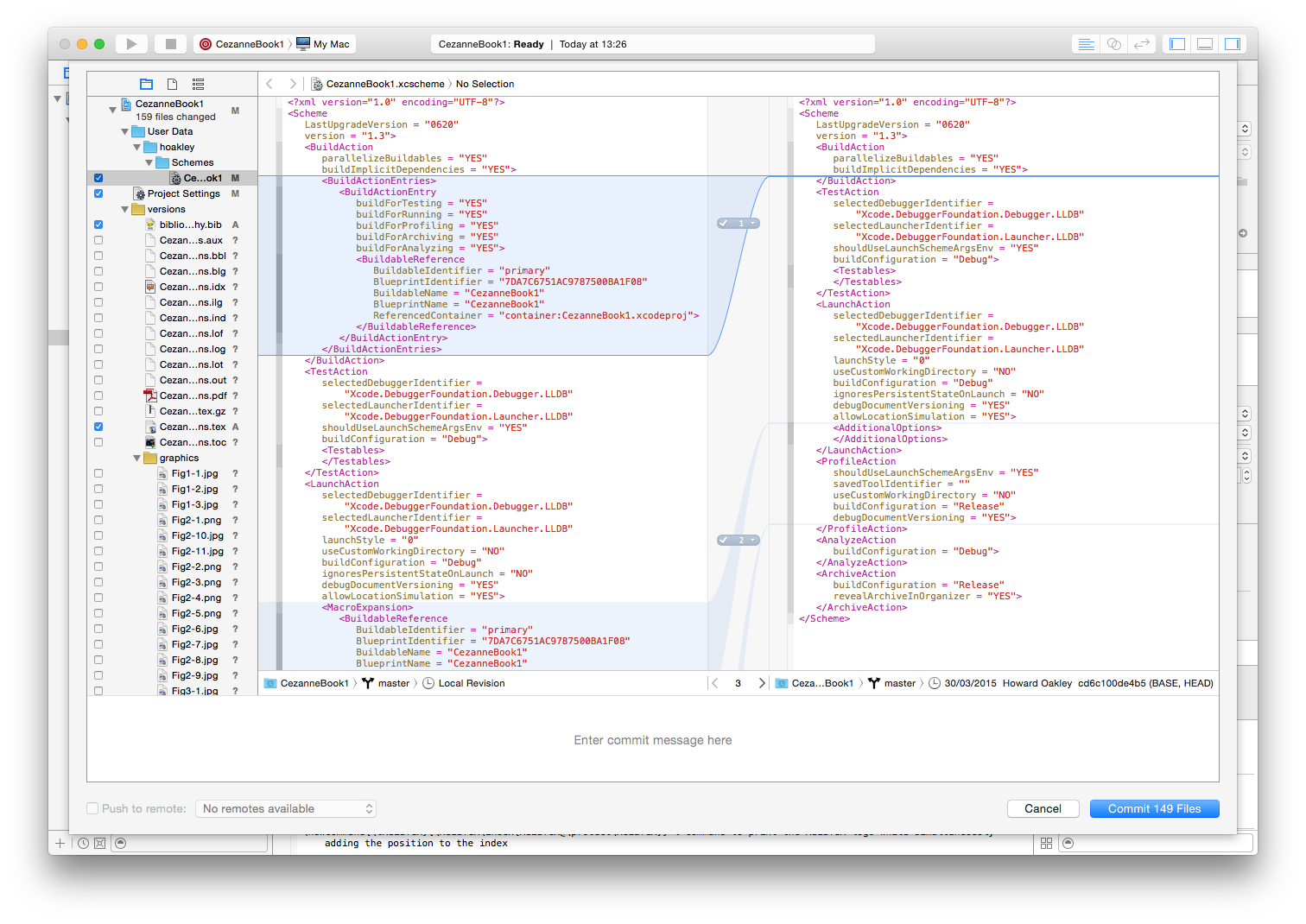
Comparing stored versions still isn’t supported, although some apps do offer it as an additional feature.
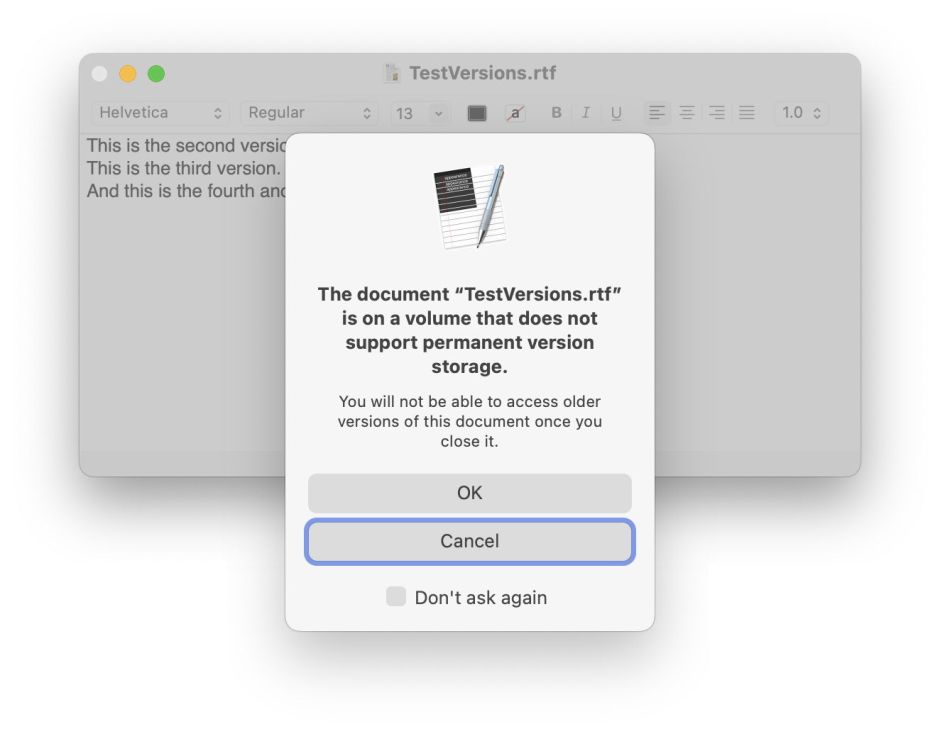
If you create a new document on a non-native file system, macOS may continue to retain versions in memory, perhaps supported by cache files on the current Data volume. Changes are saved normally, but when you come to close the file, you’re warned that versions can’t be saved because the document “is on a volume that does not support permanent version storage.”