
In a week’s time we’ll be celebrating the seventh birthday of one of the most important and influential features of Apple’s modern operating systems, APFS. To add a little depth to that, I’m going to look at how this seven year-old is doing, and how it’s working for us. Rather than starting from its top level, with disks and containers, I’ll try to build up to those from basics, starting in this article about regular files.
Files

A file in APFS is required to have, at an absolute minimum, an inode and its associated attributes (shown here in blue), including a set of timestamps, permissions, and other essential information about that file.
There are also three optional types of component:
- although some files may be dataless, most have data, for which they need file extents (green), records linking to the storage blocks containing that file’s data (pink);
- smaller extended attributes (yellow), named metadata objects that are stored in a single record;
- larger extended attributes (yellow), over 3804 bytes in size, whose data is stored separately in a data stream.
Reading a file is then a matter of finding its file extents and reading in the correct sequence the storage blocks they point to. If the file is dataless, that normally means that its data are stored elsewhere, typically in iCloud. Before that can be read, it has to be downloaded from the remote store into local storage, a process known as materialisation, then it can be accessed through its file extents.
Saving a change made to a file’s content is intended to minimise changes made to its storage blocks, an important feature for using SSDs to minimise the number of erase-write cycles in its memory. This isn’t just to reduce ‘wear’ and extend life, but because erasing used blocks is slow, uses energy, and generates significant heat.
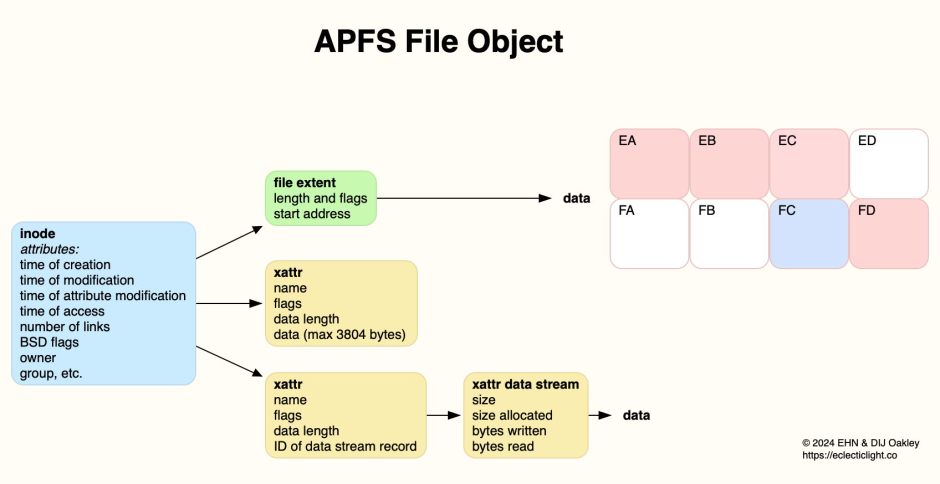
In this example, changes are made in part of the data that’s stored in block FC, resulting in a new block at EC replacing it in the file extents. One of two things can then happen:
- if there are no snapshots for that volume, block FC will be returned to the SSD’s pool of blocks that can be re-used to save further data, and will be erased ready for that;
- if there’s a snapshot containing this file with the data in block FC, then that block will be retained with the snapshot until that’s deleted, and only then can it be returned for re-use.
Clones
Making an ordinary copy of that file involves duplicating each of its components, including copying each of its storage blocks. But APFS offers a more efficient alternative: the clone.

Instead of duplicating everything, only the inode and its attributes (blue and pink) are duplicated, together with their file extent information. You can verify this by inspecting the numbers of those inodes, as they’re different, and information in the attributes such as the file’s name will also be different. There’s a flag in the file’s attributes to indicate that cloning has taken place.
At first, the two cloned files share the same data blocks and extended attributes. Delete one of the clones and those components remain, as they’re still required by the other clone. But, as the two files are changed by editing, they start to drift apart.
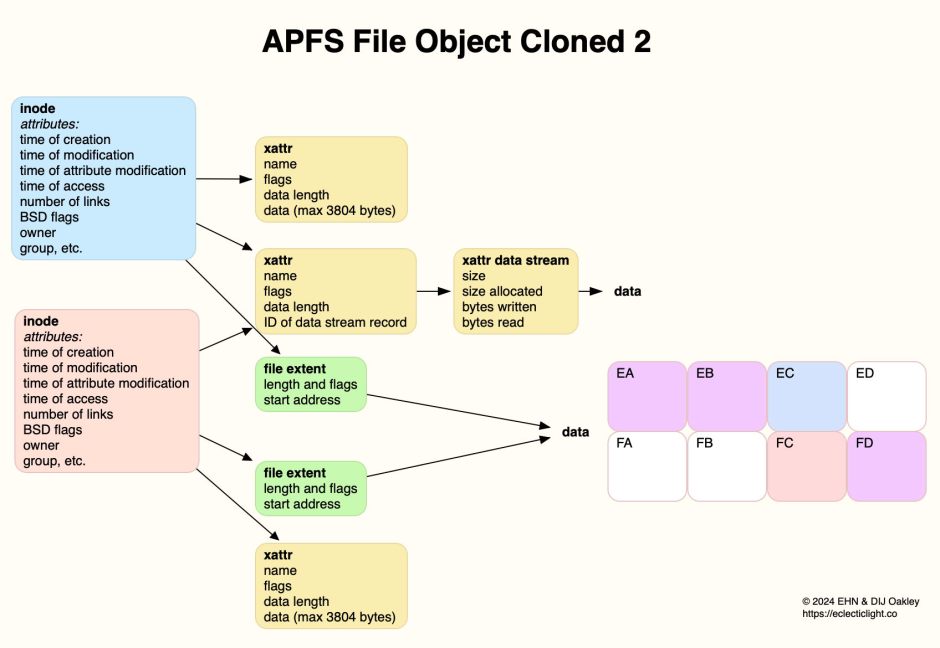
Here, two changes have been made to the pink file: the smaller of its two extended attributes has been changed, so that file’s inode links to a different object, and one of the data blocks has also been changed. Data blocks used by the two files now overlap:
- the blue file’s data is in blocks EA, EB, EC, and FD;
- the pink file’s data is in blocks EA, EB, FC, and FD.
Eventually, the two cloned files may cease to share any common data, and become separate.
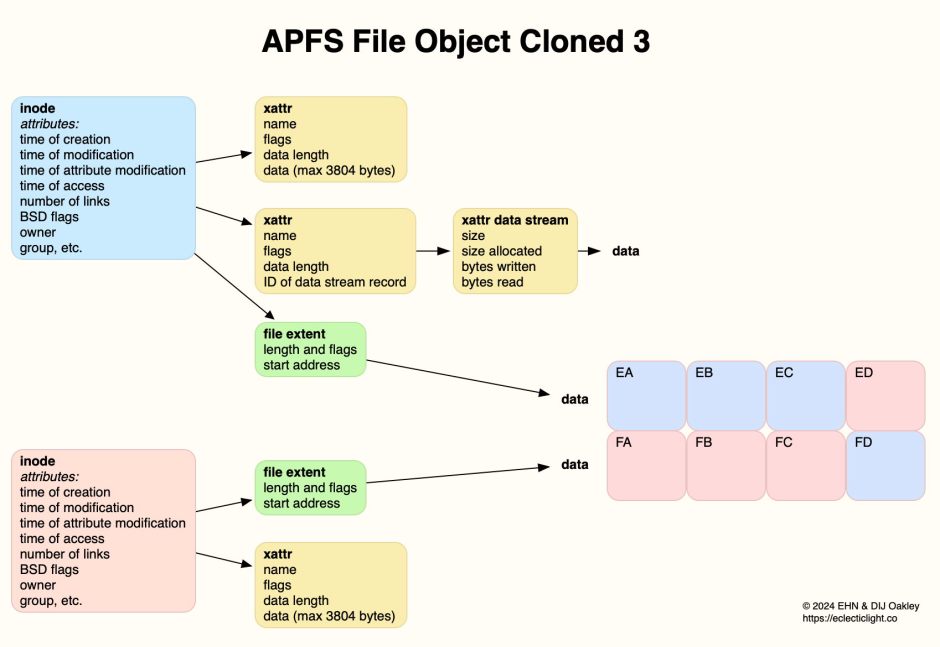
Now there’s no common data shared between those two files.
Because they rely on using file components that only exist within a single volume, clones can only be made within one volume. The moment that you copy a clone to a different volume, because the other clone remains in its original volume, that becomes a complete copy, not a clone. Their creation normally only occurs when specific file operations are performed: for instance, when you duplicate a file or bundle in the Finder, that will try to create a clone rather than a full copy.
Cloning is another application of the principle of using the absolute minimum of storage blocks, to minimise the number of erase-write cycles in the SSD. It’s quite different, though, from what happens with hard links, where exactly the same file is accessed through two different file paths. Although other file systems may handle this differently, according to Apple’s reference to APFS, this is how it handles hard links.

When you create a hard link to a file (blue), APFS creates two siblings (purple) with their own IDs and links, including different paths and names as appropriate. Those don’t replace the original inode, and there remains a single file object for the whole of that hard-linked file. Inode attributes keep a count of the number of links they have to siblings in their link (or reference) count. Normally, when a file has no hard links that’s one, and there are no sibling files. When a file is to be deleted, if its link count is only 1, the file and all its associated components can be removed, subject to the requirements of any clones and applicable snapshots. If the link count is greater than 1, then only the sibling being removed is deleted.
Inspecting files
Most of the information available from APFS can be inspected in files using my free Precize.
The inode number of a file is given in its volfs path near the top: this normally has the form /.vol/16777238/205844740, where 16777238 is the volume ID, and 205844740 is that file’s inode number.
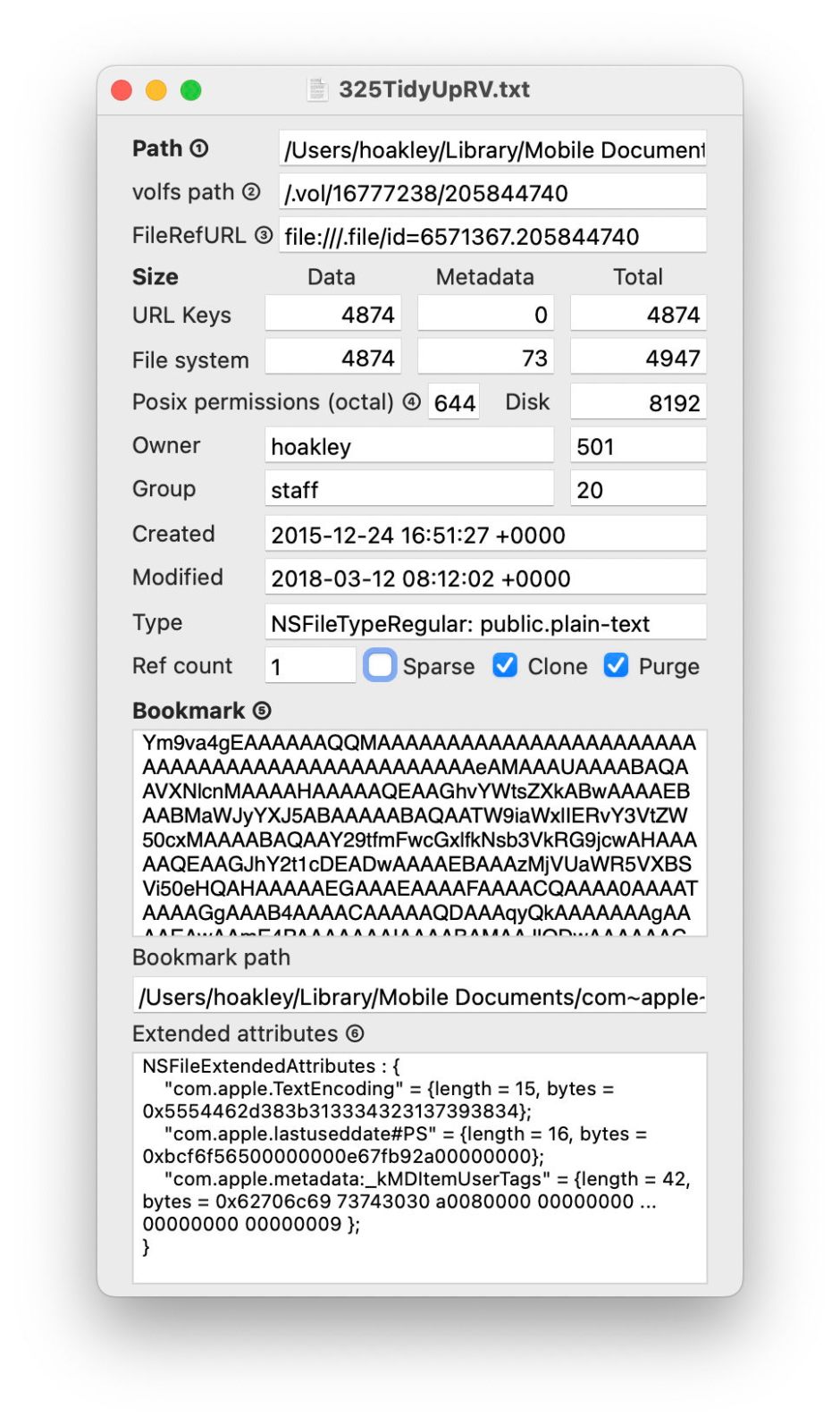
About halfway down the window, Precize shows that file’s link or reference count, which is 1 unless it has at least one hard link. To the right of that are three checkboxes, indicating whether that file is in sparse file format, has at some time been cloned, and whether it’s purgeable. In the box at the foot of the window is a list of that file’s extended attributes. For more details of those, use my free extended attribute editor xattred instead.
Summary
- Every file has an inode with attributes.
- Optional extras include file extents and data (empty for dataless files), shorter extended attributes, and longer extended attributes with a data stream.
- Changing the data in a file results in minimal replacement of changed data blocks.
- Old data blocks will be retained as required by a snapshot, or returned for erasure and re-use.
- When possible, and only within the same volume, files are cloned rather than copied.
- Clones share the same data until they change, but have different inodes.
- Hard links have the same inode, with siblings for each of the links, and their data remains common to all siblings.
- A file’s volfs path gives its volume ID and inode number.
Reference
Apple’s APFS Reference (PDF), last revised 22 June 2020.
 The Eclectic Light Company