
Although changes to iCloud Drive were nowhere mentioned in Apple’s long list of Sonoma’s new and improved features, many of us have noticed those, sometimes in frustration at the huge syncs they can cause. One of the more obvious changes in Sonoma is a new folder where the FileProvider subsystem manages transfers, at ~/Library/Application Support/FileProvider/[UUID]. There you’ll find sub-folders with names like wharf that appear to act as staging posts for transfers to and from iCloud Drive, at least when Optimise Mac Storage is turned on.
This article explains how FileProvider for iCloud Drive treats special files and their components, such as extended attributes.
inodes and clones
The advent of the dataless file makes management appear more straightforward than it had been using hidden stub files in the past. Move a file from your Data volume to iCloud Drive and it retains its original inode number, as it has only been moved within the directory tree. However, with FileProvider that original is also clone-copied, presumably to a location inside the FileProvider folder from where it’s copied up to iCloud Drive. This has important consequences for preserving the original file’s extended attributes (xattrs) and any local saved versions, as I explain below.
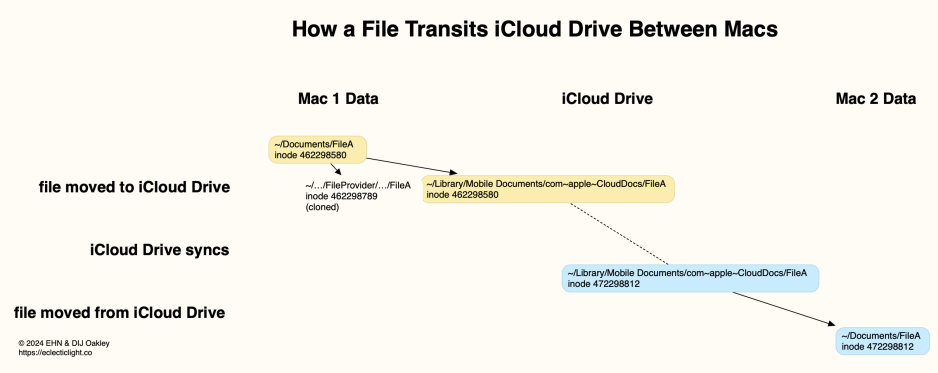
This is shown in the diagram above. A file named FileA is moved from the user’s Documents folder on the Data volume of Mac 1. It appears that a cloned copy of that original is temporarily stored in the FileProvider folder hierarchy during copy up to iCloud. Because the original file has only moved within the same volume, when it has been copied up to iCloud Drive, its local copy bears the same inode number, has the same xattrs, and any saved versions.
When Mac 2 syncs that file down from iCloud Drive, a new file is created in that user’s iCloud Drive folder, so has its own inode number. That file may bring with it selected xattrs that pass through iCloud, but has no associated versions on that Mac. If that file is moved from iCloud Drive into that user’s Documents folder, then it retains the same inode number, and any surviving xattrs, and may add its own local versions when edited there.
One other significant addition to files stored in iCloud Drive when Optimise Mac Storage is turned on is that they’re marked as being purgeable by APFS. This allows macOS to evict them from local storage when it needs the space, leaving just a dataless file behind, which can be materialised again by downloading the data. That can’t occur when Optimise Mac Storage is turned off.
Sparse files
When written in conformance with the requirements of APFS, files that largely consist of empty space are stored in a special sparse file format that only stores the non-empty data. This can make a great difference to storage efficiency: for testing purposes I used a nearly empty file of 1 GB nominal size stored in just 20 KB of disk space.
iCloud Drive handles these special sparse files correctly, as they do take their minimal size when stored in iCloud, and retain sparse file format when moved back to local storage. In such extreme cases, this is substantial enough to be noticeable, as their upload time is much shorter than you’d expect for their nominal size, and moving the sparse file back to local-only storage is almost instant.
When this sparse file format was first introduced in APFS, it appeared little used, but since then files stored in sparse format have become commonplace. Support for the format in iCloud Drive is thus important for both transfer and space efficiency.
Extended attributes
Historically, iCloud Drive hasn’t been a friendly place for files with many or large extended attributes (xattrs), as most have been stripped when they’ve been copied up into cloud storage, and only a small range of more standard xattrs have survived passage. In Ventura, this even applied to files that were evicted locally then downloaded again from iCloud Drive. That has been fixed in Sonoma, where their handling is best summarised as follows.
- On the Mac that uploads files with xattrs, iCloud Drive appears to preserve all xattrs because they’re accessed from the local file system, not iCloud Drive. Dataless files aren’t metadataless as well.
- Larger xattrs and all Resource Forks are now retained through the eviction-download cycle.
- Other Macs accessing the same files in iCloud Drive are provided with a more limited range of xattr types, which excludes all third-party types unless they’re specially tagged for retention using xattr flags. Because those flags are poorly documented, they’re summarised in the Appendix.
Observation of MMCS chunking behaviour suggests that xattrs transferred up to iCloud Drive are chunked and transferred separately.
Versions
Because moving a local original to iCloud Drive doesn’t change its inode, that also preserves its association with any saved versions of that file in that volume’s version database. However, that remains local, and other Macs are unable to access those versions. iOS and iPadOS appear to access versions they create, but can only do so for documents in iCloud Drive, and Macs are unable to access those versions.
The end result is that Macs and devices each have limited access to saved versions, and macOS provides no mechanism to improve that.
Storage economy
When used correctly, APFS only saves changed blocks in edited files, to ensure good storage economy and reduce erase-write cycles on SSDs. A similar system used with cloud storage could reduce the quantities of data transferred and data churn in cloud servers. To assess this, I moved a 1 MB text file to iCloud Drive, then made minor changes to its first few characters before saving it.
When first moved to iCloud Drive, MMCS chunked the following data for that file:
- 1,092,739 bytes in 71 chunks, representing the file data,
- 193,340 bytes in 13 chunks, presumably containing metadata,
- 43 bytes in 1 chunk.
When that file was saved, MMCS chunked the following to be copied up:
- 1,092,752 bytes in 71 chunks,
- 193,334 bytes in 13 chunks,
- 43 bytes in 1 chunk.
That demonstrates that iCloud Drive makes no attempt to economise on data transferred, but each time a file is changed, its entire contents are copied up. This is an important consideration for those intending to store potentially large items such as disk images and sparse bundles in iCloud Drive.
Any change made to a disk image would inevitably require the whole of that file to be copied up. Although a sparse bundle with its multiple band files might appear to be significantly more economical, as only changed band files should need to be transferred, any more widespread change that might occur with compaction could require a long and arduous sync.
Summary
- Files moved into iCloud Drive from the Data volume retain the same inode and are moved within the directory tree rather than copied.
- As a result, moving a file to iCloud Drive from the Data volume preserves its extended attributes and any saved versions, when accessed from the same Mac.
- When accessed from another Mac or device, though, versions are lost, and extended attributes severely limited.
- To preserve extended attributes during passage through iCloud Drive, edit its type (name) by appending the xattr flag #S.
- iCloud Drive preserves APFS sparse file format.
- iCloud Drive saves changed files at the file, not block, level. It has no mechanism for economising on the amount of data transferred: if one byte is changed in a file, then that whole file is resynced by copying it up to iCloud.
Appendix: xattr flags
In 2013, as part of its enhancements for iCloud in particular, Apple added support for flags on xattrs to indicate how those xattrs should be treated when the file is copied in various ways. Rather than change the file system, Apple opted for an elegant kludge: appending characters to the end of the xattr’s name.
If you work with xattrs, you’ve probably already seen this in xattrs like com.apple.lastuseddate#PS whose name ends with a hash # then one or more characters: those are actually the flags, not part of the name, what Apple refers to as a ‘property list’. To avoid confusion I won’t use that term here, but refer to them as xattr flags.
Flags can be upper or lower case letters C, N, P and S, and invariably follow the # separator, which is presumably otherwise forbidden from use in a xattr’s name. Upper case sets (enables) that property, while lower case clears (disables) that property. The properties are:
- C:
XATTR_FLAG_CONTENT_DEPENDENT, which ties the flag and the file contents, so the xattr is rewritten when the file data changes. This is normally used for checksums and hashes, text encoding, and position information. The xattr is preserved for copy and share, but not in a safe save. - P:
XATTR_FLAG_NO_EXPORT, which doesn’t export the xattr, but normally preserves it during copying. - N:
XATTR_FLAG_NEVER_PRESERVE, which ensures the xattr is never copied, even when copying the file. - S:
XATTR_FLAG_SYNCABLE, which ensures the xattr is preserved even during syncing. Default behaviour is for xattrs to be stripped during syncing, to minimise the amount of data to be transferred, but this will override that default.
These must operate within another general restriction of xattrs: their name cannot exceed a maximum of 127 UTF-8 characters.
Defaults are baked into the xattr flag code, where as of 2013 the following default flags are set for different types of xattr (* here represents the wild card):
com.apple.quarantine– PCScom.apple.TextEncoding– CScom.apple.metadata:*– PScom.apple.security.*– Scom.apple.ResourceFork– PCScom.apple.FinderInfo– PCS
Some default flags may have changed since 2013, or the C flag may have gained special meaning in iCloud.
If you want a xattr preserved when it passes through iCloud, you therefore need to give it a name ending in the xattr flag S, such as co.eclecticlight.MyTest#S. Sure enough, when xattrs with that flag are passed through iCloud Drive, those xattrs are preserved even if the default rule would treat them differently. Similarly, to have a xattr stripped even when you just make a local copy of that file, append #N to it.
 The Eclectic Light Company