
How much is that document worth? Although that might seem a strange question, it’s a central factor in deciding how you should store each document. For the few that can’t be replaced, keeping archival copies and multiple backups in at least two independent locations is essential. For the majority, including those that we’re still working on, one straightforward approach is to ask how much time or money would be required to replace them if they were lost. Once you know that, you can decide which methods to use to ensure they’re preserved.
Every four weeks or so, I write my six-page section for MacFormat and MacLife magazines. Those have to be completed to tight deadlines, and in the 35 years or so that I’ve been writing regularly for commercial publications, I can’t ever recall being late. While my work on an article is still in progress, I must therefore ensure that I can never lose more than a few hours of that work. Similarly when I’m writing code.
Versions
My first line of preservation isn’t a backup, but the versioning system built into macOS, and available in all the best apps. Each time you save a working document in one of these apps, the previous version is saved to a database in a hidden folder on that volume. You can tell which apps support this valuable feature by opening a document in that app and looking for the Revert To command in their File menu. If that’s present, it should let you browse old versions of that document.

This uses an interface that looks like Time Machine: on the right side are all the saved versions of that document, and on the left is the current version. You can then revert to an older version, or copy from it to paste into the version you’re currently working on. I’ve used this to recover several pages of documents, and long sections of source code, when I’ve either inadvertently removed important sections, or have simply changed my mind.
There are some snags with this interface to versions, though. I’m not particularly keen on its interface, and a document is only accessible in the app that created and edited it. Although it’s rare now, if a document has become damaged to the point where that app can’t open the current copy, then you can’t access its undamaged older versions. To cater for these, I wrote my free app Revisionist, which does far more, such as supporting the transfer of versions between different volumes and even storage types such as networked storage and iCloud.
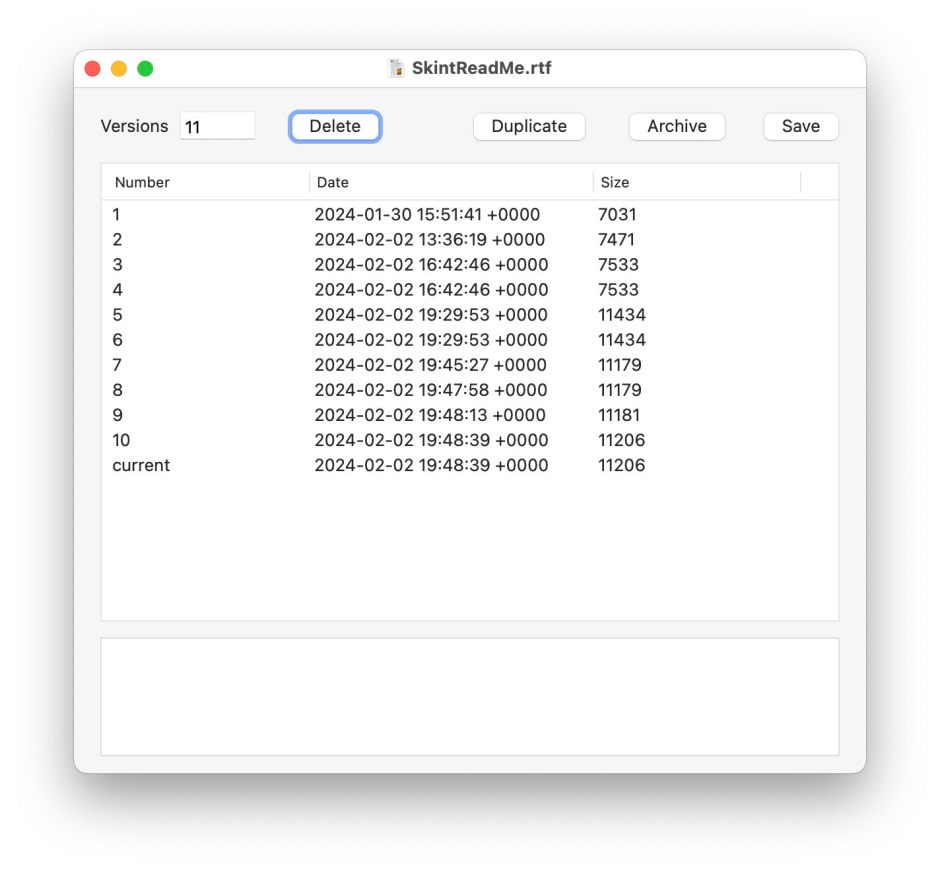
Revisionist isn’t as pretty, but more functional. It lists all the versions available for any document, giving the date and time they were saved, and their size. Double-click a version and that’s shown in a Quick Look preview, from where you can copy from its contents.

macOS keeps an unlimited number of old versions of each document that’s edited using an app that works with its versioning system. Revisionist can scan and report how many versions there are for files. I think my personal record was just over a hundred. If you wish, you can delete old versions, or, for particularly important documents, you can save a folder containing a copy of every revision made to that document.
Those folders of versions enable Revisionist’s magic trick. Because the version database is stored in each volume, normally moving a document from one volume to another loses all its versions. Revisionist can split them out into a folder, then on the destination volume it can store those versions in that volume’s database so they’re preserved. This can be important, as no backup system for macOS preserves versions, not even Time Machine.
You can read more about Revisionist and versioning on its Product Page.
Backups
Versions are usually my first choice when I want to recover some content that I’ve lost, but they have significant limitations:
- They only work with specific apps, although as some of my own apps like DelightEd support them fully, I know how easily supported they are.
- Versions are easily lost, when you Save As, duplicate, or copy to another volume, unless you use Revisionist to preserve them.
- When a document is deleted, all its versions are deleted too.
- Versions only work with documents, not databases, etc.
- The version database is stored on the same volume, so if there’s any problem with that volume, it may get completely blown away.
My next preservation layer is Time Machine’s hourly backup. On my main production Mac, those are only made for my main working folder, but provide an hourly copy of everything that changes rapidly, almost as fine-grained as versions. My main working volumes and everything else on my Mac’s Data and external SSDs are then backed up every night by Carbon Copy Cloner to a separate external SSD.
Off-site copies
I also copy commercial work that I’m writing to deadline to iCloud Drive manually. I do this sufficiently frequently so that, in the event of my whole Mac or the office it’s in becoming unavailable, I could carry on where I left off using another Mac or device on the latest copy of my work in my iCloud Drive.
Clay tablets
Document storage today is ephemeral. If you really want to keep permanent records, can I suggest clay tablets?
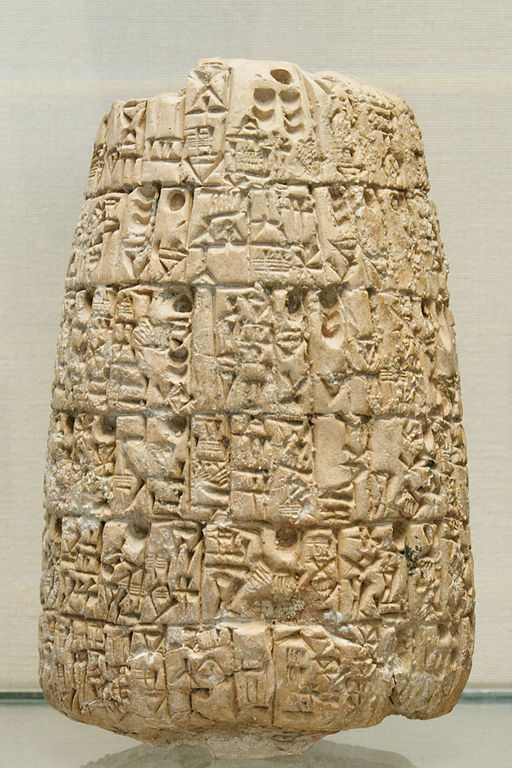
This one is believed to be well over 4,000 years old, and is still largely legible. Ironically, just as we keep our financial records more carefully than anything else, this tablet contains the contract for the sale of a house. I wonder whether its current owner is aware of its history.
 The Eclectic Light Company