
Over the last month or two, many iCloud users have been receiving emails apparently from Apple warning them about their iCloud account. They look genuine, and are usually sent from a domain registered to Apple, such as iTunes.com, but not the normal address no_reply@email.apple.com that most come from. Often the information contained in them is incorrect, in that it might refer to your iCloud as 205 GB when you’re subscribed to 200 GB. This article considers how you should respond.
The first thing to check is that your iCloud account is in order. To do that on your Mac, open System Settings, select your Apple ID at the top, then click on iCloud.
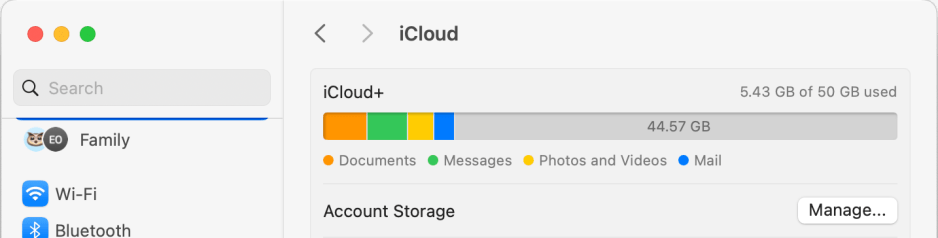
Here, inspect the storage bar at the top to ensure that you still have ample space available. Confirm that the size given there is what you are entitled to in your subscription. Then click the Manage… button to see the Account Storage pane.
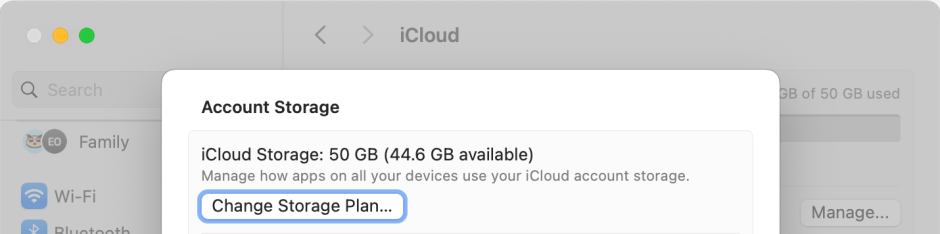
At the top should be a clear statement of the amount provided in your plan, and how much is available. Those should tally with the previous figures. Then click the Change Storage Plan… button.
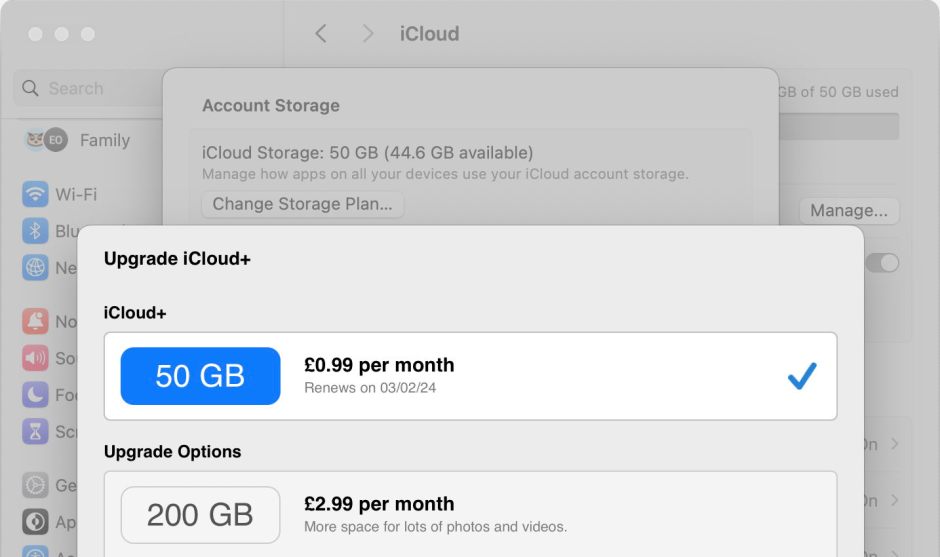
This should show which plan you’re currently on, and underneath that it gives the next date that you’ll be charged the subscription.
If everything is in order here, click Cancel and Done buttons to return to System Settings.
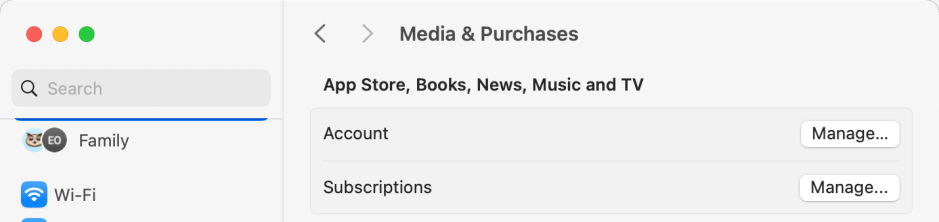
Back in your Apple ID view, click on Media & Purchases, then on the Manage… button for your Subscriptions.
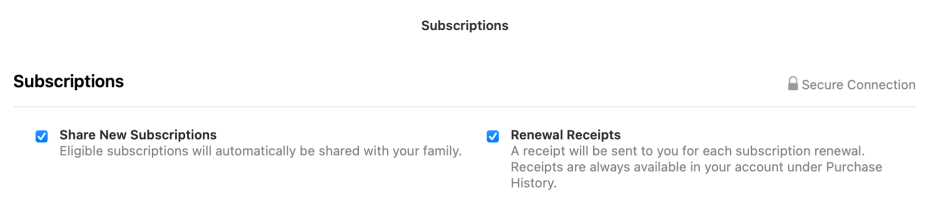
This will open in the App Store app, and list all the subscriptions for your Apple ID, except that for iCloud. At the top of that pane tick the Renewal Receipts box to ensure that you automatically receive receipts from Apple. Those will include your iCloud subscription, so that you can keep track of that being paid each month.
Another good place to visit to check that all is in order is your account at icloud.com.
You can now be confident that everything is in order with your account, and the email you received is complete rubbish. If you’re still concerned, then contact Apple Support, who have been dealing with thousands of these bogus messages since they started late last year. The last time that I heard, they still weren’t sure who or what was sending them, other than vaguely referring to problems in Apple’s accounts system.
Whatever you do:
- never click on any link in an email unless you’re certain that it’s genuine;
- never reply to an email unless you know both the identity of the author, and that their address is genuine;
- never rush or panic; take your time and think things through before doing anything;
- always be on the alert for potential phishing attacks.
 The Eclectic Light Company