
The Messages app is the front end for services including traditional SMS texts, but for many the most important and well-used of them is Apple’s iMessage. When it was launched 12 years ago, one of its more novel features was end-to-end encryption, to ensure that no one else, not even Apple, can read what you send via iMessage. Since then Apple has steadily improved its security. A spate of malicious messages brought what Apple calls BlastDoor, to make iMessage more difficult to attack. For the few who are at high risk, Lockdown Mode now adds further protection.
iMessage relies on a key directory service to map from each user’s identifier (their email address or phone number) to the public encryption keys for their registered devices. When you want to Message a friend, Messages contacts that service (IDS) to obtain the list of public keys for your friend’s devices. That enables Messages to start its encrypted conversation between the two of you. However, it could conceivably be possible for the key directory service to be compromised, allowing someone to intercept or monitor your encrypted conversation.
WhatsApp has recently introduced a system called Auditable Key Directory (AKD) to address that. The equivalent for iMessage is Contact Key Verification, which relies on a Key Transparency Service to validate the data provided by Apple’s IDS service. This has the added advantage for users in being able to verify contacts made using iMessages, across all the users’ devices, including new devices when they first sign in with them.
Requirements
Contact Key Verification (CKV) has to apply to all your Macs and devices, so its fundamental requirement is that they have all been updated to macOS 14.2, iPadOS 17.2, iOS 17.2 or watchOS 10.2. If you have a device that can’t meet that, then to be able to use CKV, you’ll have to sign out from iMessage on that device before you can enable CKV on the rest.
Other requirements are less of a hurdle: they must each be signed into iCloud and iMessage using the same Apple ID, with 2FA enabled, every device must have a passcode or password, and iCloud Keychain must also be enabled.
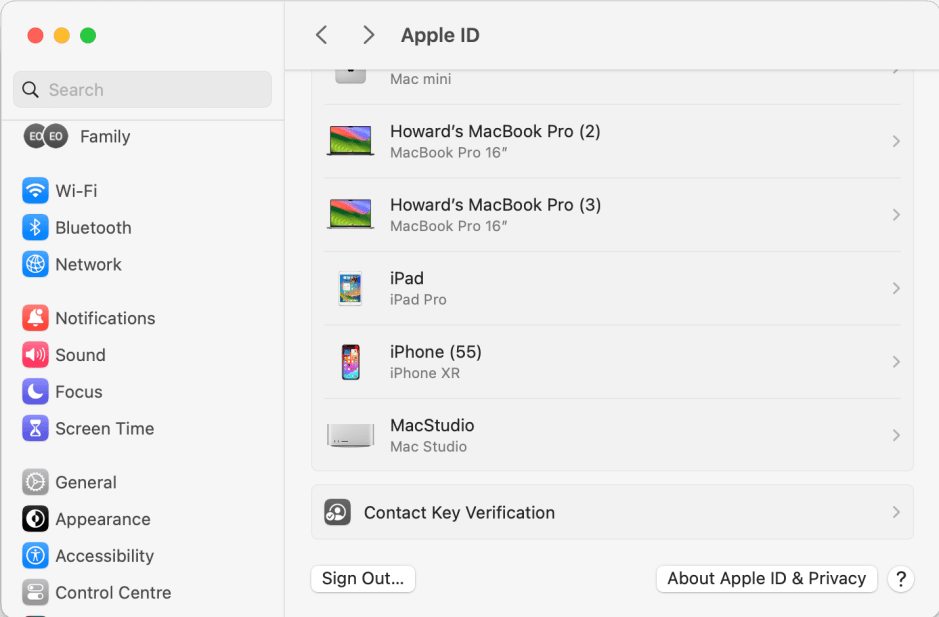
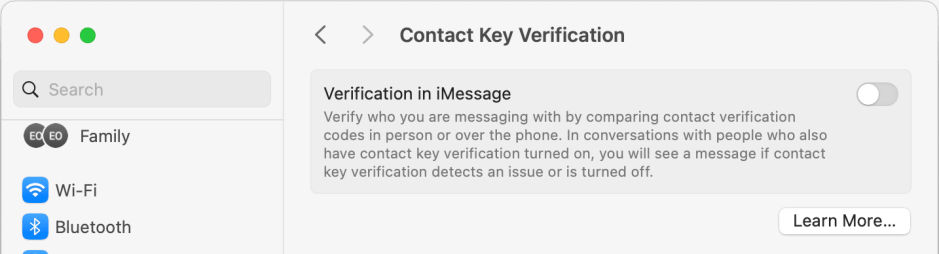
To turn on CKV, open System Settings, then your Apple ID. At the foot of that you’ll see the new item Contact Key Verification, within which is the switch to enable it.
How to verify a contact manually
If you’re in any doubt as to whether you’re messaging the person you want, provided that their details are saved to a card in your Contacts, you can verify them. Both of you will then create a code at the same time, to share and compare. To do that, open the Messages app, tap the message thread, then that person’s name to obtain Conversation details. At the foot of those you and your contact should then tap Verify Contact…. Both of you will then receive a code that you can compare with them, in person, using FaceTime or over a phone call. If the codes match, mark them as verified to add the code to their card in Contacts.
Sharing a public verification code
For those who have extensive contact with the public, perhaps as a well-known figure, they can create and share a public verification code, to allow others to verify messaging with them. Your public verification code is available from Contact Key Verification in (System) Settings. If you want to mark a contact as verified using that code, copy it and paste it into their card in Contacts.
Alerts from CKV
The CKV service only works for iMessage exchanges between those who have enabled it. You can continue to use Messages normally with those who haven’t enabled CKV, but those can’t be verified using the features of the CKV service. For CKV to work in a group conversation, all those in the group must have turned it on.
When both you and the person you’re messaging have enabled CKV, the service will validate your messaging with them transparently. If it encounters any errors, then you should be warned in an alert explaining the problem. The most common cause is that they have disabled CKV at their end, or there’s a problem with one of their or your devices, or the CKV service is temporarily unavailable. Apple doesn’t currently list CKV as a separate service in its System Status page, so I suspect that any outage should be notified as iMessage there.
Future
These are early days for the CKV service, and as it becomes more popular it will undoubtedly evolve. For the moment it’s intended for those at risk of key compromise, and who need to be able to confirm the identity of those they communicate with. But I can see it developing into a more general service that enables us to put more trust into those we message.
Apple provides guidance on dealing with other problems and alerts in this Support Note. This support note provides a general introduction as to how to use the service, and technical details are given in this blog article.
 The Eclectic Light Company