
A couple of weeks ago I listed what I believe to be the strengths and weaknesses of Time Machine in Sonoma. This article suggests ways that you may be able to work around those, and make it accommodate your needs better.
Simple workarounds
Small files. TM doesn’t back up large numbers of small files at all well. As a result it remains unsuitable for backing up some commonplace apps, such as Xcode. Other backup utilities may suffer similar problems, and the best solution is to add Xcode and similar items to your Mac’s backup exclusion list. This is particularly important for those who back up to network storage, where the overhead imposed by SMB only worsens the problem.
Local files only. When backing up files that are also kept in cloud storage, including iCloud Drive, only files that have been downloaded (materialised) locally can be backed up. This applies to all backup utilities, although some such as Carbon Copy Cloner offer special arrangements to make download and backup simpler.
If you have disabled Optimise Mac Storage in iCloud Settings, then Sonoma ensures that local copies of all files in iCloud Drive are also stored locally, and they will all be backed up. If you have enabled Optimise Mac Storage, then it shouldn’t take too long to manually download all files and folders in iCloud that you want backed up, if they have been evicted, provided that you have sufficient free local storage. Once they have been backed up, you can then evict those that you don’t want to remain stored locally.
Documentation. That for users is limited, and there is essentially no technical documentation. However, I have many articles here about Time Machine and how it works.
New frequencies unproven. The new daily and weekly backup options in Sonoma are relatively unproven, but experience is now growing quickly.
Large snapshots and backups. Although not included in the original list of weaknesses, Time Machine users are sometimes surprised by the large size of backups, and the space required for local snapshots. These usually result from temporary files such as large downloads, or virtual machines. While you should put them in folders that are excluded from backups, if they’re on a volume that has snapshots made of it for Time Machine or another backup utility, then they will still be included in those snapshots. There’s no way to exclude items from a snapshot, so put large files that you don’t want included in snapshots into a separate volume that’s excluded from all backups, so has no snapshots made of it.
Technical solutions
Integrity checks. There’s no current way to check the integrity of file data within TM backups. However, I offer a full solution with my Dintch and Fintch utilities, and cintch command tool from their Product Page. These attach an extended attribute containing a hash of the contents to each file whose integrity you want to monitor. You can then check that file against that saved hash to verify its integrity. Those extended attributes travel with the file, and are preserved in iCloud Drive and in Time Machine backups.

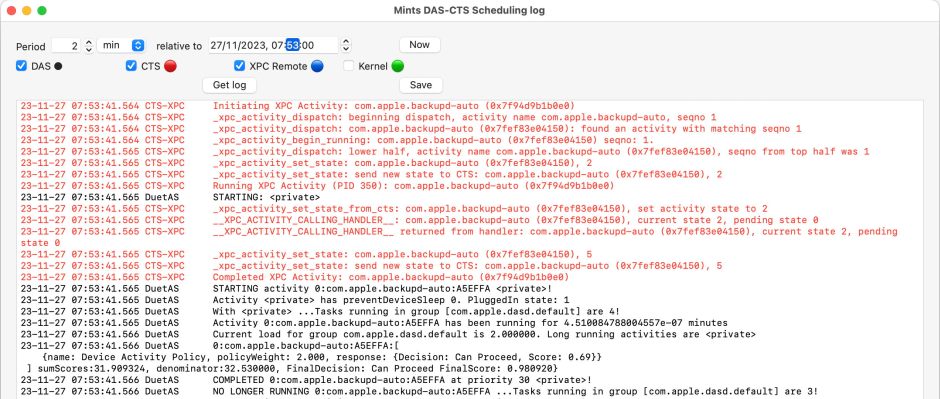
Logs. TM’s logs are written to the Unified log, making them harder to access, and the diagnosis of problems considerably more difficult. Fortunately, my free utility Mints contains a simple way to inspect Time Machine’s log entries. I also have a new version of T2M2 in development, that will work fully with Sonoma’s backups to APFS storage.
Possible workarounds
Speed. TM’s file transfers incur I/O throttling even when that Mac isn’t otherwise in use, and that slows transfer rates when making backups. You can change that setting using St. Clair Software’s App Tamer, or using the command
sudo sysctl debug.lowpri_throttle_enabled=0
although that doesn’t persist across restarts. You can read more about this here, where I warn that changing it should be exceptional.
No workaround
Backup plans. Although TM is flexible enough to cope with missing source volumes and backup storage, and will make snapshots alone when no backup storage is available, it has a single backup plan or regime. You can’t set up two or more backup scripts. That would require considerable internal changes to Time Machine, and I see no signs of that happening.
Backup immobility. It’s not currently possible for users to copy or move TM backups, because of their snapshot format. While this may be possible using the asr command tool, even advanced users struggle with this. This remains a major oversight in macOS.
Backup integrity. TM’s synthetic snapshots are read-only and can’t be modified, preventing other apps from tampering with them. Although I counted this as an advantage, some disagreed. While it was certainly convenient to be able to remove unwanted large files or folders from old backups, if you can remove them, so can other actors. On balance, I’d rather have confidence that nothing can tamper with my backups. Again, there are no signs that Apple is prepared to give us tools that could modify snapshots or backups.
If you have any tips to help mitigate these limitations in Time Machine, please let us know.
 The Eclectic Light Company