

SilentKnight, my free utility for keeping your Mac’s security data files and important features up to date, was originally designed primarily for those of us who run the current version of macOS. Over the last year or two, I’m aware of many who use it with older versions of macOS, including those being run courtesy of OCLP, who need to download and install updates individually, so that Mac doesn’t get inadvertently updated to the current version of macOS.
In the last couple of years, that hasn’t been helped by the fact that Apple now prefers to update macOS even when performing what used to be a major upgrade. If you’re still running Ventura, for example, and accidentally start the upgrade to Sonoma, there’s no easy way out, as that’s now likely to come as an update. Once it starts to download, whether you like it or not, your Mac is heading to Sonoma.
SilentKnight’s settings provide a convenient option to prevent this.
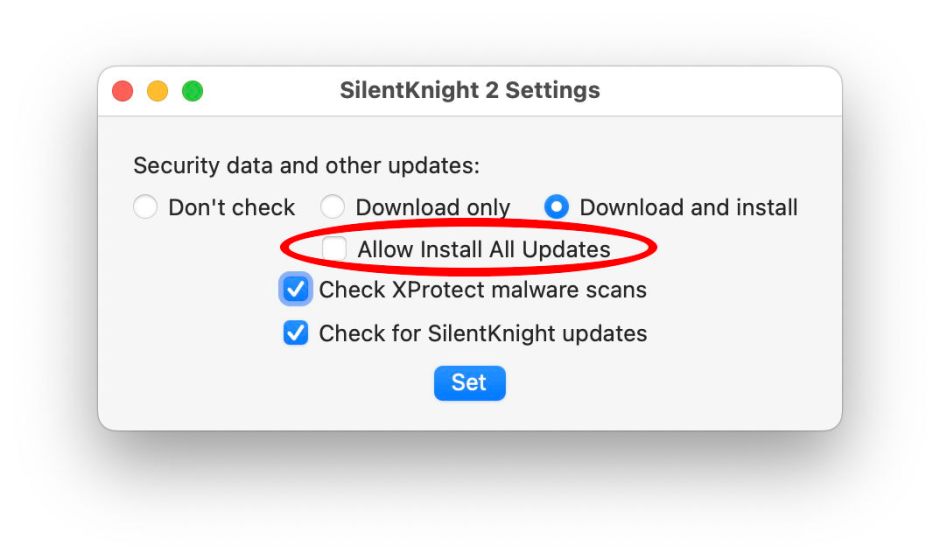
Simply uncheck the Allow Install All Updates item in Settings, and once SilentKnight has found updates available, you won’t be tempted to click on its Install All Updates button, as that remains hidden. You can then use its Install Named Update… menu command to install the updates that you want, and leave the rest well alone.
There is, though, a menu command to Install All Updates, which remains available even if you have disallowed Install All Updates in Settings. That’s important, as you might wish to install everything that’s offered without having to change SilentKnight’s settings again.
I’m grateful to Brian, who pointed out that it’s easy to select the Install All Updates menu command by accident, and once you do, there’s no looking back, except perhaps in anger.
To make this more tolerant of error, I have made two changes in this new version:
- The Install Named Update… menu command now has a key shortcut of ⌘U. If you’re worried that you might select the wrong menu item, then that will take you straight to the correct one.
- If you have disallowed Install All Updates in Settings and then use the Install All Updates menu command, you’ll first be shown a dialog asking you to confirm that you really want to do that.
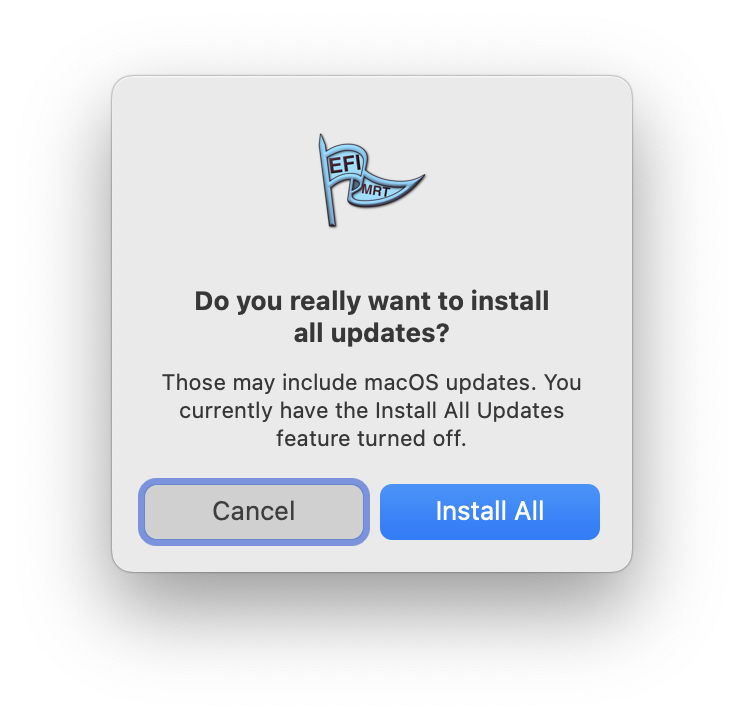
As a matter of general principle, I don’t like confirmation dialogs like this, as they’re irksome and can encourage errors. In this case, I think a dialog is a valuable safeguard.
Using SilentKnight when you want macOS updates:
- In Settings, tick Allow Install All Updates.
- When SilentKnight opens and checks for updates, look down to see what updates are being offered.
- If that list contains a macOS update, quit SilentKnight and install that update using Software Update first. If you want SilentKnight to download and install all the updates available, click the Install All Updates button.
- Once macOS has been updated, run SilentKnight again to check for any other updates.
- If further updates are available, click the Install All Updates button to download and install them.
Using SilentKnight when you don’t want a macOS update:
- In Settings, uncheck Allow Install All Updates.
- When SilentKnight opens and checks for updates, look down to see what updates are being offered.
- If the list contains updates that you want to download and install, use the Install Named Update… menu command to open the manual install window.
- Copy each of the update labels from SilentKnight’s main window into the manual install window to download and install those you want.
Further details are explained in this article, and in SilentKnight’s Help books.
SilentKnight version 2.7 is now available from here: silentknight207
from Downloads above, from its Product Page, and through its auto-update mechanism.

