
iCloud isn’t a single service, but a whole bunch of them. They break down into three broad classes:
- iCloud Drive, concerned with the sharing of files you can see in the Finder’s iCloud Drive;
- CloudKit, supporting shared databases that you only see in apps that support it;
- special services, largely in macOS, ranging from the iCloud keychain to Find My, including those added by iCloud+.
In this article, I try to explain how the first two of those work, and how that has changed in macOS 14 Sonoma.
iCloud Drive and shared files
This is the simplest for the user to understand and control, as its actions are readily observable. When you save, copy or move a file to your Mac’s iCloud Drive, a local copy is kept there, and the file is synchronised with a copy of that file held in iCloud, which is then made accessible to other Macs and devices that share the same iCloud Drive.
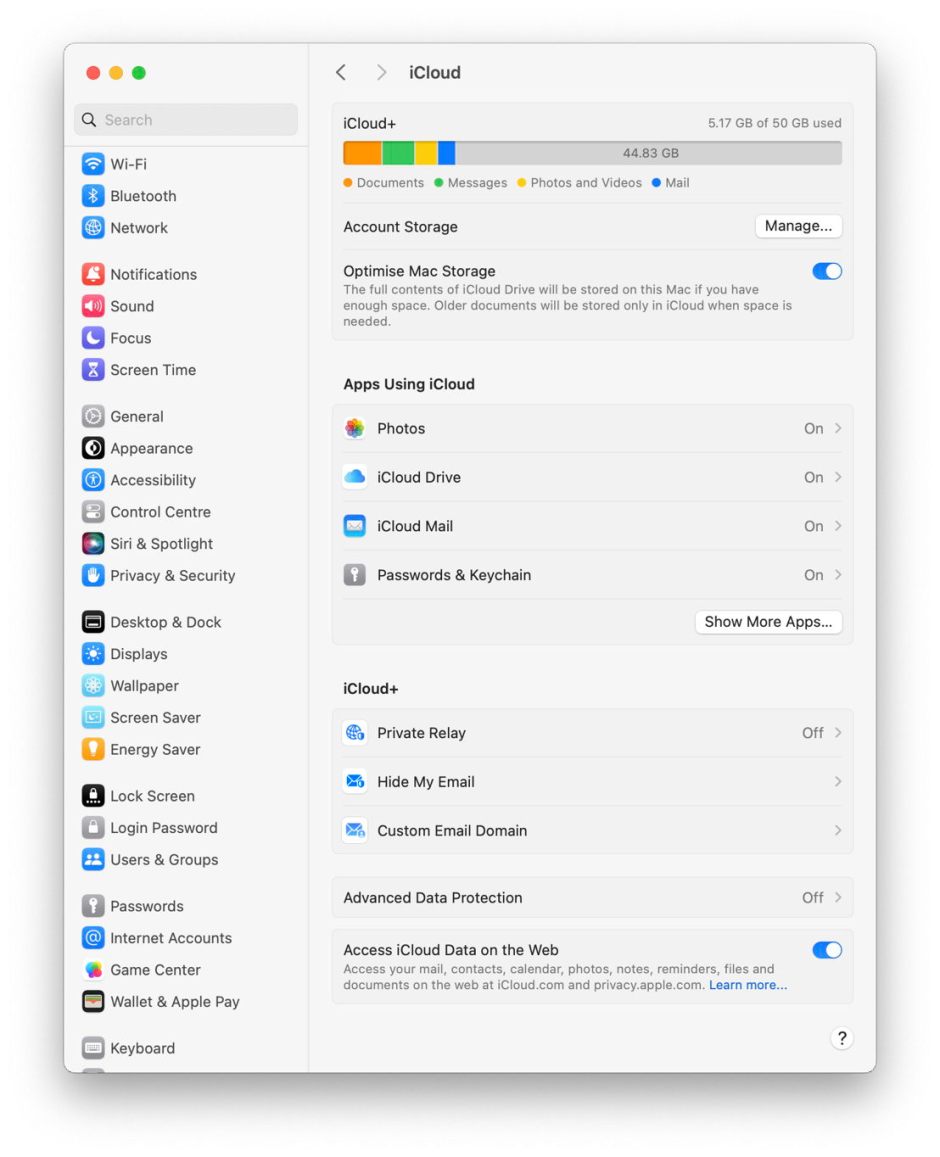
Access to its controls is through iCloud settings in your Apple ID, within System Settings, and in the iCloud Drive item there.

Its primary controls are:
- Sync this Mac, which has to be turned on to sync your shared files with iCloud Drive;
- Desktop & Documents Folders, which moves the whole of that Mac’s Desktop and Documents folders into iCloud Drive, alongside all other folders listed in the Finder’s iCloud Drive;
- Optimise Mac Storage, which determines whether items in iCloud Drive can have their local copies removed to become dataless.
In addition to those, many of your apps are able to store their documents in iCloud Drive. You control which apps can do this by clicking on the Apps syncing to iCloud Drive item.

That reveals a long list of all those apps installed that have the entitlement to allow them to access iCloud Drive, thus to share documents saved there with your other Macs and devices without you having to manually copy or move the files. One important change in Sonoma is the distinction between apps accessing iCloud Drive (shown here) and those using CloudKit to share their databases (described below).
Sharing your Desktop and Documents folders is a significant decision. If you really want to put everything from those folders into iCloud Drive, then it can be a valuable feature, but for the great majority of users this is an added complication with behaviours than can catch you off-guard, and I don’t recommend it. If you’re happy with traditional local Desktop and Documents folders, then don’t turn that on, but instead use other folders in the Finder’s iCloud Drive for sharing files. That way, documents you edit in your Documents folder remain entirely local, and you then decide which to share in iCloud Drive.
The behaviour of Optimise Mac Storage has changed in Sonoma, as I’ve explained. In previous versions of macOS it was possible to turn this off but still to ‘evict’ files from local iCloud Drive storage, so their data was only stored in iCloud. With the changes brought in Sonoma, that’s no longer possible: if you want to be able to evict files, then you must turn this on, and accept that macOS may also decide to evict files when they haven’t been accessed for a long time, or when your Mac is running short of local free storage space. If you turn it off, then neither you nor macOS can evict files from local storage, but changes made there will still be synced to the copies shared in iCloud Drive.
Because of the way that dataless files work, when files are evicted your Mac still retains custom icons and all their extended attributes, as those remain stored locally even though the file’s data is only kept in iCloud. Thus enabling Optimise Mac Storage doesn’t lead to any change in your local copies of those files, other than enabling their data to be removed from the local copy.
When you save, copy or move a file to your Mac’s iCloud Drive, the com.apple.clouddocs sub-system and bird service upload that file to iCloud, then the information held in iCloud can be synced with that on each connected Mac and device. Another sub-system in macOS is responsible for dividing blobs of data into the chunks used in iCloud storage: com.apple.mmcs reveals its ancient origins in its name of MobileMe Chunk Storage, or MMCS.
If you’re using iCloud Drive without putting Desktop & Documents Folders into iCloud, your own iCloud Drive folders will be found in ~/Library/Mobile Documents/com~apple~CloudDocs. This roughly corresponds to the top level of iCloud Drive as seen in the Finder. However, macOS adds other folders that are actually located in ~/Library/Mobile Documents/.
CloudKit and databases
Instead of working with discrete document files, many apps now keep your data in databases. Prime examples of this include Notes, Contacts and Calendar, and there are plenty of third-party apps that also do this. Keeping databases synchronised with a cloud service is a very different task from syncing files, and macOS supports this using its CloudKit framework.
To control the apps allowed to store their databases in iCloud using CloudKit, you need to go back to iCloud settings.
In the Apps Using iCloud section there, click on the Show More Apps… button to reveal the full list.

In earlier versions of macOS, apps using CloudKit and those accessing iCloud Drive weren’t clearly distinguished, but Sonoma separates those controls at last.
CloudKit supports structured cloud-based databases, including the synchronisation of Core Data containers through Persistent CloudKit Container private databases. This is exceedingly complex, and uses the com.apple.cloudkit sub-system and the cloudd service in macOS. When used to synchronise a Core Data container for an app’s database, changes to a local container are scheduled to be synced up to iCloud by the DAS-CTS dispatch system, and that’s performed in the background when conditions allow. Because of the time elapsed between the app making a change and it being synchronised up by CloudKit, tracing entries in the log can prove difficult.
Local copies of shared databases don’t appear in the Finder’s iCloud Drive, of course, but are normally to be found in ~/Library/Group Containers, where their structure is complex and shouldn’t be tampered with.
Additional tools
Few third-party utilities give further insights into or control over iCloud Drive or CloudKit. My free app Cirrus provides a unique browser view that gives full details of local files in iCloud Drive and their status.
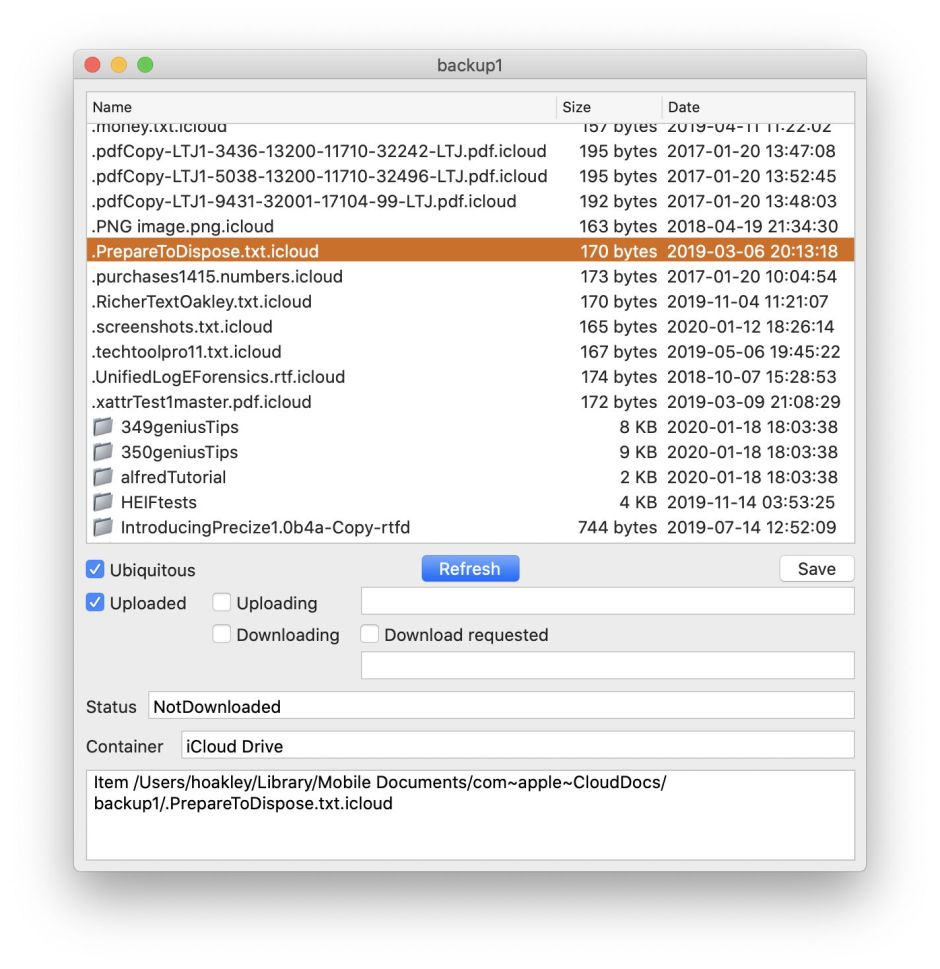
Cirrus and Mints also give custom access to the log to provide detailed information about the processes involved in maintaining iCloud’s many illusions.
 The Eclectic Light Company