
Most of the time, when you want to browse the log using my free Ulbow, you’re happy to do so on the live log on the same Mac. There are occasions when you can’t or don’t want to, including when you want to
- browse the log obtained from another Mac or device, typically in a
sysdiagnose; - browse the log in a
sysdiagnoseyou’ve already made, perhaps to send to Apple; - preserve the whole of a period of the log for further analysis.
For this purpose, my preferred way of obtaining a sysdiagnose is with the command
sudo sysdiagnose -f ~/Documents
to save that to my Documents folder. Unarchive that, and locate the logarchive within it.
Unless you’ve already got a sysdiagnose, you’ll first need to create a logarchive on the Mac you want to analyse. There are two ways to do that in Ulbow: using a browser window and the Write logarchive… command, or the Logarchive Tool window. The latter offers greater flexibility, and is described in detail in Ulbow’s Help book. Here I’ll show you the quicker menu command.
With a window already open in Ulbow, the first task is to set the time period to be included in the logarchive. This is the time before the present over which the log will be collected; you can’t specify a period ending in the past, though. Set this is the window’s Period, where -1 hour as set below will capture all log entries made in the last hour.

Then use the File/Write logarchive… menu command to save it. You’ll be prompted where to save it first: ensure this is somewhere on your current boot disk, such as ~/Documents, as macOS will refuse to create a logarchive on what it considers to be external storage.
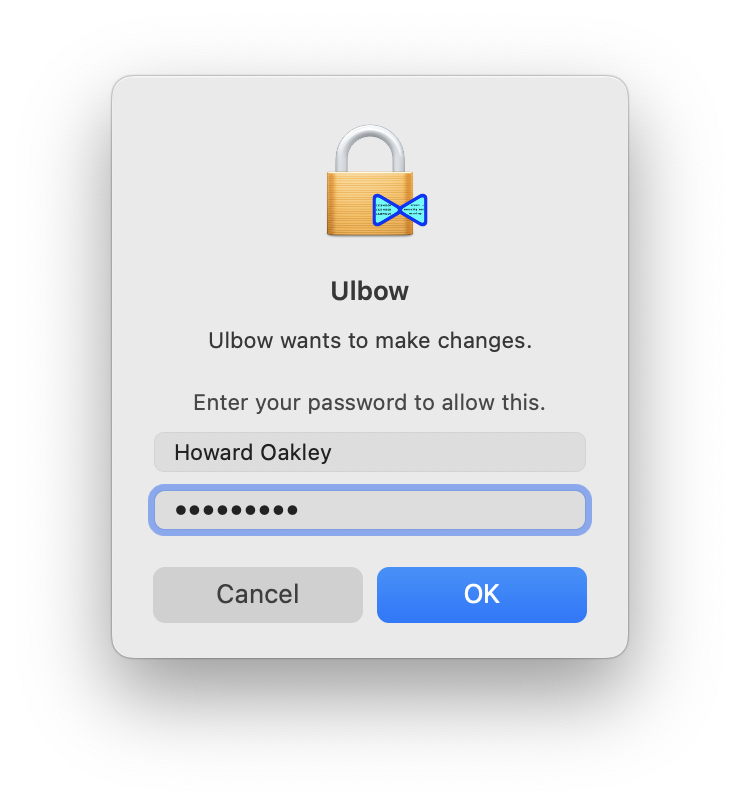
You’ll then be prompted to enter your admin password, as the command to write a logarchive has to be sudoed. Note this dialog displays the Ulbow app icon in miniature on a padlock icon, and has the wording shown here. There will then be a short pause as macOS gathers together all the files needed to create your logarchive, and writes them out to disk.
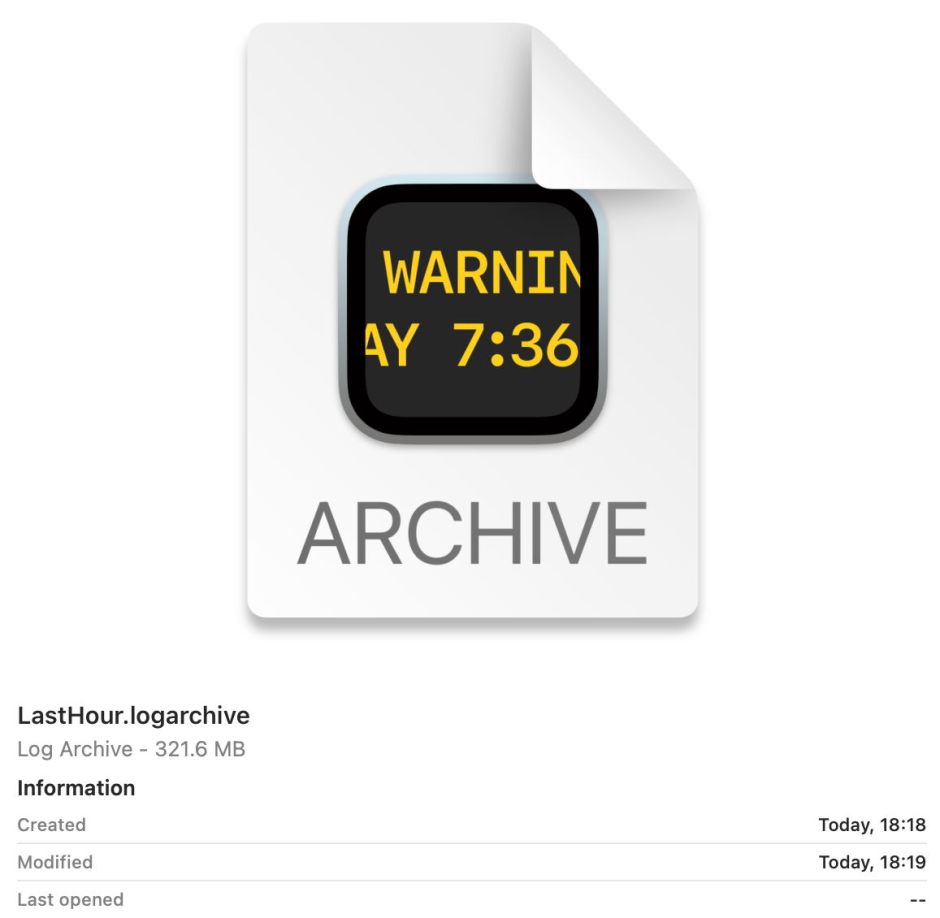
For longer time periods, logarchives can grow into GB, and here for a mere hour totals over 300 MB.
Now, with the same Ulbow window open, use the File/Open logarchive… menu command to browse the contents of the logarchive you just created. When you select it, you’ll see it consists of a warren of folders; if you want, you can open individual log files within it, but here we’ll open the whole logarchive to browse anywhere within its contents.
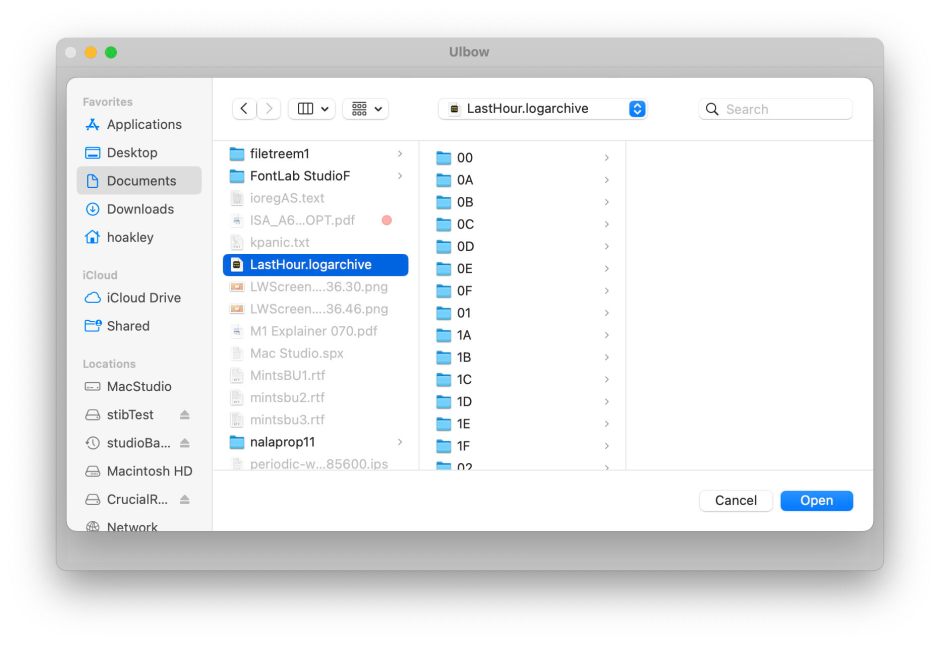
Click on the Open button and you’ll then be able to browse any time period within that logarchive.
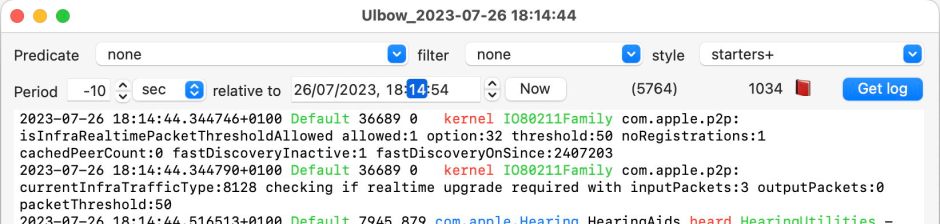
Note the red book emoji next to the Get Log button, which indicates that this window is browsing a saved logarchive, and not that Mac’s live log. All times set in the browser window must be within the timeframe of the logarchive, or you won’t see any entries. You can open more windows too, in each using the Open logarchive… menu command to set the source of its log entries.
Once you’ve got a logarchive, you can analyse it using other log browsers, even Console if you prefer, and my own Consolation 3. This is also the only straightforward way to browse logs captured in sysdiagnoses from devices such as iPhones and iPads, or those sent to you by clients or customers.
Happy browsing!

