
One of the longstanding features of the Mac is the ability to customise the icons shown for files, folders and apps. Although you now can’t customise anything that’s stored on the System volume, like the apps bundled in macOS, this still works fine on local storage. Try it in iCloud Drive, though, and it’s all wonky and doesn’t work properly: some icons get forgotten, and none of them can be seen on other Macs or devices connected to the same iCloud. This article explains how iCloud Drive makes a mess of those icons.
Customising icons
At its most basic, this is simple to do in the Finder’s Get Info dialog. Select the folder or file whose icon you want to replace and open a Get Info dialog for it (Command-I). Then open the image you want to replace its current icon with, such as an icon in another items’ Get Info dialog. Select that icon by clicking on it in the top left of the dialog and copy it. Select the icon you want to replace in the same way, and paste the new icon into the Get Info dialog.

There’ll be a momentary pause before your shiny new icon appears, then you can close the Get Info dialogs and enjoy your custom icon.
This also works to a degree with icons in iCloud Drive, except that:
- custom icons only appear in iCloud Drive on the Mac that customised them, and don’t appear on other Macs or devices when they’re connected to the same iCloud Drive;
- custom icons on folders seem stable, but those on documents can suddenly vanish of their own accord;
- apps with their own folders in iCloud may have their own custom folder icons, but you can’t change those.
How custom icons work
Custom icons are stored in extended attributes (xattrs) of the type com.apple.ResourceFork, the modern incarnation of a Resource Fork from classic Mac OS. The data within that xattr is in the format of what used to be an icns resource, dating back to 1984 and the very first Mac. For file icons, that xattr is attached to the file itself, but for folder icons it’s stored in a hidden file named Icon? inside the folder. To make the customisation work, there’s also a flag that is set in another xattr, this time of type com.apple.FinderInfo; for folder icons, that’s attached to the folder itself.
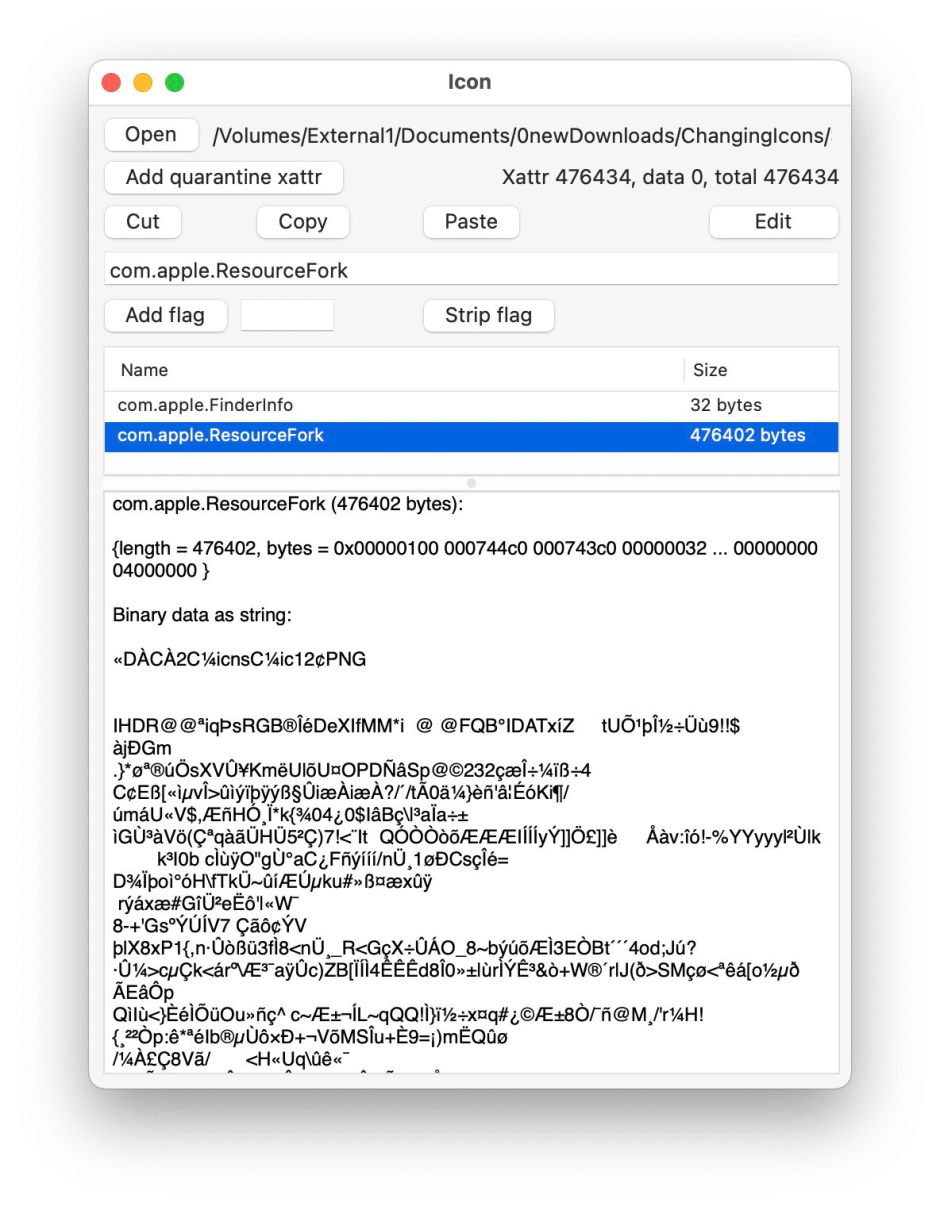
In local storage, all the Finder has to do is add the appropriate icns resource in a com.apple.ResourceFork xattr, and set the flag in the com.apple.FinderInfo xattr. The custom icon then just works.
iCloud Drive is different
If you show hidden files (Command-Shift-.) you’ll not only see the Icon? file inside a folder with a custom icon, but you’ll notice an iCloud icon next to it, showing the familiar cloud symbol but with a diagonal line through it, to indicate that file can’t be stored in the cloud. View the same folder on another Mac and there’s no Icon? file to be found, as it hasn’t been uploaded to iCloud Drive. That explains why custom folder icons can only be seen on the Mac that has customised them.
Even if you were able to upload the Icon? file complete with its xattr, there’s another problem to overcome. In APFS, your local file system, directories can have xattrs attached to them, and often do. iCloud Drive doesn’t appear to have any equivalent that can be associated with xattrs, so there’s nowhere to store the com.apple.FinderInfo xattr containing the flag to indicate that folder has a custom icon.
A custom file icon isn’t saved in a separate file, but as a xattr attached to the file, so you might expect it to be uploaded to iCloud Drive and shared to other systems that connect to it. However, one of iCloud Drive’s undocumented behaviours is that it strips all xattrs of type com.apple.ResourceFork, and any that are on the larger side. So, while the data and most of the xattrs of that file will be synced across all Macs and devices, any custom icons won’t be.
This xattr stripping also comes into play for custom file icons that are evicted, then downloaded and viewed on the same Mac that added the icon. As long as a file isn’t evicted, it still uses the xattrs stored in its local file system metadata, including com.apple.ResourceFork, but when it has to be downloaded from iCloud Drive, that xattr is stripped, so removing the custom icon. This explains why custom file icons can mysteriously vanish, even when they’re viewed from the same Mac that created them.
If you read the appendix to my previous article about xattrs and iCloud Drive, you’ll be aware that there’s a system of flags that can be appended to the xattr type to determine its retention. In this case, adding the S flag by naming that xattr com.apple.ResourceFork#S should ensure that it’s preserved in iCloud Drive. However, the stripping of those xattrs overrides the flag in this case, and it makes no difference. So there’s no way to work around that behaviour.
Since writing my previous account of the behaviour of xattrs in iCloud Drive, I have also been able to clarify the limits imposed on their size. The primary limit appears to be a maximum total size of around 32,650 bytes (but slightly less than 32,767) available for the storage of xattrs for each file in iCloud Drive, rather than any lower limit on the size of individual xattrs. If the total size of xattrs for any given file exceeds that, then individual xattrs are removed, starting with the largest, until the total falls below that maximum.
What about those other custom folder icons?
You’ll surely have noticed that some custom folder icons appear to be preserved in iCloud Drive, such as those used to store documents for other apps, including Pages, Numbers, Keynote, and many third-party apps. So how can they do what the user can’t?
The clue here is in the fact that you can’t use the Finder’s Get Info command on them: select one of those custom folders and press Command-I, and nothing happens. This is because those folders aren’t really there at all, but what you see is synthesised from the app’s container. Look in ~/Library/Containers and you’ll see the same custom folder icons, only this time Get Info works on them. Don’t try changing anything in those containers there, though: that’s set up by the app and its iCloud configuration, so tampering with anything there risks breaking that app’s access to iCloud.
Summary
- Custom file and folder icons are strictly local in iCloud Drive, and can’t be seen on Macs (or devices) other than the Mac that added them.
- Although custom folder icons are preserved through evict-download cycles, those on files are removed.
- iCloud Drive’s stripping of com.apple.ResourceFork xattrs and those of larger size can’t be overridden or worked around.
- iCloud Drive provides a total of about 32,650 bytes for storage of each file’s xattrs. Larger xattrs will be removed as needed to keep the file’s total xattr storage within that limit.
 The Eclectic Light Company