
Although the Finder is the most obvious place to look for metadata associated with files, it’s not always obvious where to look, and when you do you might conclude that little is exposed there. This article explains what’s displayed where, and how to customise it.
There are three places in the Finder where it displays metadata, including some extended attributes:
- in the Get Info dialog, or better in its Inspector variant;
- in columns in List View;
- in QuickLook previews, best seen in Column View.
Get Info
Select an item in the Finder and press Command-I for the Get Info dialog. There’s also a less used Inspector variant, opened using Command-Opt-I. If you want to keep the dialog open on the same file, use the standard Get Info; it you want its contents to change according to which file is selected, then opt for the Inspector instead.
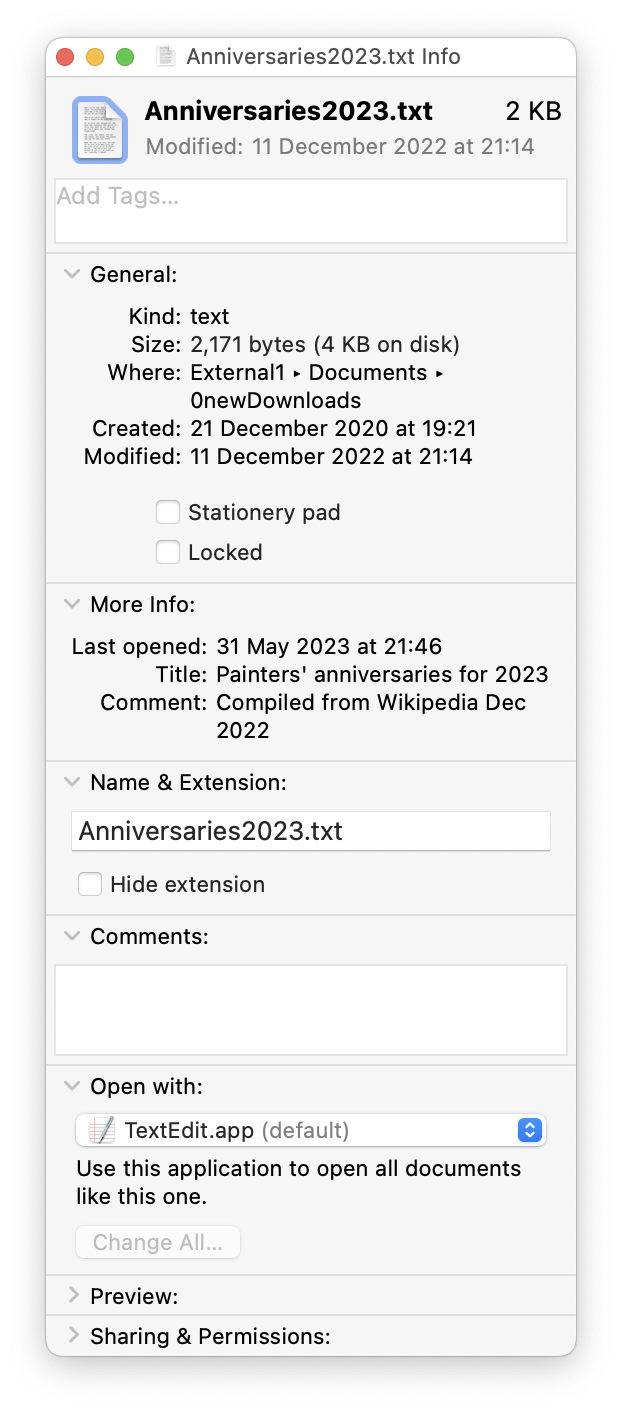
Metadata shown in the dialog appear in the More Info and Comments sections, and vary according to the file type: here a text file reveals the contents of two extended attributes, giving Title and Comment. The latter isn’t the Finder/Spotlight comment, which is both displayed and edited in the Comments section. Apart from the latter, those wouldn’t be shown for images, movies, or audio files, though, which have their own fields specific to their content.
Choice of metadata to be displayed here isn’t customisable, though, and is set by the Finder.
List View
By default, List Views in the Finder don’t show any metadata, but can be customised to display Finder/Spotlight comments. Control-click (or two-finger tap) in one of the column headers and select the fields you want displayed from the popup menu.
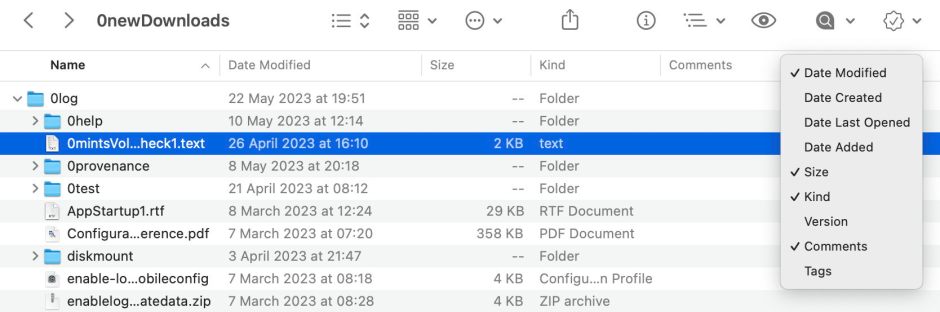
In addition to these common fields, available in all List Views, the three dedicated media folders in the Home folder, Movies, Music and Pictures, have additional fields available, appropriate to their content. But those can’t apparently be accessed in other folders when in List (or any other) View.
QuickLook Preview
To see the metadata in a QuickLook Preview, select the file in Column View, and they’re listed in Information beneath its thumbnail. These are the most customisable: to see the list of fields available, use the View / Show Preview Options menu command, or the same command in the contextual menu.
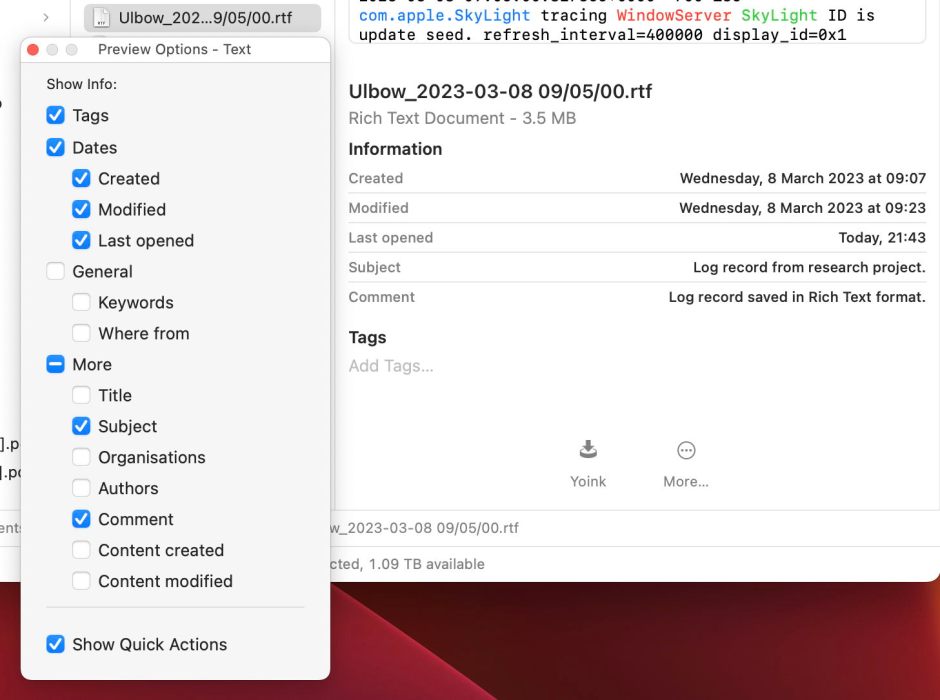
Common to all file types are the Tags and Dates sections, and a More section is also usually available. Beyond those, metadata available varies greatly according to the type of file, and includes those metadata embedded in the file data as well as those saved in extended attributes. For still images and movies, the lists are long, and include a selection of standard fields taken from Exif and others.
Currently, in Ventura 13.4, Preview Options doesn’t always work quite right, and adds to the confusion.

In this case, although Subject is clearly unticked in Preview Options at the left, the Preview shown includes the Subject regardless.
Text files
Perhaps the easiest way to visualise what can be shown by way of metadata is to list the scope available for each of the three Finder interfaces for text files:
- Get Info: Title, Subject, Authors, Comment, Finder/Spotlight Comments;
- List View: Finder/Spotlight Comments only;
- QuickLook Preview: Keywords, Title, Subject, Organisations, Authors, Editors, Comment, but not Finder/Spotlight Comments.
Storage
The Finder might seem to treat this metadata as a second-class citizen, but it’s certainly not as far as safe-keeping is concerned. Unlike file data, which doesn’t have the protection of checksums for integrity, extended attributes are stored in HFS+ and APFS file system objects, and are verified by Fletcher 64 checksums in APFS.

Although APFS doesn’t separate file system data from the extents used to store file data, HFS+ normally keeps extended attributes in its Attributes file.
This contrasts with Finder/Spotlight Comments, stored in .DS_Store files, and metadata that are stored within file data itself, such as Exif.
Conclusions
- Extensive metadata is shown in the Finder, although the user is given only limited control over what is displayed where.
- There are many anomalies in the metadata that become apparent. For example, much of the Exif data is accessible for images, but none of the more popular extended attributes, such as Copyright.
- Better design could give the user greater flexibility, and enable better use of metadata.
- Preview Options is currently buggy.
 The Eclectic Light Company