
Q After our son used my MacBook Pro, Mission Control has extra desktop spaces named Safari, iTunes, and so on. Whenever I close an app in full screen, another space is added to that list. How can I restore my Mac to the way it was?
A Your son has accessed the Mission Control pane in System Preferences, and changed the settings there.
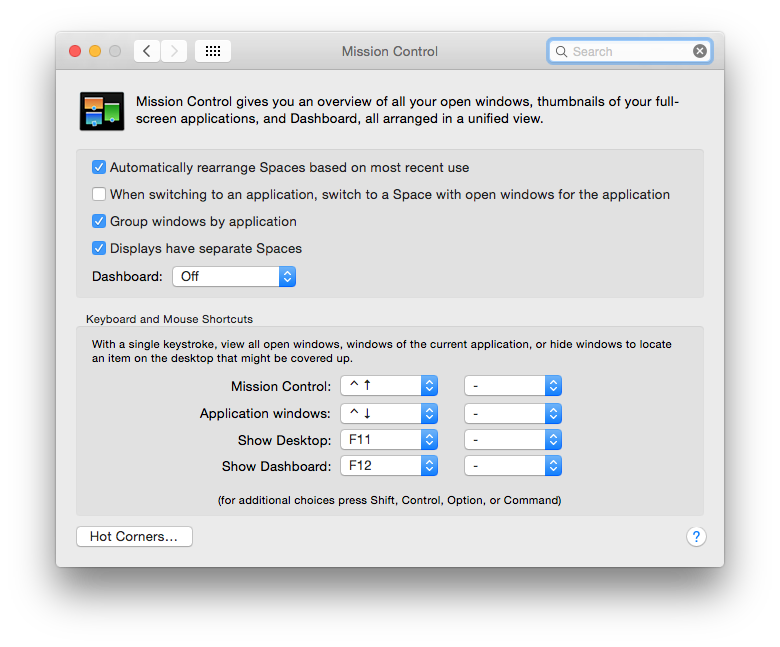 To reverse these, open that pane, and uncheck the second box marked When switching to an application, switch to a Space with open windows for the application. Close all applications apart from the Finder, switch to Mission Control, and you should now be able to delete all the spaces you do not want.
If these changes do not stick and the problem persists, run Disk Utility and repair permissions, then repeat the changes, and restart. You might also need to remove the Mission Control preferences, ~/Preferences/com.apple.spaces.plist, where these settings are stored.
Another potentially useful measure if even that does not work, is to restart your MacBook Pro with the Shift key held down, as that flushes many of OS X’s internal caches and more transient settings.
Comments You should consider carefully the wisdom of letting others use your Mac in your user account, or insist that they do not fiddle with such settings. In the case of children – of whatever age – it is invariably preferable to create their own account for them, so that they can mess that up, and not yours. And never tell them your password, or Apple ID password: that would only give you more grief and further cost.
Updated from the original, which was first published in MacUser volume 28 issue 11, 2012.
 The Eclectic Light Company