
Although the way that macOS updates itself has changed beyond all recognition over the last few years, we tend to assume that it still works much as it did in the past, downloading a single update file, decompressing and installing that. This series of articles takes a deeper dive into what actually happens, and tries to explain how it differs from previous package updates.
This account is primarily based on a detailed analysis of log entries obtained from updating 26.2 to 26.3 on a Mac mini M4 Pro, supported by additional information obtained from updating virtual machines to 26.3. macOS updates have changed considerably even since Big Sur, but I believe that their mechanisms have remained more similar than they differ from those before.
Download size
One of the most basic and striking observations about macOS updates is their variation in size. Although those reported on many Apple silicon Macs making the same single-step update are similar, some are considerably greater. As updates aren’t offered in standalone form, and are only provided via Software Update or its command line equivalent softwareupdate, the only practical way to assess this is to update a range of virtual machines.
Software Update also reports two update sizes to the user: the first is given as a promise prior to the user initiating the update, the other displayed above the progress bar during downloading, in the progress window. A third figure can also be derived by obtaining the update through a local Content Caching Server. Results obtained for the update to 26.3 are shown in the table below.
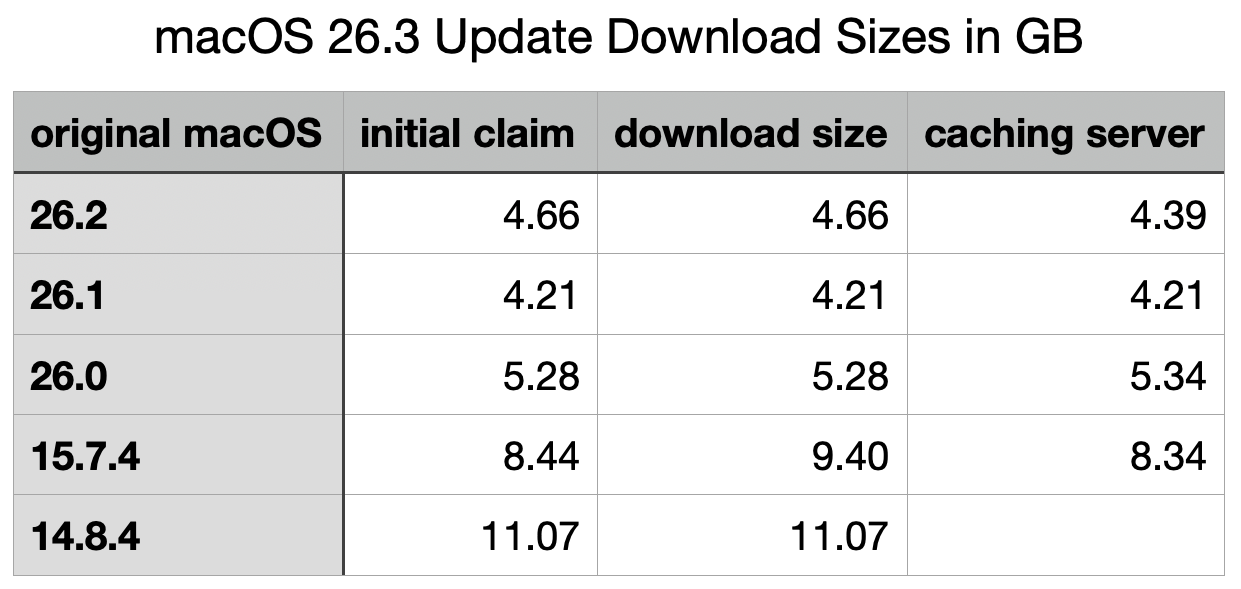
When originally performed on the host Mac, the initial claimed and reported download sizes were both smaller at 3.68 GB.
Although sizes for the update from 26.1 to 26.3 are surprisingly slightly less than those from 26.2, these demonstrate that the greater the difference between the original and destination versions, the larger will be the size of the download, as expected. However, there is no evidence that any of these shared the same download size: each is different, as if tailored to the requirements for the original macOS. This is very different from a system offering three types of installer for Delta and Combo updates, and a whole-system Installer for upgrades from an earlier major version.
Installation sizing
Prior to the update being applied, its download and preparation is largely controlled by softwareupdated and its associates. Before any downloading is initiated, that calculates the disk space required to download and prepare each of the components required for the update, a task it refers to as CalculatePrepareSize. This is critical if the update is to ensure that it won’t run out of free space during the update, and is checked repeatedly during the downloading sequence, as individual components are prepared for installation.
CalculatePrepareSize calculates the following values:
- Cryptex size requirement, consisting of 60 MB being 1.2 times the size of the app cryptex, and 7,748 MB being 1.2 times the size of the system cryptex, for a total of 7,809 MB.
- Snapshot preparation size, consisting of snapshot installation size of 3,785 MB plus the cryptex size, for a total of 11,595 MB.
- Snapshot apply size, consisting of twice the update partition size plus the update APFS reserve for 700 MB, plus 231 MiB for sealing, for a total of 931 MB.
- Snapshot preparation size, consisting of snapshot installation size of 5,154 MB (a significant increase from previously) plus the cryptex size, for a total of 12,963 MB.
For any given version of macOS (ignoring RSRs and BSIs that may later replace them), each hardware architecture is thought to have its own pair of cryptexes, and they aren’t thought to differ between Macs of the same architecture. Thus, no matter which their original version of macOS, all Apple silicon Macs updating to macOS 26.3 should be provided with the same app and system cryptexes, of the same sizes.
Sizes for snapshot update and installation clearly differ according to the original version of macOS. Although almost self-evident, it’s important to remember that updating macOS from a previous major version will normally require greater free disk space than updating by a single minor or patch version.
Given the sizes above, it’s also obvious that components downloaded for macOS updates are compressed to substantially smaller sizes, so have to be decompressed on the Mac being updated. Thus, the download sizes reported to the user are far smaller than the free disk space required to prepare and install the update.
Main stages
The overall sequence of stages is:
- Identify update. Shortly after starting up, and at intervals of approximately 6 hours afterwards,
softwareupdatedtries to connect to Apple’s software update service to check whether there’s an update available for that Mac. Checks can also be initiated manually, or by apps like SilentKnight. If an update is found, the Mac and its current system are checked to determine whether it meets the requirements for that update. - Check update size. CalculatePrepareSize estimates space required. If free space is insufficient for the calculated requirements, the update is aborted.
- Display progress. The progress window is displayed with its bar, and set points are allocated to stages of the finite state machine in
softwareupdatedto indicate to the user how far update download and preparation have progressed. - Initial preparations. These include detailed identification of components to be downloaded and installed, and preparation of persistent data.
- Preflight. Download the ‘update brain’ used to perform the update phase, and perform preflight phases.
- Update Rosetta. Download any update for Rosetta 2.
- Update Recovery. Download any Recovery update.
- Download snapshot update. This takes 38% of the progress bar, and includes streaming decompression of contents, and download and decompression of the two cryptexes.
- Preflight Recovery.
- Prepare update. This includes many checks, including hashes of firmware updates, cryptexes, and contents of the updates. This takes 39% of the progress bar, but doesn’t appear to involve any decompression.
- Apply update. Reboot macOS into the control of the ‘update brain’ to install update including new firmware, create snapshot, build hash tree, seal and sign SSV, then continue the boot process from that.
- Kernel boot into updated macOS.
- Clean up and check for updates.
Because stage 11, applying the update, is run by the update brain, normal logging doesn’t take place, and no clear account can be made of what happens then.
From Big Sur onwards, the great majority of this is performed in what is effectively a single thread run on CPU Performance cores. This is readily seen when updating a virtual machine, for example. It’s thought that updates are constrained to use the equivalent of just a single P core to enable the user to continue working through a process that could take up to an hour. Thankfully, with the advent of faster models and continued engineering optimisations, this Mac mini took just 18 minutes from requesting the update to 26.3 until it was logged into and fully functional again.
In subsequent articles I will look in more detail at the stages listed above.
Conclusions
- The greater the difference between the original and new macOS versions, the larger the update will be to download.
- Updates are tailored to the individual requirements of the Mac being updated, and may differ considerably in size.
- Detailed installation sizing is performed after the offer of the update, and is considerably larger than download size, as it includes all components after decompression.
- Download and preparation account for just under 40% of the progress bar each. More than 20% is accounted for by other stages.
- Applying the update is followed by kernel boot from the updated SSV.
 The Eclectic Light Company